EDiscovery Email Preservation: How to Prepare in 2026
Legal hold notice received? Step-by-step email preservation guide for 2026: Google Vault, Microsoft Purview, and avoiding Federal Rule 37(e) sanctions.

You just got the email. Subject line: "Legal Hold Notice." Your stomach drops.
Or maybe your company is facing a lawsuit, a regulatory inquiry, an internal investigation. Someone from legal just told you: "Don't delete anything."
This isn't the time for vague guidance or theoretical frameworks. You need to know exactly what to do with your inbox right now, before you accidentally destroy evidence and face sanctions that could cost you the case.
This guide is your practical runbook. Not legal theory, not hand-waving about consulting your attorney. These are the specific technical steps to preserve your email the right way, whether you're on Gmail, Google Workspace, Microsoft 365, or handling your own personal inbox.
Legal Hold Notice Received: What to Do in the First 90 Minutes
When litigation is reasonably foreseeable, every minute counts. Here's what you need to do immediately, in order. If you only have time for one thing, do step 2.
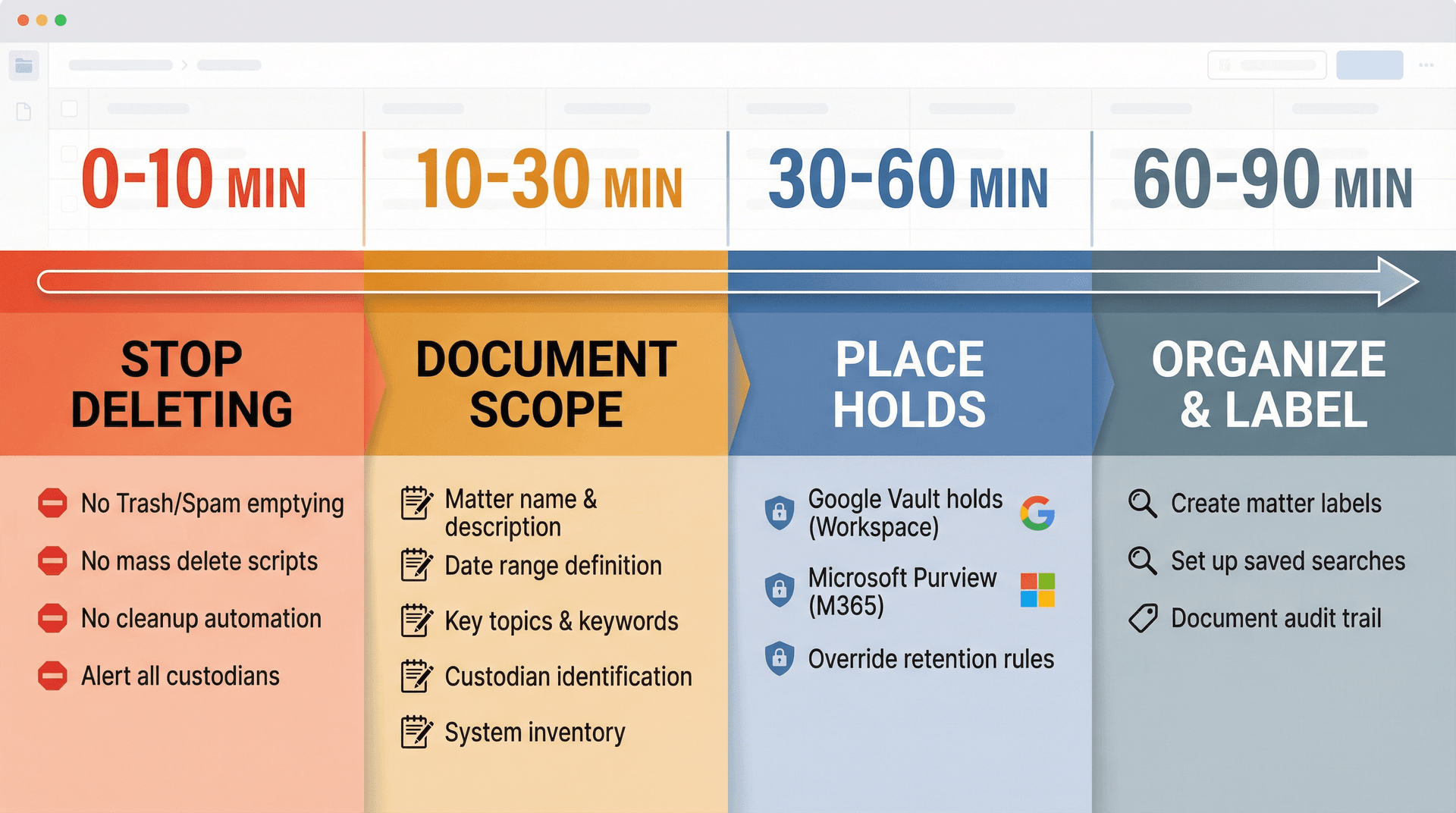
First 10 Minutes: Stop Deleting Email Immediately
Stop these actions right now: emptying your Trash or Spam folders, running any "mass delete" cleanup scripts, using third-party inbox cleaners that purge emails, and applying any automation that deletes or permanently removes messages.
Tell everyone involved: "Do not delete or alter relevant communications. Do not 'clean up' your inbox right now."
Courts look at whether you took "reasonable steps to preserve" electronically stored information. If relevant data is lost, judges want to know if it can be restored or replaced. The first step in "reasonable" is "stop making things worse."
10-30 Minutes: Define Preservation Scope and Document Everything
Write down (yes, actually document) the basics in a one-page preservation memo. You need the matter name and short description, the date range (start date and whether it's ongoing "to present"), key topics, keywords, and parties involved. Identify your custodians — the people whose emails matter, plus shared mailboxes and group addresses. Finally, list all systems involved: Gmail, Google Workspace, Microsoft 365, mobile devices, aliases, CRM systems, and ticketing platforms.
This isn't busywork. This scope definition determines what you preserve and what you can safely ignore. Get it in writing now.
30-60 Minutes: How to Place Legal Hold on Email (Platform Holds)
Best practice is in-place holds, not "everyone export your inbox and email it to legal." That way lies chaos.
For Google Workspace users, use Google Vault holds to preserve Gmail messages indefinitely and override any retention rules your organization has. Vault holds mean even if users delete emails, you can still find them in Vault later.
For Microsoft 365 users, use Microsoft Purview eDiscovery to create cases and place content locations on hold. Purview is Microsoft's current tool (as of 2026) for identifying, reviewing, managing, holding, and exporting content across all M365 services.
One important 2026 update: Microsoft retired the classic eDiscovery experiences on August 31, 2025. If you're following an older blog that references "classic content search" in the old compliance portal, it's outdated. Use Purview instead.
60-90 Minutes: Make Email Easy to Find Later (Labels and Search)
Create a matter label or folder so you can quickly see what's in-scope. Example naming conventions include hold-2026-01-matter-name and hold-2026-01-matter-name-responsive.
Set up saved searches so people can instantly filter relevant emails without manually hunting. We'll cover specific search syntax below, but the idea is simple: make it easy to identify what's under the hold without guessing.
Document everything you did. Screenshots help. This creates an audit trail showing you took reasonable preservation steps.
Why Email Preservation Determines Case Outcomes
Let's talk about what's actually at stake here.
Preservation means protecting data that might be relevant to pending or expected litigation. For email specifically, you're ensuring that messages (including metadata and attachments) remain intact, accessible, and unaltered so they can later be collected, reviewed, and produced as evidence.
This is different from collection. You don't have to copy all emails immediately. But you must stop anything that would delete or modify them.
Federal Rule 37(e): What Happens When You Fail to Preserve
The moment litigation is "reasonably anticipated," you have a legal duty to preserve relevant data. The standard is reasonable steps, not perfection.
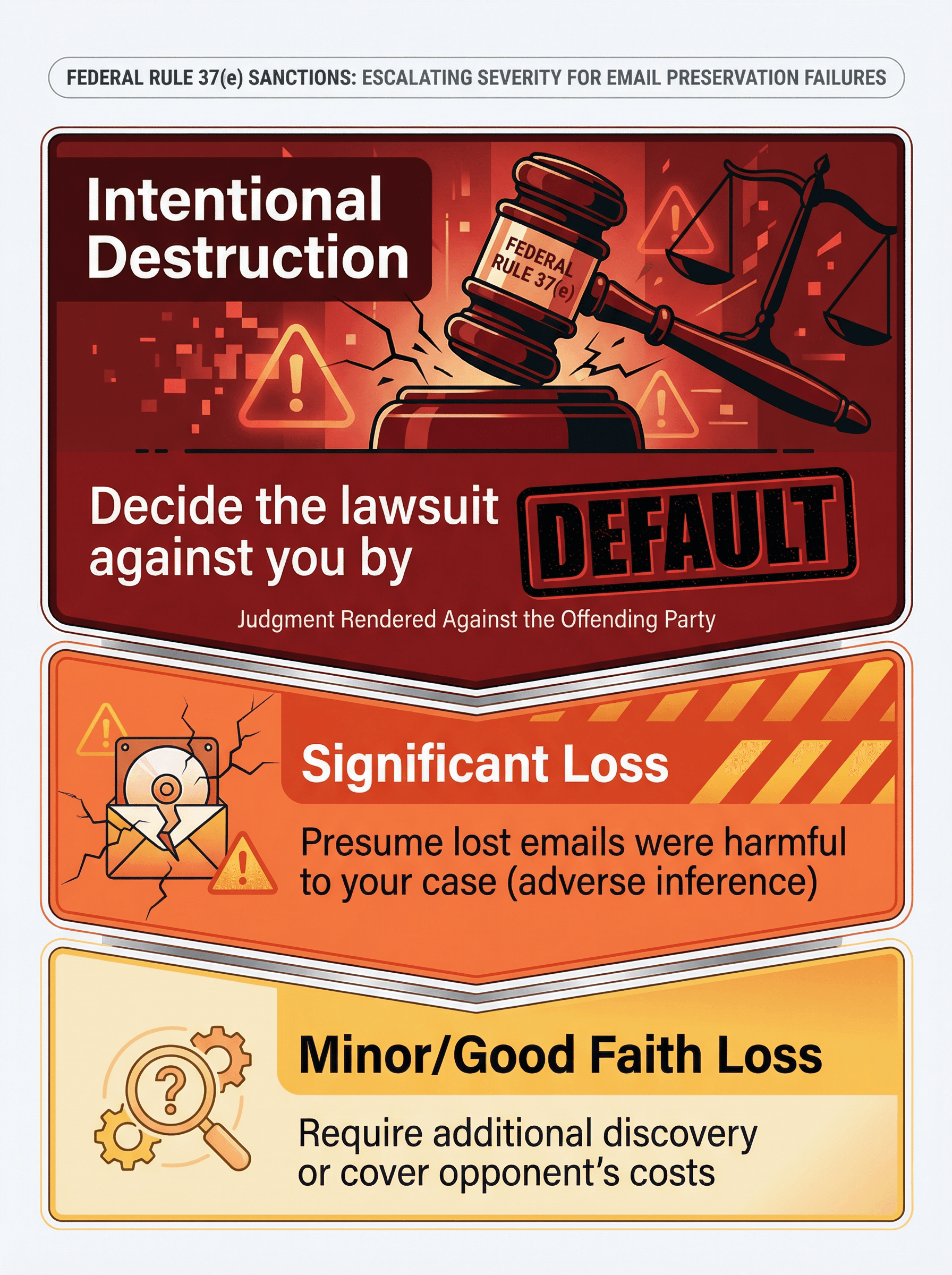
Under U.S. Federal Rule 37(e), if emails that should have been preserved are lost, a judge can:
| Severity Level | Sanction |
|---|---|
| Minor/Good Faith Loss | Require additional discovery or cover opponent's costs |
| Significant Loss | Presume lost emails were harmful to your case (adverse inference) |
| Intentional Destruction | Decide the lawsuit against you by default |
In one case, a company converted emails to hard copy for preservation. The appellate court sanctioned them because printing stripped out important metadata like headers, timestamps, and BCC recipients. Failing to preserve emails in their native format literally lost them the case.
What Good Email Preservation Actually Gets You
Good email preservation isn't just about fear of judges.
When you've preserved and organized emails properly, your legal team finds key evidence faster, saving time and money during review. Email management best practices become critical during litigation.
Preserving emails in their original form (with all metadata intact) maintains their evidentiary value. Judges trust data that hasn't been manipulated.
Many industries also have laws about retaining communications. SEC Rule 17a-4 requires broker-dealers to retain business communications for at least 3 years (easily accessible for first 2 years). Healthcare organizations must follow HIPAA compliance documentation retention and state-specific medical record retention laws. Sarbanes-Oxley requires public companies to retain audit-related records including emails for regulatory purposes. Even outside litigation, sound email retention helps meet these obligations and avoid regulatory penalties.
Preserve first, ask questions later. You won't get in trouble for saving too much. You will get in serious trouble for deleting something you shouldn't have.
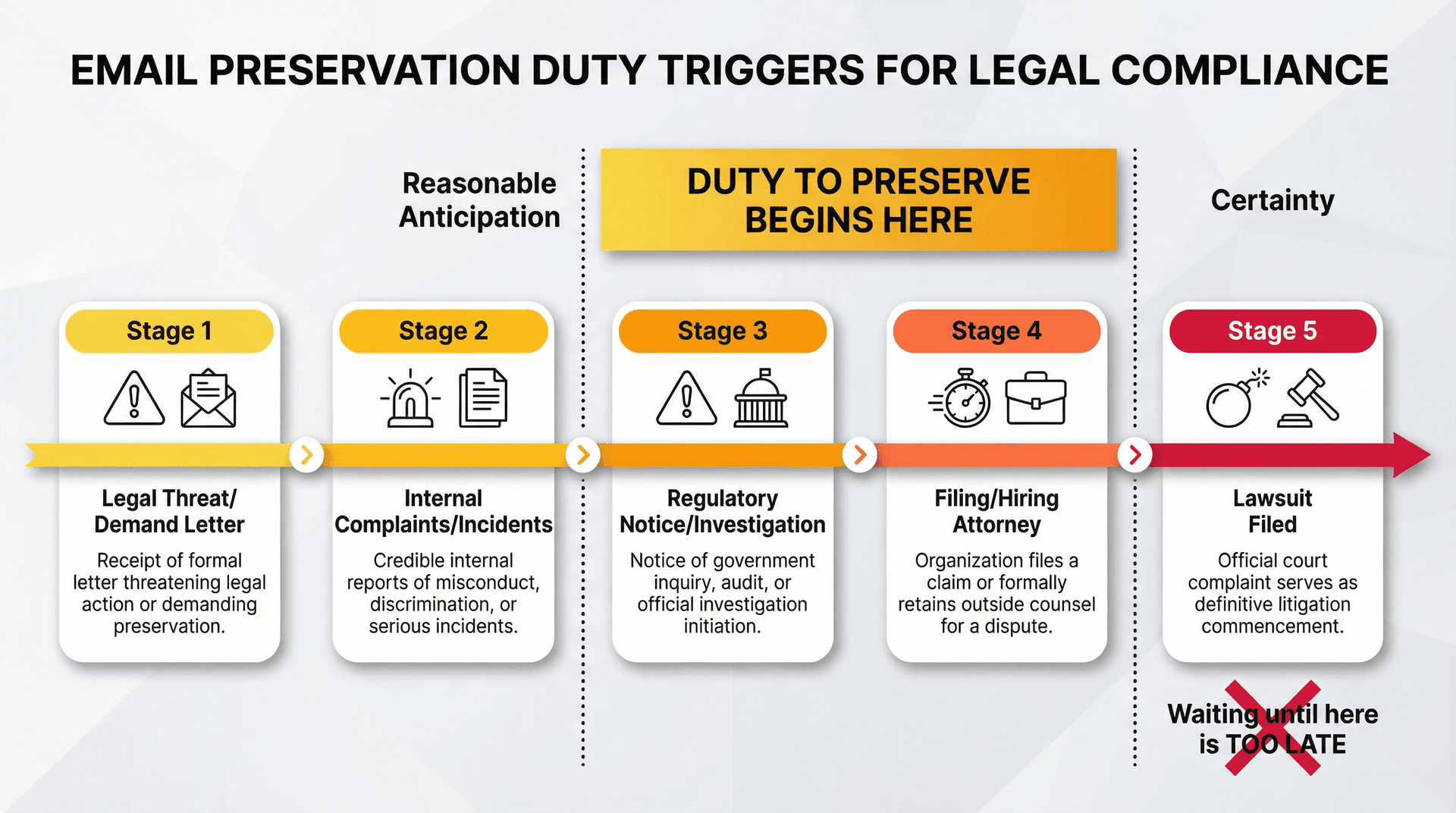
When Does the Duty to Preserve Email Actually Begin?
One of the most common questions: "At what point do I need to start preserving emails?"
The duty can begin before a lawsuit is formally filed. Courts use phrases like "reasonable anticipation of litigation." In practical terms, that means you should preserve data when you know facts that make a lawsuit or investigation likely.
When You Should Start Preserving Email Right Now
If you receive a demand letter or cease-and-desist from someone's attorney, consider litigation imminent. Stop any routine deletion of emails that could relate to the claims.
An HR complaint about harassment, a customer injury that could escalate, or a serious workplace incident are red flags. Even if no one has sued yet, start preserving relevant emails — emails about the incident, those between the parties involved, and anything that documents the situation.
If a government agency or regulator opens an inquiry (SEC, FTC, OSHA, etc.), you must preserve communications and records related to the scope of that inquiry.
If you're preparing to sue someone or you learn that the other side has hired a lawyer (even before papers are filed), that's a cue to start preserving emails proactively.
And obviously, once a lawsuit or subpoena actually lands, the preservation duty is in full force. But by this point, if you haven't been saving emails, it may already be too late for anything that was auto-deleted in the weeks or months prior.
Reasonable Anticipation vs Certainty: When to Preserve
In essence, the duty kicks in as soon as you can reasonably foresee that those emails might be evidence. As legal experts put it: "Reasonable anticipation, not certainty, is the standard... 'better safe than sorry' is an appropriate approach."
If you're on the fence about whether to preserve, err on the side of caution and preserve.
What Is a Legal Hold Notice and How Do You Respond?
In companies, the mechanism for this is often a legal hold (also called a litigation hold). A legal hold is a formal notice from the legal team instructing people not to delete or alter certain information. It's sent to employees (custodians) who have relevant emails, and it typically tells them, in plain language, to stop deleting messages, turn off auto-cleanups, and preserve anything related to the matter at hand.
The notice usually outlines what the case is about, which time period matters, what kinds of communications to preserve, who to contact with questions, and an acknowledgment that you read and understood the notice.
If you receive a legal hold notice, read it carefully and follow it to the letter. Ignoring a hold can lead to disciplinary action and hurt your company's legal position. The hold remains in effect until you're notified that litigation is over or the hold is lifted.
For small business owners or individuals, think of a "legal hold" as a mental switch: from this point on, you must preserve anything potentially relevant.
Google Workspace Email Preservation: How to Use Vault Holds
If your organization uses Google Workspace (formerly G Suite), Google Vault is your preservation tool of choice. Here's what you need to know in 2026.
Google Vault License Requirements Changed November 2025
Starting November 1, 2025, Google Workspace admins must have a Google Vault license to continue using Google Vault. Vault licensing applies to both users and admins. Google warns that if you delete a user or remove a required license, their data may be irreversibly purged and no longer available to Vault. Check your licenses before you need to place a hold.
What Data Can Google Vault Preserve?
Google Vault can retain, hold, search, and export data including:
| Data Type | Details |
|---|---|
| Gmail messages | Full content, attachments, drafts |
| Drive files | Documents, spreadsheets, presentations |
| Calendar events | Meetings, appointments |
| Chat messages | With history enabled |
| Meet recordings | And associated logs |
| Groups messages | Shared communications |
And more. For email preservation, we're focused on Gmail, but know that Vault covers most of your Google ecosystem.
How to Create Gmail Hold in Google Vault (Step-by-Step)
Google's own hold instructions are explicit. Holds preserve Gmail messages indefinitely for legal or preservation obligations. You can apply a hold to specific accounts or an organizational unit (OU). Holds override retention rules, protecting data from normal governance policies that might purge it.
One important warning: Google strongly recommends you don't select the top organizational unit (your entire domain), because you won't be able to delete any Workspace accounts while that hold is active. Target holds to specific OUs or accounts relevant to your matter.
Google also gives an operational heads-up: very broad holds with complex search terms can create scaling issues and may temporarily block the org from creating admin policies. Keep your holds focused.
What Gmail Holds Preserve (and What They Don't)
This matters when you're dealing with "email with attachments" vs "email with links."
| Covered by Gmail Holds | NOT Covered |
|---|---|
| Messages and their attachments, including drafts | Linked files (e.g., a Google Drive link in the email body) |
| Confidential mode messages sent by users in your org | Email layouts |
| Some dynamic content | |
| Discarded drafts |
This distinction is critical. If an email says "see the contract [link to Drive file]" and you only hold Gmail, that Drive file might not be preserved. You need to coordinate Drive preservation separately.
Can Users Still Delete Email When It's on Hold?
Yes, and that's actually the point of a hold.
Google says: deleted messages on hold are always visible in Vault but not visible to users. Admins can still search, preview, and export them.
This is by design. Users can continue their normal work. The hold operates in the background, capturing everything (including deletions) for legal review later.
Do Not Delete Custodian Accounts During Legal Hold
This is where companies accidentally destroy evidence.
Google says you can delete a Workspace account only if it's not on hold. Even though you can recover an account within 20 days, data marked for deletion is no longer protected by retention rules or holds and can be purged. You can't recover it even if you restore the account.
If you need to preserve a former employee's emails, Google suggests switching them to an archived user license (preserves data in Google storage) or exporting their data before releasing the hold and deleting the account.
How Long Are Deleted Gmail Messages Recoverable Without Hold?
In Google Workspace, when a user deletes a Gmail message it stays in Trash for 30 days. After that, it's permanently deleted from Trash. Admins then have an additional 25 days to restore using the admin console restore tool, giving a total window of 55 days from deletion. After that, Google says it doesn't keep the data for privacy reasons.
There's a key nuance here: Vault is different. If your org uses Vault and the data was subject to retention rules or holds, you may be able to retrieve it by searching/exporting in Vault, even if it can't be restored back into the user's mailbox.
Microsoft 365 Email Preservation: How to Use Purview Litigation Hold
If your organization uses Microsoft 365 (Exchange Online, Outlook), Microsoft Purview eDiscovery is your current (2026) preservation solution.
Microsoft Purview eDiscovery: What You Need to Know in 2026
Microsoft's Purview eDiscovery page (last updated January 22, 2026) says:
| Feature | Details |
|---|---|
| Services Covered | Exchange Online, Teams, M365 Groups, OneDrive, SharePoint, Viva Engage |
| Search Capability | Search mailboxes and sites in the same search and export results |
| Case Management | Identify, hold, and export content found in mailboxes and sites |
| Premium Features | Require E5-level subscription or add-on |
| Classic Retirement | Retired August 31, 2025 |
If your internal playbook still says "go to the old compliance portal and run content search," update it. That workflow is dead as of mid-2025.
What Does Exchange Litigation Hold Preserve?
Microsoft's Exchange documentation says litigation hold preserves all mailbox content, including deleted items and original versions of modified items. It can take up to 60 minutes to take effect and stores preserved items in the Recoverable Items folder, which can grow quickly — so monitor it.
Microsoft 365 admin guidance explains that litigation hold retains deleted items and original versions, can be indefinite or time-based, and increases the Recoverable Items quota to accommodate the preserved data.
How to Export Email from Purview (Audit-Ready Process)
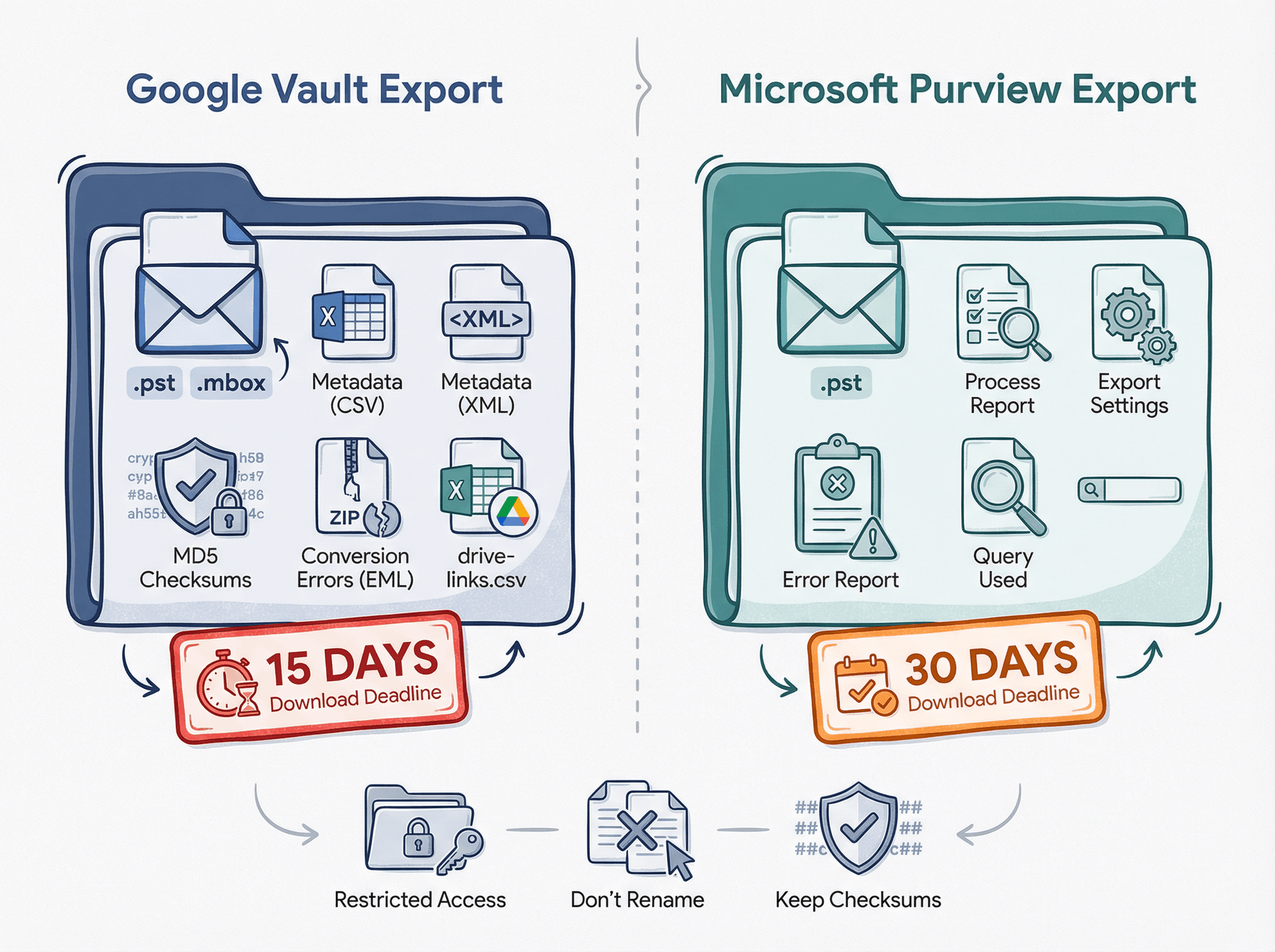
Purview eDiscovery exports are "processes." Microsoft says export processes are retained for the life of the case, but you must download within 30 days after the export completes. The process report zip includes when the process ran, settings, the query used, and errors. Processes can't be deleted from the process manager page.
That's gold for defensibility. It's your "here's what we did, here's the query, here's the outcome" paper trail if anyone challenges your preservation.
How to Organize Email Under Legal Hold Without Destroying Evidence
Preservation is necessary. It's not sufficient.
You also need fast retrieval when legal asks: "Find all emails about [topic] between [person A] and [person B] from [date range]." This section is the part most guides miss. Proper email organization becomes critical during legal holds.
Email Labeling System That Scales for Legal Holds
Pick a naming convention that scales. Good examples include hold-2026-01-matter-name, hold-2026-01-matter-name-responsive, and hold-2026-01-matter-name-privileged-review. Include the month so you can sort by time, include the matter short name, and don't reuse labels across different matters.
In Gmail, create these as labels. Understanding Gmail labels vs folders helps you organize more effectively. In Outlook, create these as categories or folders using Outlook organization best practices. The idea is the same: tag emails so you can find them instantly.
Gmail Search Syntax for Finding Preserved Email
Here are examples using Gmail-style search syntax (adapt to your environment):
label:hold-2026-01-matter-namelabel:hold-2026-01-matter-name after:2025/10/01 before:2026/01/28subject:(contract OR msa OR termination)from:(@vendor.com) has:attachmentfilename:(pdf OR doc OR docx)larger:10m
The goal isn't to search perfectly. It's to reduce human error, make your scope repeatable, and avoid "I think I saw it once" discovery testimony. Create these searches, save them, and document them. When legal asks for responsive emails, you can run the search again and get consistent results.
If you're handling multiple accounts or need advanced filtering, consider using auto-labeling tools to automatically categorize emails as they arrive.
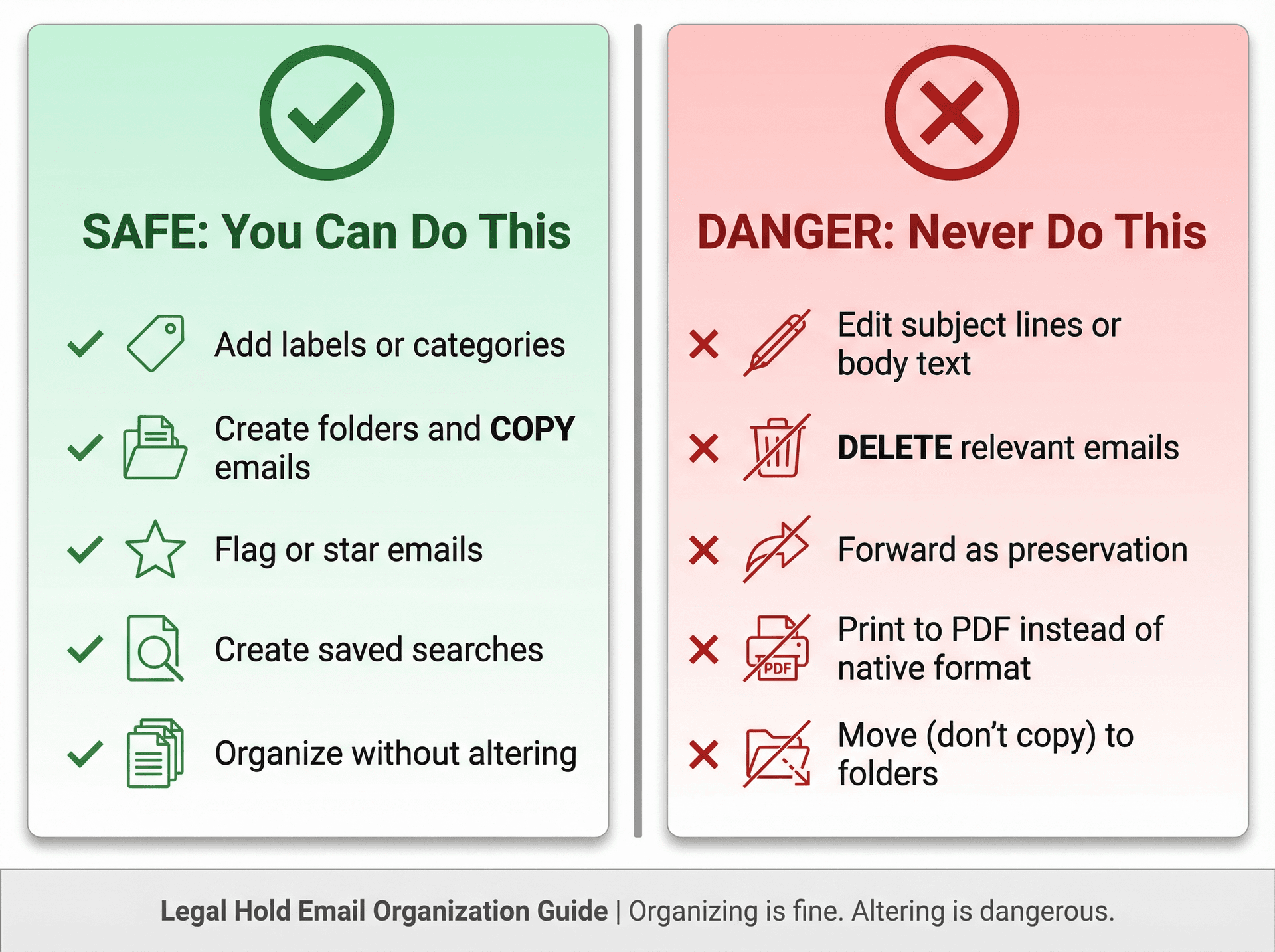
What You Can and Cannot Do to Email Under Hold
| You Can: | You Cannot: |
|---|---|
| Add labels or categories to emails (non-destructive) | Edit subject lines or body text |
| Create folders and copy emails into them (don't move) | Delete any emails even remotely relevant |
| Flag or star emails | Forward emails as a "preservation method" (changes metadata) |
| Create saved searches | Print to PDF instead of keeping native format (loses metadata) |
Think of it this way: organizing is fine, altering is dangerous. Labels and folders are like digital sticky notes that don't change the underlying message.
How to Export Email for Discovery (Native Format)
When it's time to collect emails for review or production, you need to export them in a format that preserves all metadata and integrity.
What's Actually in a Google Vault Email Export?
Google is unusually explicit about what's inside a Vault export. An export includes a comprehensive copy of the data matching your criteria, metadata linking exported data to individual users, and corroborating info to prove the export matches what's on Google's servers.
For Gmail exports specifically, Vault can export message contents as PST or MBOX, along with metadata files (CSV and XML) that represent metadata "as it exists on Google servers," MD5 file checksums for all files in the export (proof of integrity), a conversion errors zip (EML files) when messages don't convert to PST, and a drive-links.csv file listing Drive hyperlinks found in message bodies.
One critical deadline: Vault exports are only available in Vault for 15 days. Don't run an export and "come back next month." Schedule the download and storage immediately.
How to Handle Microsoft Purview Email Exports
Microsoft's eDiscovery export flow is similar. Export is a managed process, you must download within 30 days after completion, and you can download process reports showing query, settings, and errors.
How to Store Email Exports So They're Defensible
Do this even if you're a small company. It's cheap insurance.
Store exports in a restricted folder with limited access. Don't rename files inside the export package. Keep the hash/checksum files with the data (Vault gives MD5s). Maintain a log of who exported, when, what query/scope was used, and where it's stored. And avoid "emailing the export zip around" as a sharing mechanism.
If you need to analyze export data, email analytics tools can help you understand patterns and volumes without compromising the evidence.
How to Use Inbox Zero During Legal Hold Without Destroying Evidence
Email management tools can be a double-edged sword during preservation. Used correctly, they help you find and organize. Used incorrectly, they help you accidentally delete evidence.
Inbox Zero is an open-source AI email assistant that can automate labeling, drafting, and organization. During a legal hold, here's how to use it safely.
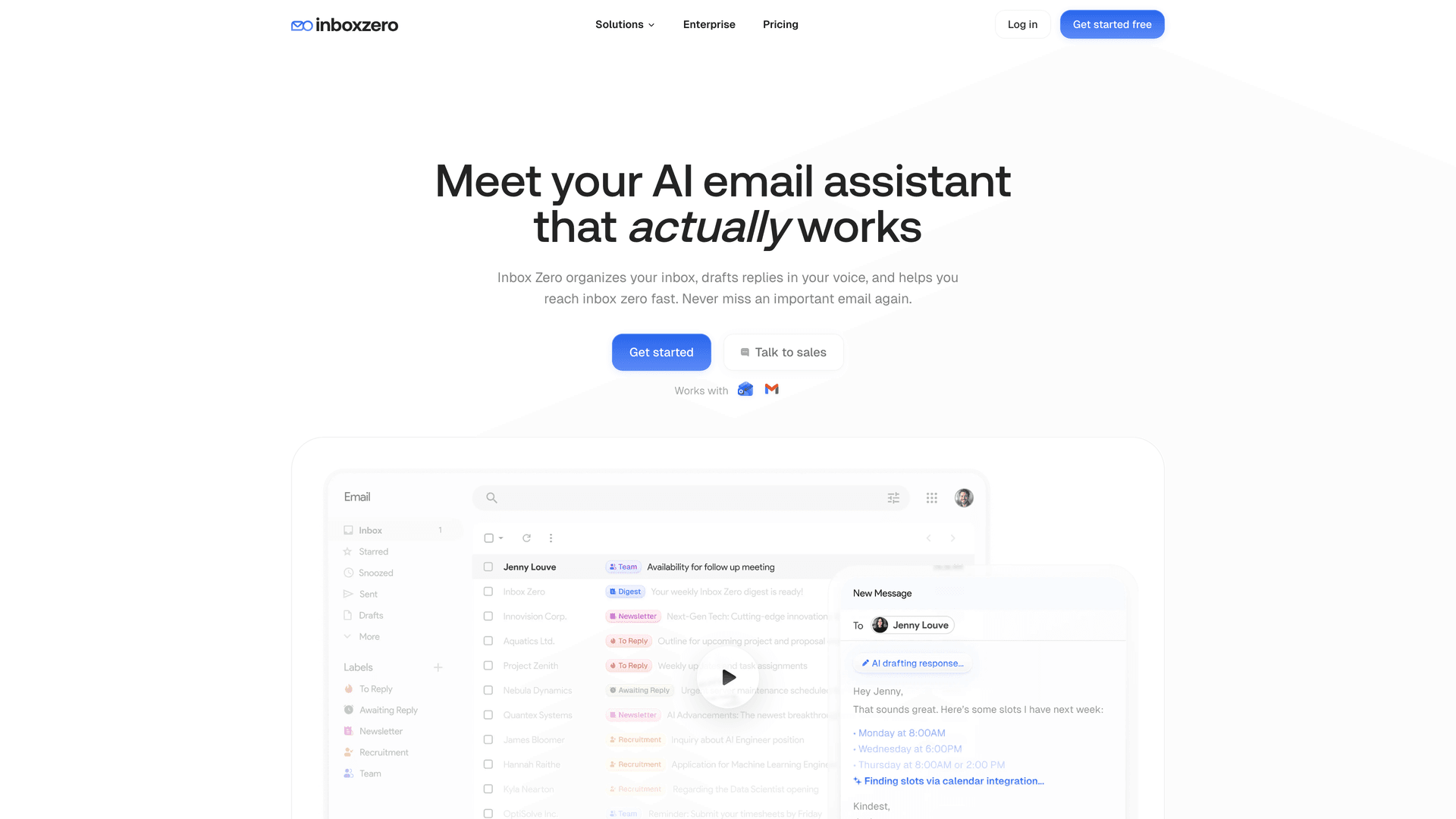
Email Automation During Legal Hold: Critical Safety Rules
During a hold, Inbox Zero's AI automation should never be configured to delete or permanently remove emails. Period. No auto-delete, ever.
Instead, prefer labeling and drafting over sending. Inbox Zero supports actions like label, archive, and draft email — that's perfect for "make it findable" workflows. Avoid destructive actions. And make the hold visible: a dedicated view beats "I'll remember." Use tools to surface hold-related emails prominently.
How to Configure Inbox Zero for Legal Preservation
Inbox Zero's AI Personal Assistant supports rule-based actions. During a hold, configure rules like "if email matches matter keywords and comes from these domains, apply the hold-... label." You can also set rules so that if a thread is already labeled with the hold tag, it doesn't auto-archive. For sensitive communications that might be reviewed later, set replies to "draft only" mode — don't auto-send.
These rules help organize emails without altering them. The labeling happens automatically, making relevant emails instantly findable. During preservation, you want to maintain a clean inbox without risking evidence destruction. Inbox Zero's labeling and archiving (not deletion) features are designed exactly for this use case.
How to Use Gmail Tabs to Surface Legal Hold Email
The Inbox Zero Tabs for Gmail Chrome extension lets you create custom Gmail tabs using any Gmail search query or labels.
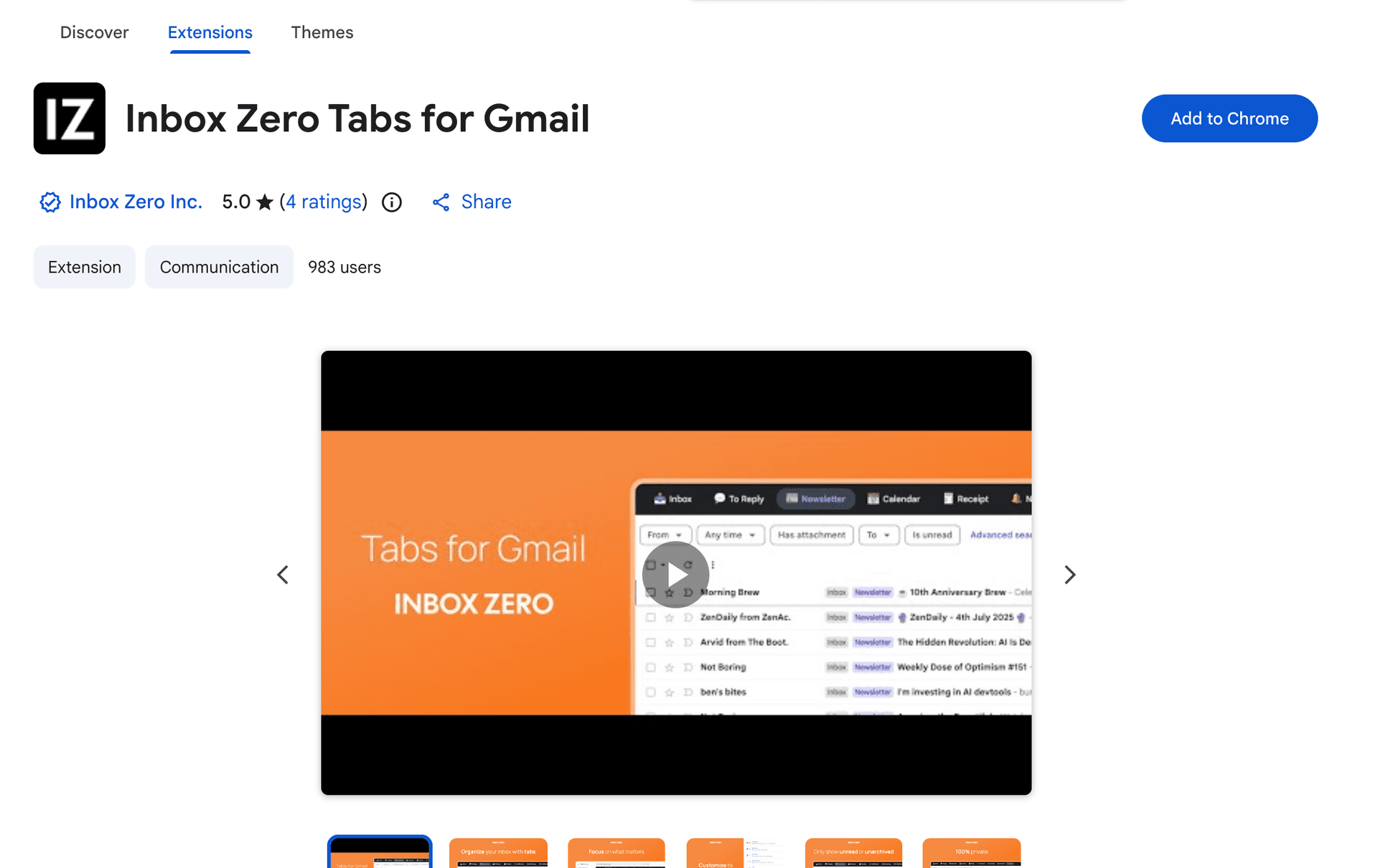
The Chrome Web Store listing states the developer "will not collect or use your data" and was updated January 20, 2026 (version 1.1.1).
Create a "hold" tab using queries like label:hold-2026-01-matter-name, or narrow it further with label:hold-2026-01-matter-name newer_than:30d or label:hold-2026-01-matter-name has:attachment. Now you can review hold-related emails daily without digging through "All Mail." The tab acts like a saved search that's always visible.
Safe Email Management Features During Legal Preservation
Block cold emails automatically without deleting them — they're just labeled and archived, preserving them for discovery if needed. The bulk email unsubscriber can help reduce future email volume, but during a legal hold, configure it to archive (not delete) unwanted subscriptions. And Inbox Zero's email analytics let you understand email patterns and volumes related to the matter without altering the underlying data.
Inbox Zero Configuration Checklist During Legal Hold
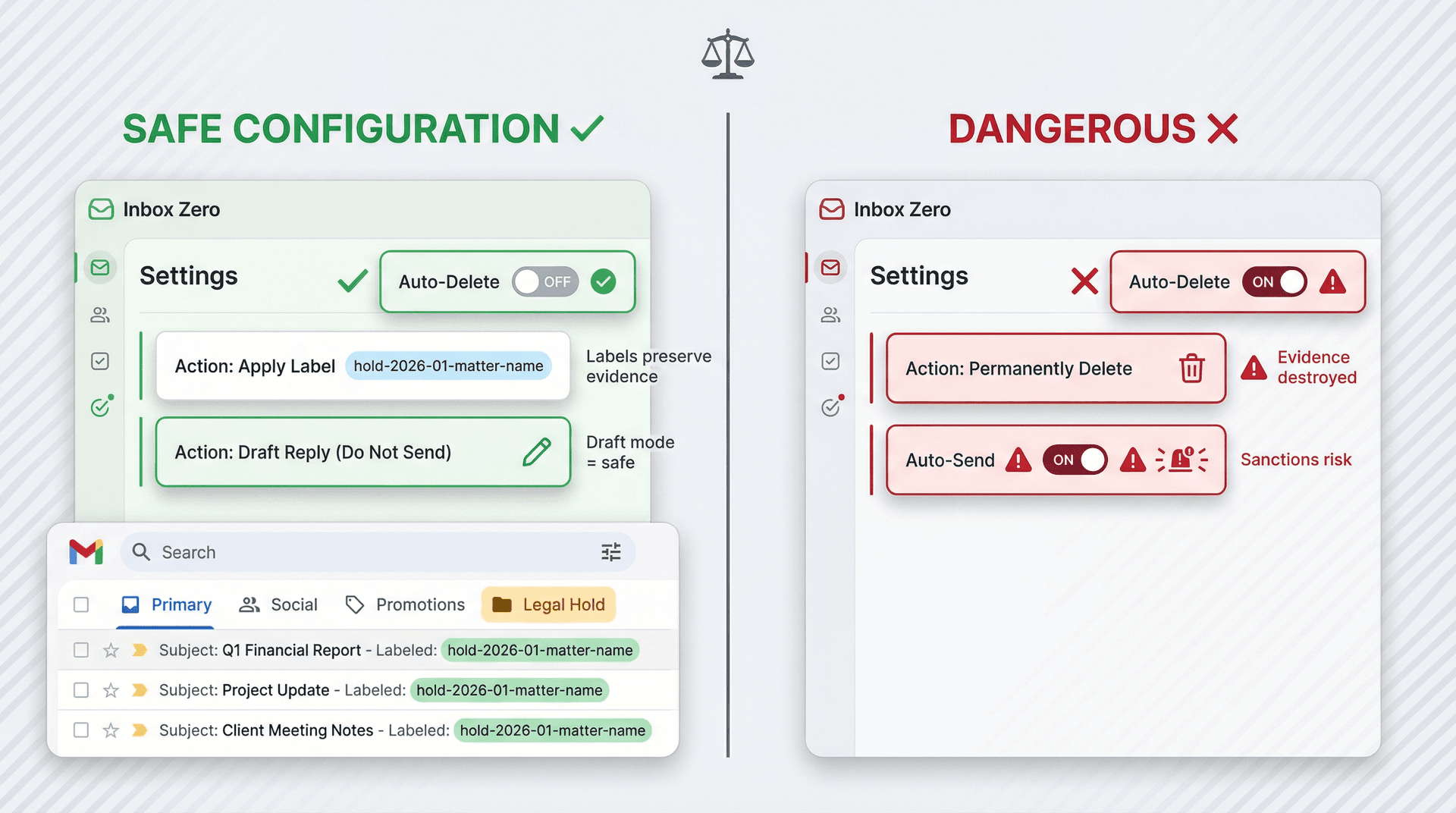
Before using Inbox Zero during a preservation period:
- Disable any rules that delete or permanently remove emails
- Configure labeling rules for hold-related emails
- Set up "draft only" mode for sensitive communications
- Create Gmail tabs for hold visibility using the Chrome extension
- Review automation settings with legal counsel
- Document your configuration as part of preservation audit trail
Inbox Zero can help organize and find emails during holds, but only if configured properly. When in doubt, keep it in labeling/drafting mode and avoid auto-send or auto-delete features.
For enterprise customers, Inbox Zero offers SOC 2 compliant features that support audit requirements during eDiscovery.
Email Preservation Mistakes That Lead to Court Sanctions
Even smart people make these errors. Learn from their pain.
Mistake 1: Self-Collection Instead of Platform Holds
Self-collection fails because people miss accounts, aliases, and group mailboxes. Exports vary by client and can drop metadata. Nobody documents scope consistently. Platform holds (Vault or Purview) are designed for this exact job — they're automated, server-side, and defensible.
Using proper email management services can help coordinate multi-user preservation.
Mistake 2: Deleting Employee Accounts Without Preserving Data First
Google is explicit: deleting an account can lead to data being purged even if you can "restore the account" later. Holds and retention may not protect data marked for deletion. The solution is to switch departing employees to archived user licenses or export their data before deleting.
Understanding shared mailbox management helps prevent accidental deletions during employee transitions.
Mistake 3: Assuming Email Attachments Include Linked Files
Google Vault Gmail holds do not cover linked files. If the email contains a Drive link, that's a separate preservation problem. You need to coordinate Drive preservation independently.
Mistake 4: Following Outdated Microsoft eDiscovery Guides
If the guide references "classic content search," it's pre-August 2025. Microsoft retired those classic experiences. Update your playbooks and use Purview eDiscovery instead.
Mistake 5: Creating Overly Broad Google Vault Holds
Google warns that broad-scoped holds with complex terms can cause policy processing issues and even temporarily block creation of admin policies. Keep holds focused and target specific OUs or accounts relevant to your matter.
Proper email management strategies help you maintain organized, targeted preservation scopes.
Copy-Paste Templates for Email Preservation Documentation
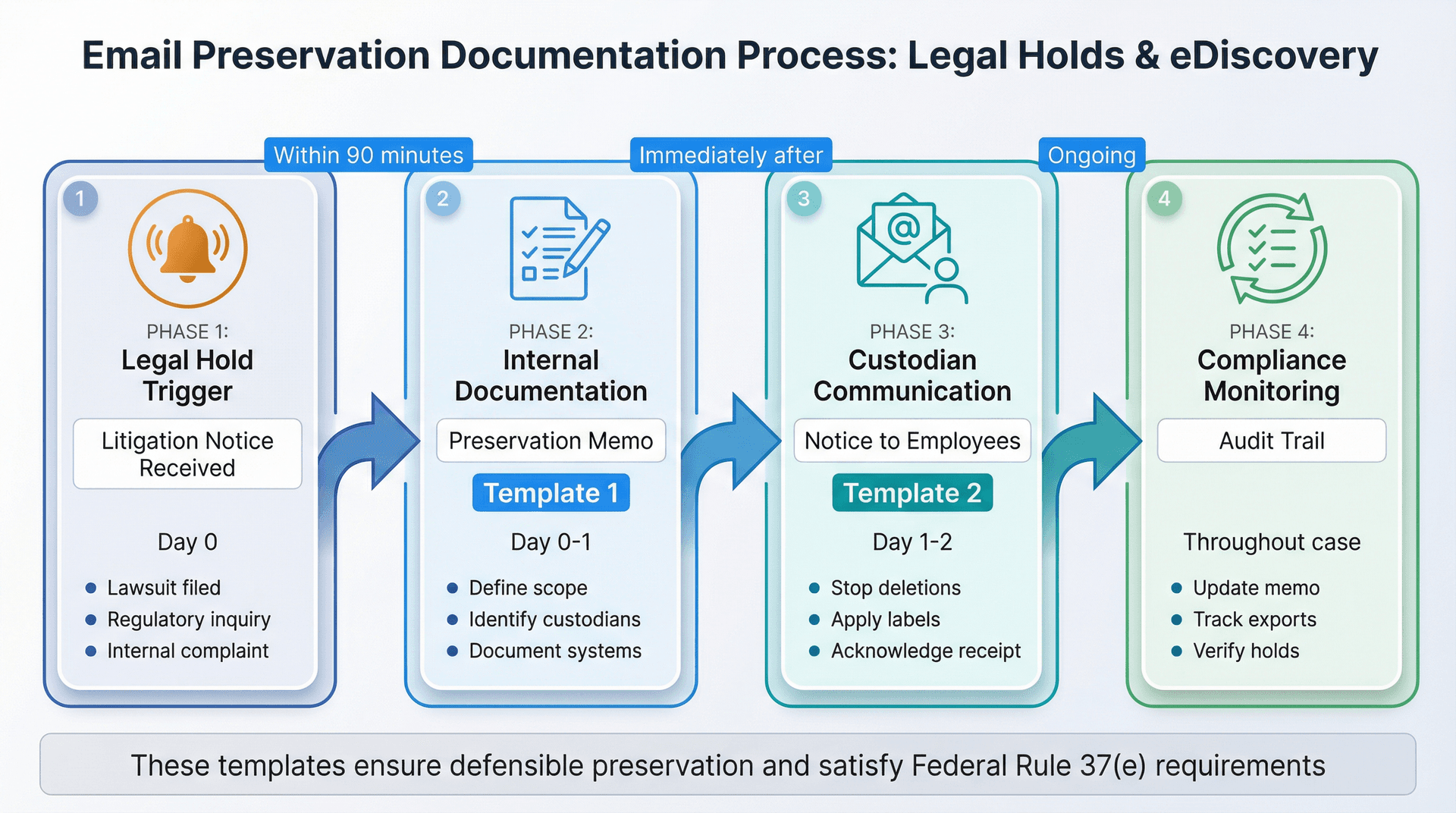
Template 1: Internal Preservation Memo
Matter Name: [Insert matter name]

Short Description: [Brief description of the case/investigation]

Trigger Date (when duty to preserve likely started): [Date]

Date Range in Scope: [Start date] to [End date / Present]

Key Issues/Topics: [List key issues]

Keywords (initial list): [contract, termination, employment, etc.]

Custodians (people + roles):
  - [Name, Role]
  - [Name, Role]

Mailboxes Included:
  - User mailboxes: [email addresses]
  - Aliases: [aliases]
  - Shared mailboxes: [shared addresses]
  - Groups: [group addresses]

Systems Included:
  - Gmail/Google Workspace: Yes/No
  - Microsoft 365/Exchange: Yes/No
  - Mobile devices: Yes/No
  - Chat platforms: [Slack, Teams, etc.]
  - Drive/OneDrive: Yes/No

Holds Applied:
  - System: [Google Vault / Microsoft Purview]
  - Case/Matter ID: [ID number]
  - Scope: [Specific accounts or OUs]
  - Conditions: [Search terms or criteria]

Changes Made to Prevent Loss:
  - Paused auto-delete rules: [Details]
  - Paused mailbox deletion/offboarding: [Details]

Exports Performed:
  - System: [Google Vault / Microsoft Purview]
  - Query: [Search query used]
  - Export ID: [Export identifier]
  - Storage Location: [Where the export is stored]

Owner:
  - Legal: [Name, Contact]
  - IT/Admin: [Name, Contact]

Date Last Updated: [Date]
Template 2: Custodian Notice Message
Subject: Preservation Notice – Do Not Delete Relevant Emails

We're required to preserve communications related to: [matter description]

Effective immediately:

Do not delete emails, attachments, or messages related to this matter.
Do not empty Trash related to this matter.
Do not use cleanup tools or scripts.
Do not change accounts/devices without telling [IT contact].

If you think something is relevant, apply label/folder: [hold-2026-01-matter-name]
(Or forward to [legal ops mailbox] if instructed)

Questions: [Legal contact], [IT contact]
For teams managing multiple matters, email productivity metrics can help track preservation compliance.
Email Preservation FAQ: Common Questions Answered

"If I delete an email, is it still preserved?"
In Google Workspace Vault, if it's on hold, deleted messages remain visible in Vault to admins but not to users. In Microsoft 365, litigation hold preserves deleted items in Recoverable Items for the hold duration.
"Can I keep organizing my inbox?"
Yes. Organizing isn't the enemy — destruction is. Labels, tabs, and saved searches are fine. The key: don't purge and don't auto-delete. Learn more about how to manage your inbox effectively during legal holds.
"What about ex-employees?"
Do not delete the account casually. Google recommends switching to an archived user license or exporting data before deleting.
"How long do I have to download exports?"
Google Vault exports are available for 15 days. Microsoft Purview gives you 30 days after the export completes.
"Can I use automation during a legal hold?"
Yes, but carefully. Email management tips during preservation focus on labeling and organizing, never deleting.
"What's the difference between Gmail and Outlook preservation?"
Check our comparison of Gmail vs Outlook for feature differences that affect preservation strategies.
Email Preservation Best Practices: Act Now, Win Later
Email preservation during litigation isn't optional. It's not something you "get around to when things settle down."
The moment litigation is reasonably anticipated, you have a legal duty to preserve. The steps in this guide give you a defensible framework.
Stop deletions immediately. Pause automation, suspend retention policies, tell everyone involved. If you're using email management software, configure it for preservation mode.
Implement platform holds. Use Vault for Google Workspace or Purview for Microsoft 365. In-place holds are far superior to self-collection chaos.
Make emails findable. Label, create saved searches, document your scope. Organization without alteration. Tools like Inbox Zero can automate the organization while maintaining evidence integrity.
Export correctly. PST/MBOX with metadata intact. Download within platform deadlines. Store securely with checksums.
Use tools safely. Inbox Zero can help label and organize during holds, but disable any auto-delete features. Configure rules for labeling, not destruction. The AI automation features should be set to preserve, not purge.
The courts expect reasonable steps, not perfection. But "reasonable" starts with taking this seriously from day one.
Document what you did. Keep audit trails. When in doubt, preserve more rather than less.
Your inbox can go from a liability to an asset in court if you handle it right. Fail to preserve, and you're looking at sanctions that could cost you the case.
Act now. Preserve correctly. Win later.
Ready to organize your inbox without risking evidence? Inbox Zero offers enterprise-grade email management with preservation-safe features. Learn more about our enterprise solutions.
What is the Inbox Zero Method & How do I Master It?
Discover the Inbox Zero method and learn simple steps to take control of your email inbox, stay organized, and boost productivity.

4 Email Productivity Hacks from Tim Ferriss, Andrew Huberman, and Sam Harris
Explore 4 powerful email productivity hacks from tech and wellness experts like Tim Ferriss and Andrew Huberman. Learn to create focus, optimize processing, manage time wisely, and delegate effectively to conquer your inbox.
Best Time to Send Emails for Response (2026)
Stop guessing when to send emails. Get data-backed timing strategies from 2026 research that improve response rates across all scenarios.
How To Organize Outlook Inbox? (2026 Guide)
Learn how to organize Outlook inbox with rules, folders, categories, and AI automation. Step-by-step guide for 2026 that actually works.