Gmail Mobile App vs Desktop: Which Is Better? (2026)
75% of Gmail happens on mobile, yet desktop holds the power features. Learn when to use each platform for maximum email productivity in 2025.

You're probably checking Gmail right now on your phone. Maybe you just fired off a quick reply while waiting in line, or you archived a newsletter during your commute. But when you get back to your desk, you'll likely switch to Gmail on your computer for the "real" work.
Most people toggle between Gmail's mobile app and desktop version all day without thinking about it. These aren't just two ways to view the same thing. They're actually quite different tools, each with distinct strengths and surprising limitations.
As of 2025, roughly 75% to 84% of Gmail usage happens on mobile devices. That's not a typo. The vast majority of Gmail activity now happens on phones and tablets. Yet Google still reserves some of its most powerful features exclusively for desktop.
So which version should you use?
Both, but strategically.
Understanding when and how to use each platform can dramatically improve how fast you process email and how effectively you maintain inbox zero.
This guide will show you exactly how Gmail's mobile and desktop experiences differ, which features live where, and how to use both platforms to your advantage. You'll also learn about smart workarounds for mobile limitations and tools (like Inbox Zero) that can help you reach an empty inbox no matter which device you're using.
Gmail Mobile vs Desktop Interface: What You See
Desktop Gmail Features: Full Command Center
Open Gmail on a computer and you get the whole workspace. There's your inbox list center-stage, a left sidebar packed with labels and folders, plus a right sidebar for Google Chat, Calendar, or add-ons. Many users enable Gmail's category tabs (Primary, Social, Promotions) that automatically sort incoming mail along the top.
The power is in the details. You can open emails in pop-up windows while keeping your inbox visible. Keyboard shortcuts let you archive, reply, or navigate without touching the mouse. You can see everything at once, which makes it perfect for heavy email sessions.
How the Gmail Mobile App Works
The Gmail app strips things down to fit in your hand. You see one thing at a time: the inbox list, an open email, or the compose screen. A floating Compose button sits in the corner for quick access. The sidebar with labels? Hidden behind a ☰ menu.
But don't mistake simplicity for weakness.
The app excels at rapid triage through swipe gestures. Swipe left or right to archive or delete (you can customize what swipes do). These gestures make it ridiculously easy to clear messages one-handed while standing on a crowded train.
The interface is clean, minimal, and optimized for quick reading. Some options are tucked in menus, sure. But that's intentional. Gmail's design keeps your main inbox uncluttered so you can focus on what matters.
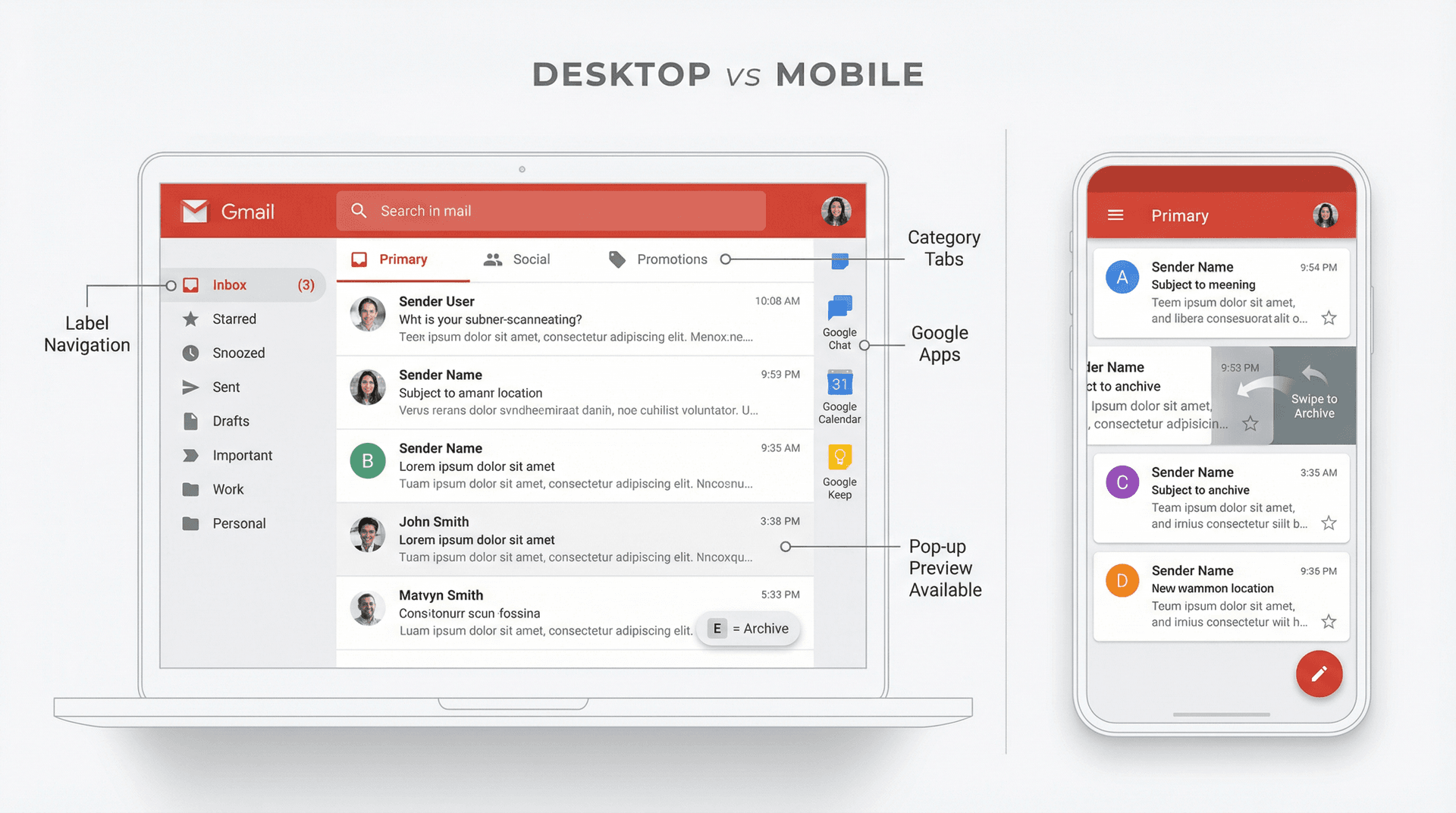
How to Navigate Gmail on Different Devices
On desktop, you're clicking checkboxes, dragging emails to labels, using the search bar like a power tool. It feels like a productivity app because that's what it is.
On mobile, you're tapping and swiping, using the built-in action buttons at the bottom of open messages. It's more tactile, more immediate.
The mobile app handles multiple accounts better than desktop. You can add all your email accounts (even non-Gmail ones like Outlook or Yahoo) and switch between them or view a unified "All Inboxes" stream. The desktop version only shows one Google account at a time. Want to check multiple accounts on desktop? You'll need separate browser tabs or profiles.
Gmail Design Differences: Mobile vs Desktop
Both platforms now use Google's Material design (white space, rounded buttons, clean typography). Google has worked to synchronize the mobile app's appearance with the desktop redesign, so the experience feels consistent.
But subtle differences remain:
• Desktop shows avatars or checkboxes next to emails
• Mobile shows colored circles with initials and relies on swipe indicators
• You can apply custom themes and background images on desktop
• Mobile only offers light or dark mode
Key takeaway: Desktop Gmail is your workspace for serious email processing. Mobile Gmail is your on-the-go command center for quick actions and constant monitoring. Both excel at what they're designed for.
What Desktop Gmail Can Do That Mobile Can't
Gmail's core functions (sending, receiving, reading email) work everywhere. But when it comes to organization, automation, and power tools, desktop pulls significantly ahead.
How to Select Multiple Emails in Gmail Desktop
On desktop, you can select multiple emails and even click "Select all conversations that match this search" to act on hundreds or thousands of messages at once. Need to delete 1,000 old promotional emails? Two clicks and it's done.
On mobile, there's no "select all" button. You can only multi-select by manually tapping each message, and you're limited to what fits on your screen. This is a common source of frustration for people who try to do mass cleanup on their phone. It's just not designed for that.
How to Create Gmail Filters (Desktop Only)
Gmail's automation power comes from filters (automatic rules to label, archive, forward, or star incoming mail). Want to automatically send all receipts to a "Receipts" label or forward your boss's emails to your personal account?
You must create filters on desktop. The mobile app doesn't offer the filter creation interface. As one frustrated user put it in 2024: "Why does Gmail mobile still not have all the features of desktop? I wanted to create an auto-forward filter, only to find out you can only do it via the desktop version."
Think of it this way: mobile is for consuming and quick actions, desktop is for setting up the automation that makes your email life easier.
Gmail Labels: Creating vs Using on Mobile
Both platforms support Gmail's label system for categorizing emails. But managing labels works very differently.
| Capability | Desktop | Mobile |
|---|---|---|
| Create new labels | ✓ Yes | Limited (iOS only) |
| Nest labels in hierarchies | ✓ Yes | ✗ No |
| Bulk apply/remove labels | ✓ Yes | ✗ No |
| Drag-and-drop to labels | ✓ Yes | ✗ No |
| Apply existing labels | ✓ Yes | ✓ Yes |
Mobile is fine with using your organizational system, but not for building it.
Gmail Advanced Search: Desktop vs Mobile
Gmail's search operators (like from:alice has:attachment filename:pdf) work on both platforms. But desktop offers a handy search builder dropdown that lets you fill out forms for date ranges, exact phrases, attachment filters, and more.
Mobile doesn't have that UI. You'd need to memorize the search syntax. And even after searching, desktop lets you bulk-select results. Mobile requires manual tapping, one message at a time.
How to Format Emails in Gmail: Desktop vs Mobile
Writing emails works everywhere, but desktop Gmail provides richer editing tools. You get a full toolbar for font sizes, text colors, indentation, numbered lists, tables, and easy Google Drive file insertion.
The mobile app has basic formatting (bold, italic, underline, bullets, numbers) but that's about it. Inserting inline images into email bodies is straightforward on desktop (drag and drop). On mobile, you can attach images, but inline insertion is limited.
Also worth noting: Gmail lets you set a separate mobile signature (often people use "Sent from my phone"). The app doesn't automatically use your desktop's rich HTML signature. This can create inconsistency unless you configure both.
How to Send Attachments on Gmail Mobile and Desktop
Both versions handle attachments and Google Drive integration well. Desktop lets you attach multiple files or pick from Drive easily. Mobile does too, with the added bonus of camera integration (snap a photo, attach it immediately).
One desktop-only trick: attaching emails as attachments by dragging one email into another. Mobile can't do that. But for most people, this isn't a daily need.
Best Gmail Notification Settings: Mobile vs Desktop
Mobile Gmail can send push notifications instantly for new emails (or selectively for important mail only). Desktop can show browser notifications, but only while Gmail is open in a tab. It's not as reliable, especially if you close your laptop.
For real-time alerts, mobile dominates. Many people rely on their phone to catch urgent emails even if they mostly reply on desktop.
How to Use Gmail Offline on Mobile and Desktop
Desktop Gmail has an "Offline mode" you can enable in settings. It stores recent emails in your browser so you can read and compose offline, then send when reconnected.
The mobile app doesn't have an offline toggle because it automatically caches recent mail. If you lose connection, you can still open recent messages and draft replies. They'll send when you're back online.
Neither will download your entire email history for offline use, but both help you stay productive on a plane or with spotty internet.
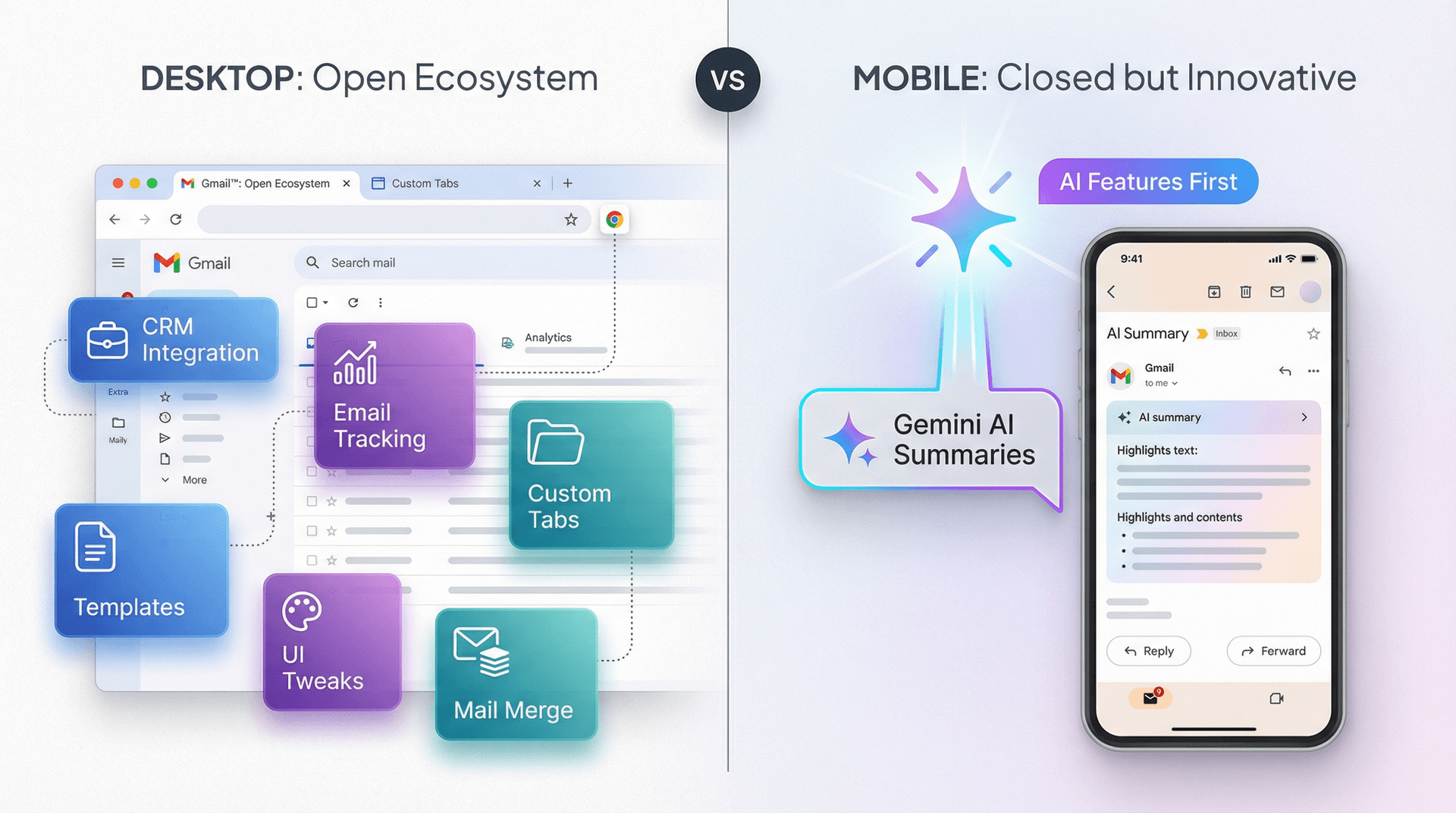
Best Gmail Extensions for Desktop (Not Available on Mobile)
Desktop Gmail supports browser extensions and Google Workspace add-ons that can completely transform your experience. You might use an extension for email tracking, a CRM integration, or custom interface tweaks.
Mobile has virtually no extension support. Some Google Workspace add-ons work in limited ways on mobile, but generally the app is a closed system. Browser extensions don't work on mobile at all.
For example, our Inbox Zero Tabs for Gmail extension adds customizable tabs to Gmail's desktop interface, letting you create a split inbox with categories you define (like "To Reply," "Newsletters," "Receipts"). It runs 100% locally in your browser with no data collection.
This kind of customization simply isn't possible on the mobile app.
Gmail New Features: Which Platform Gets Them First?
Interestingly, Google sometimes launches features on mobile before desktop. In mid-2025, Gmail introduced an AI-powered auto-summary of long email threads using Gemini. It launched first on the mobile app for Workspace users, not on desktop.
So mobile isn't always behind. But for organization and automation, desktop maintains a clear lead.
How to Use Gmail Mobile and Desktop Together
Instead of declaring one version "better," smart Gmail users leverage each platform for what it does best. Here's how to maximize efficiency:
How to Manage Email on Your Phone (Quick Triage)
Your phone is perfect for processing emails as they arrive. Enable notifications wisely (maybe only for important contacts or urgent labels). Use swipe gestures to archive or snooze emails you'll handle later.
Many people check and prune their inbox during spare moments on mobile. Archive the unimportant stuff immediately. By the time you reach your desk, only meaningful emails remain.
Use Gmail's Snooze feature (available on both platforms) to temporarily hide emails that need action later. This keeps your inbox clean without losing track of important tasks.
Best Times to Use Desktop Gmail
Set aside time at your computer for serious email work. This is when you use bulk selection to delete hundreds of old emails, create new labels for projects, set up filters for automatic organization, or compose long, carefully formatted messages.
Anything requiring a keyboard, large screen, or multiple open windows works better on desktop. Need to send 50 customized emails? Desktop lets you use templates efficiently. On mobile, you'd be copying and pasting endlessly.
How to Set Up Gmail Automation (Desktop Setup, Mobile Execution)
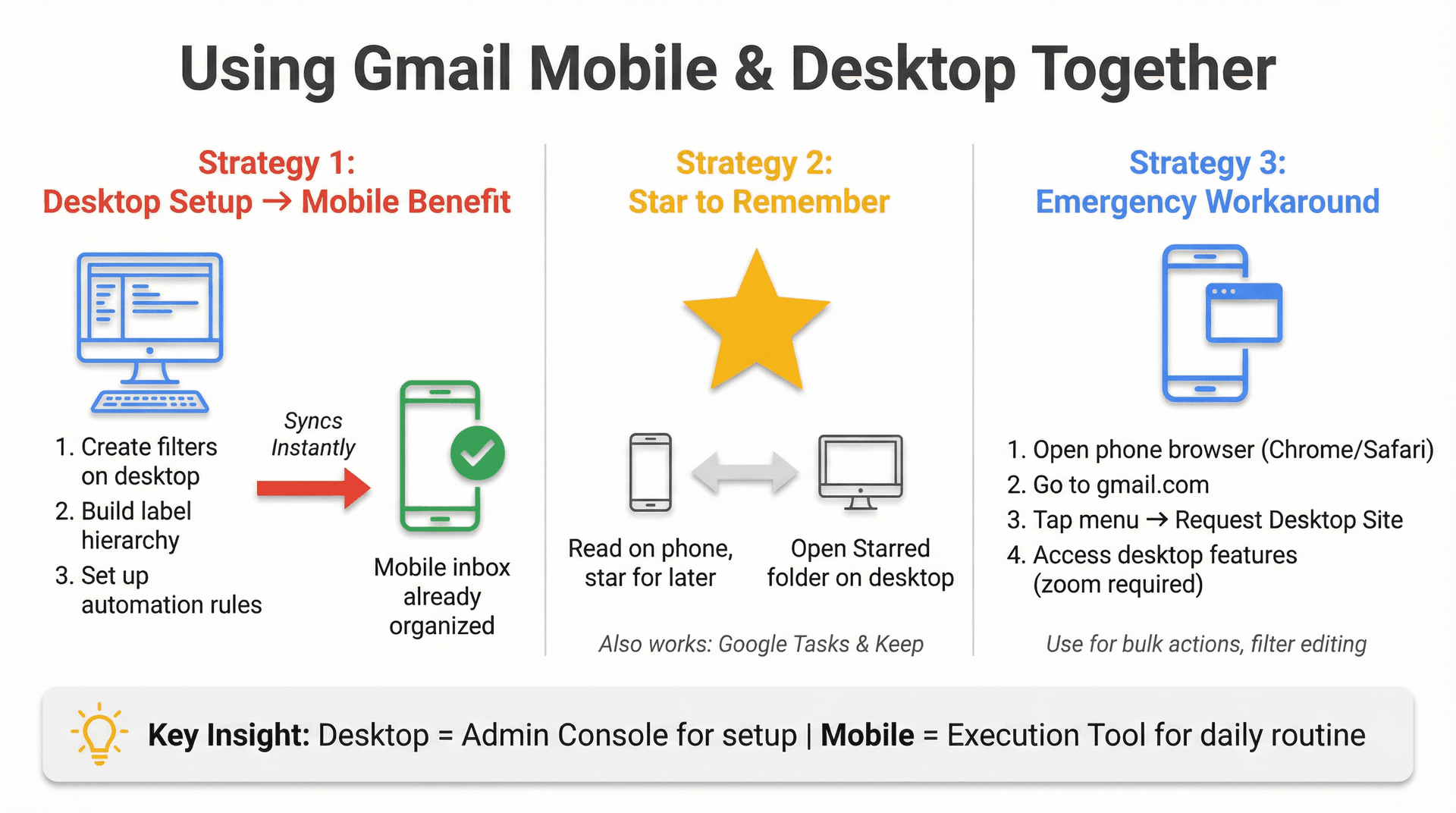
Because key features are desktop-only, do the initial setup when you have computer access. Create your label structure, build filters for automatic sorting, configure forwarding rules.
Once that infrastructure exists, you'll benefit on mobile by seeing an already-organized inbox. The filter you created on desktop will continue working, automatically archiving newsletters before they ever hit your phone's inbox.
Think of desktop as your "admin console" and mobile as your execution tool for daily routine.
How to Remember Emails Across Devices
Read an email on your phone but want to handle it on desktop? Star the email. That adds it to your Starred folder, which syncs instantly and serves as a visual reminder when you open Gmail on your computer.
You can also use Google Tasks or Keep to jot quick notes related to emails. Many email menus include "Add to Tasks." Those tasks appear on desktop in the side panel, bridging contexts so nothing slips through the cracks.
How to Access Desktop Gmail on Your Phone
Stuck on mobile because something isn't possible (like selecting 100 emails to delete)? Use your phone's browser to access the Gmail website and request the desktop version.
In Chrome for Android or Safari for iOS, tap the menu and choose "Request Desktop Site." Gmail loads as if you're on a computer. It's clunky (you'll need to zoom and pan), but it works in a pinch. You could use this workaround to empty your Spam folder or edit a filter while away from a PC.
Think of it as an emergency tool for those "desktop-only" moments when you're not near one.
Best Gmail Chrome Extensions (Desktop Only)
One massive advantage of desktop Gmail is the ability to extend its functionality with browser extensions and add-ons.
Best Chrome Extensions for Gmail
Hundreds of Chrome extensions exist for Gmail. You can add email tracking, CRM integrations, UI enhancements, and more.
We created Inbox Zero Tabs for Gmail precisely because Gmail's default interface could be better organized. This free Chrome extension adds customizable tabs to your Gmail web interface similar to Gmail's Primary/Social/Promotions tabs, but you define the categories.
Set any Gmail search or label as a tab. For example:
• "To Reply" tab showing emails needing responses
• "Newsletters" tab for all subscriptions
• "Receipts" tab for purchase confirmations
• "Team" tab for internal emails
Each tab displays an unread count. It's like having multiple inboxes in one view, which power users love for staying organized.
Best part? The extension runs 100% locally in your browser. No data collection, no external servers, no slowdown. It brings Superhuman's split inbox experience right into vanilla Gmail.
On mobile, you simply can't add features like this. The Gmail app won't let you plug in extensions or scripts. If you want a customized view or special integration, you're limited to desktop.
Best Gmail Add-Ons for Productivity
These appear in Gmail's right sidebar on desktop (like Trello or Asana integrations that show info related to open emails). They can be incredibly useful for connecting email to other productivity tools.
On mobile, Google supports add-ons in limited fashion. Many don't work or require opening a separate app. Desktop remains better for integrated workflows.
How to Customize Gmail Appearance
Gmail web offers settings for display density (Comfortable, Compact) and visual themes. Want dark mode scheduled for evening hours? Desktop has you covered.
Mobile offers Light or Dark mode. That's it. Not a dealbreaker, but customization fans will prefer desktop.
Gmail Security: Mobile vs Desktop
You might wonder if one platform is more secure. Both are very secure. Your Google account uses the same protections (two-factor authentication, suspicious login detection) regardless of device.
A few notes:
| Security Aspect | Desktop | Mobile |
|---|---|---|
| Two-factor authentication | ✓ Required | ✓ Required |
| Phishing warnings | ✓ Yes | ✓ Yes |
| Virus scanning | ✓ All attachments | ✓ All attachments |
| Device security | Browser cookies | Phone lock/biometrics |
| Sync reliability | Requires open tab | Background sync |
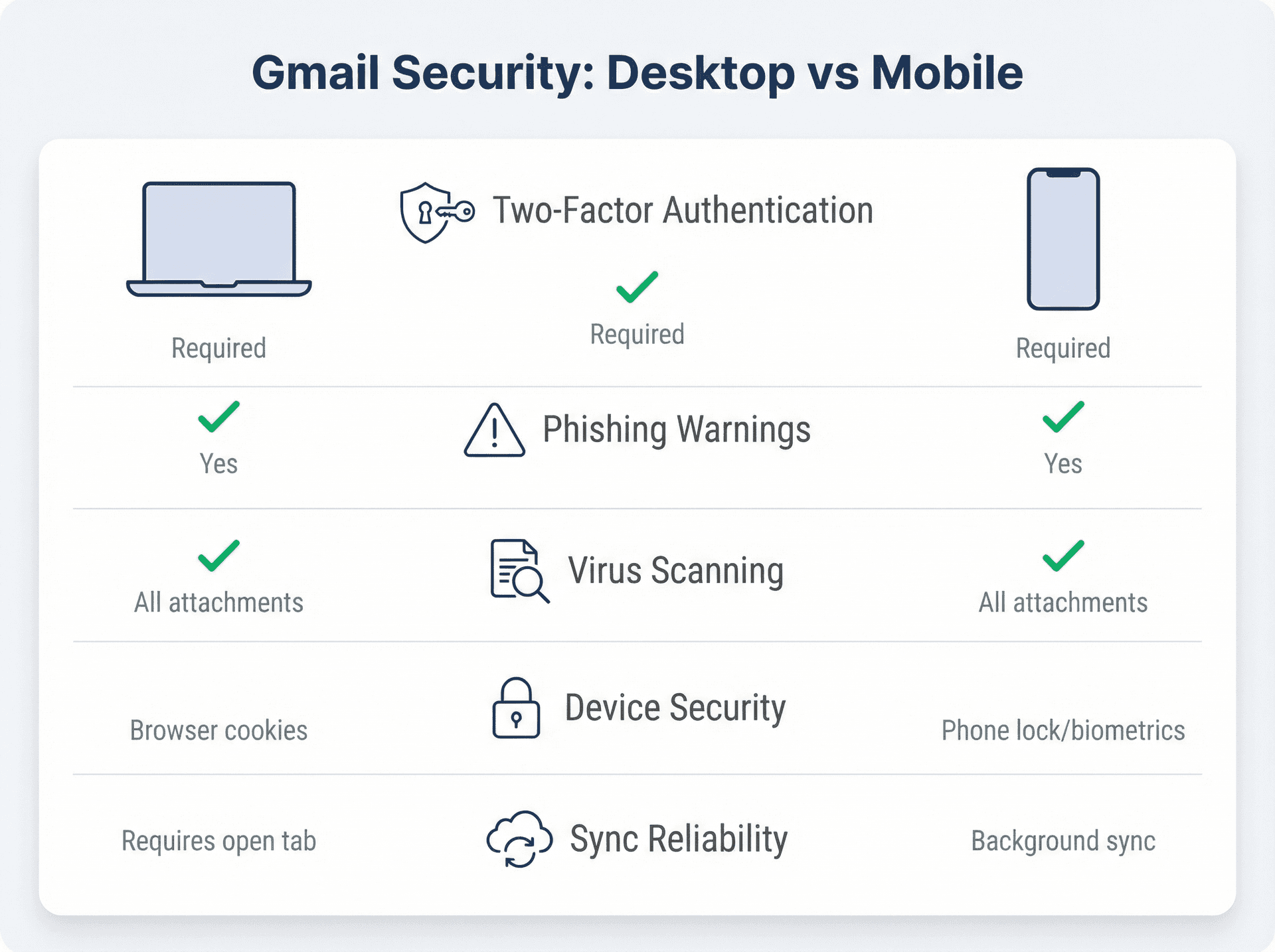
Attachment Scanning: Google scans for viruses on both platforms. Mobile users often open attachments in other apps (like PDF viewers), so keep those updated too.
Reliability: Gmail's uptime is excellent on both. Mobile can hiccup if your connectivity is spotty (showing "Waiting for sync"). Desktop might error if internet drops. Once reconnected, you pick up where you left off.
One thing to watch on mobile: sync settings. If you've disabled auto-sync or restricted background data, the Gmail app might not fetch new mail until you open it, delaying notifications. Configure appropriately for instant delivery.
How Inbox Zero Works on Mobile and Desktop
Reaching true inbox zero is hard, even with the best platform. This is where Inbox Zero becomes invaluable.
Inbox Zero is an AI email assistant that works with Gmail (and Outlook) on any platform. It fills feature gaps and automates the tedious parts of email management.
Here's what it does:
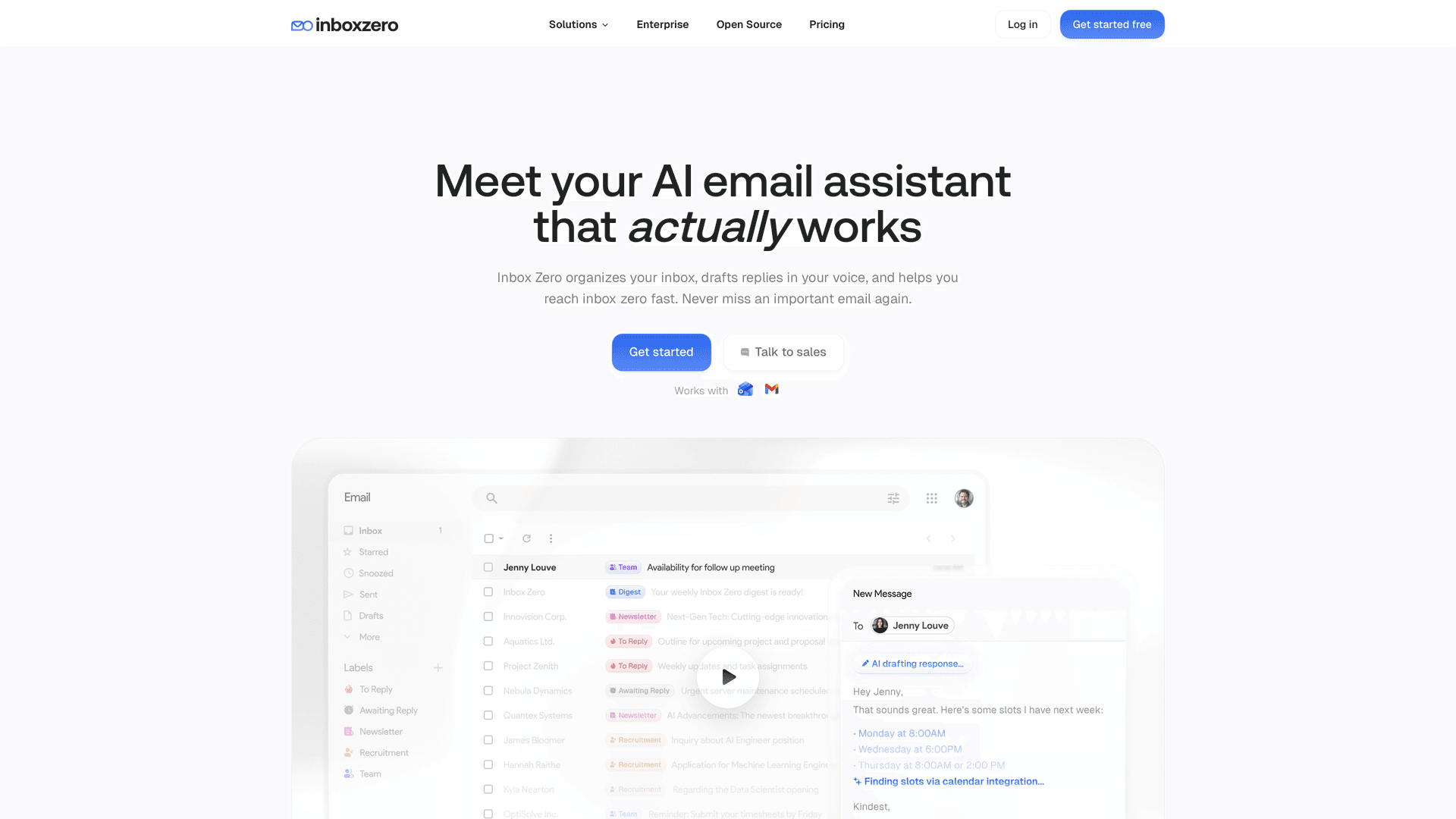
How to Auto-Archive Emails
Inbox Zero can automatically label and archive newsletters, promotions, and low-priority email as they arrive. Your inbox (on both mobile and desktop) only shows high-priority messages.
For example, it might move all marketing emails to a "Newsletter" label automatically. Next time you open Gmail on your phone, those emails are already out of your inbox. No swipe needed.
AI Email Reply Assistant
Inbox Zero can generate draft replies to routine emails using AI and save them in your Drafts folder. You review and send when ready.
Whether you're on mobile or desktop, you'll see those drafts waiting. Great for handling common inquiries quickly. You might find an AI-drafted reply already written in Gmail's Drafts via your phone, which you can tweak and send in seconds.
How to Block Cold Emails Automatically
Inbox Zero can automatically block or archive cold outreach emails (those pesky unsolicited sales pitches) by recognizing them with AI. Gmail's spam filter is good, but it doesn't catch persistent sales emails. Inbox Zero adds another layer through its cold email blocking feature.
Bulk Unsubscribe from Newsletters
It provides a bulk unsubscribe feature for newsletters. Instead of hunting for tiny unsubscribe links at the bottom of each email (painful on mobile), the bulk email unsubscriber surfaces your subscriptions and lets you opt out easily.
Once unsubscribed or filtered, those emails stop bothering you on both desktop and mobile.
How Inbox Zero Syncs Across All Devices
Inbox Zero works via Gmail's API. When it applies a label or sends an email, it's as if you did it in Gmail. You'll see the results everywhere you access email.
This "lives on top of your chosen service" approach means you're not locked into a special client. Inbox Zero makes Gmail feel like it gained smart new features.
In short, Inbox Zero acts like a personal email secretary working in the background. It handles repetitive cleaning and sorting. Whether you open Gmail on your phone during a busy day or at your desktop in the morning, you're dealing with a more organized inbox.
The mobile app's limitations (like no filter creation) become less of an issue when an external assistant does some of that work for you. And when you do sit at your desktop, Inbox Zero gives you tools like the Tabs extension to further optimize Gmail.
Gmail Mobile vs Desktop: Which Should You Use?
So, Gmail mobile app or desktop? The answer for most people is both.
They're complementary interfaces to the same email account. Mobile excels at convenience, speed, and on-the-spot responsiveness. Desktop is unbeatable for extensive features, organization, and handling large volumes.
Best Gmail Setup for Casual Users
Light email traffic? You might do almost everything on the Gmail app and rarely need a computer. The app has all the basics plus advanced perks like swipe gestures, Smart Replies, and AI summaries for long threads.
Google has optimized the app for daily use. Given that the average Gmail user spends about 28 minutes per day in their inbox, many are perfectly productive on mobile alone.
Best Gmail Setup for Heavy Email Users
You'll want to leverage desktop regularly. It offers more control: filters, labels, bulk selection, advanced search, rich composition tools.
Use desktop to set rules and structure for your inbox. Use the mobile app to execute your daily email routine within that structure.
How to Get the Most from Gmail on All Devices
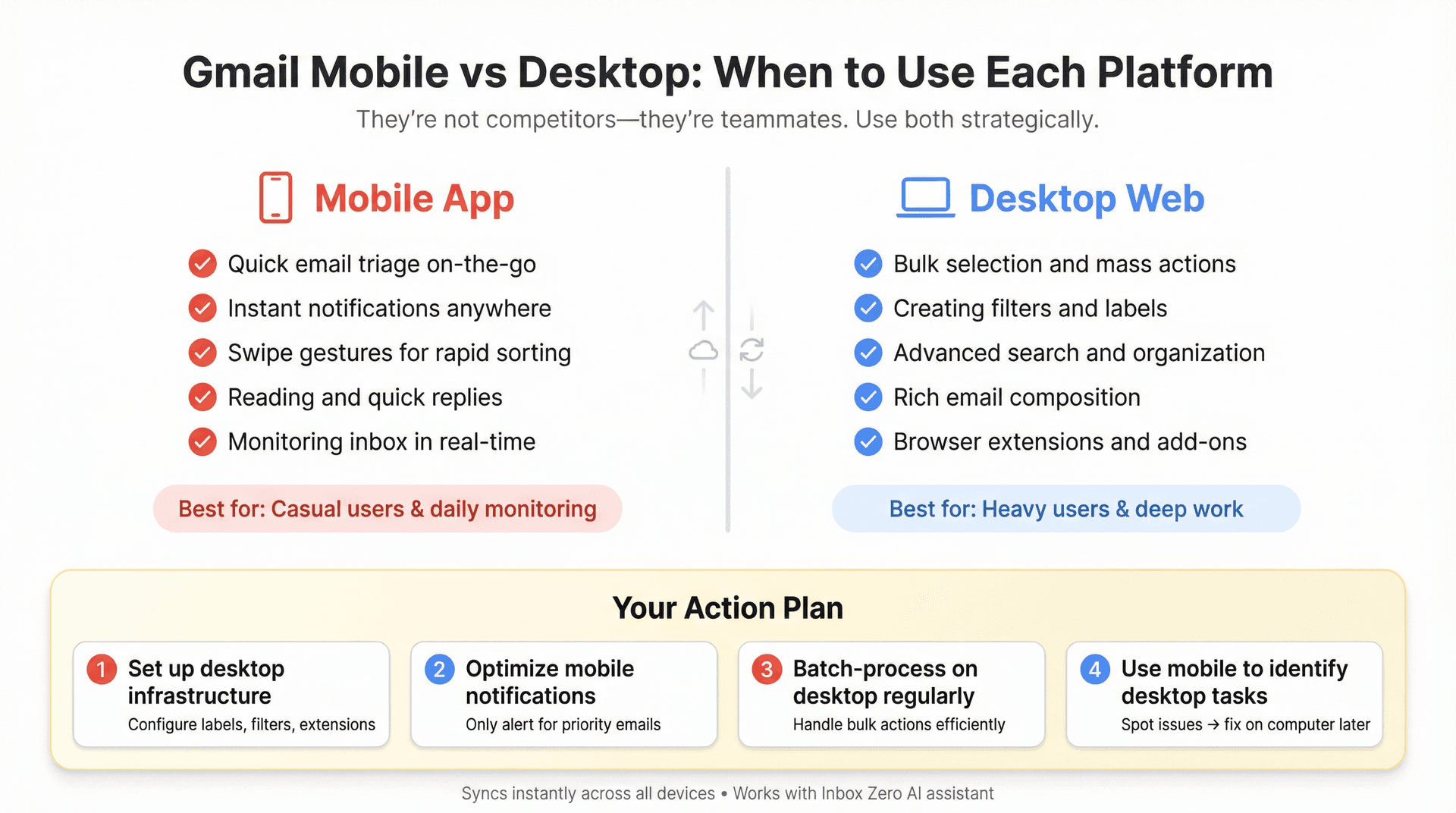
Here's your action plan:
① Take a few minutes on desktop to configure labels, filters, and extensions. These do inbox cleaning for you in advance.
② Tune your mobile app notifications so you're only pinged for what matters (set it to notify only for High Priority mail, for example).
③ Regularly batch-process on desktop what's hard on mobile. Your future self checking Gmail on the phone will thank you.
④ If something annoys you on mobile (like seeing too many newsletters), that's a clue to hop on desktop later and fine-tune. Maybe create a filter to auto-archive them, or use a tool like Inbox Zero to handle bulk mail automatically.
How to Reach Inbox Zero on Mobile and Desktop
All your changes and actions sync instantly between devices. You can read emails on your phone and reply on desktop later, or vice versa, without a second thought.
The goal isn't to choose one Gmail over the other. The goal is to have an email system that works for you on every device.
With the right approach (and smart tools like Inbox Zero), you can achieve that elusive inbox zero and maintain it consistently.
Here's to an organized, efficient Gmail experience on mobile, desktop, and everywhere in between.
What is the Inbox Zero Method & How do I Master It?
Discover the Inbox Zero method and learn simple steps to take control of your email inbox, stay organized, and boost productivity.

4 Email Productivity Hacks from Tim Ferriss, Andrew Huberman, and Sam Harris
Explore 4 powerful email productivity hacks from tech and wellness experts like Tim Ferriss and Andrew Huberman. Learn to create focus, optimize processing, manage time wisely, and delegate effectively to conquer your inbox.
Best Time to Send Emails for Response (2026)
Stop guessing when to send emails. Get data-backed timing strategies from 2026 research that improve response rates across all scenarios.
How To Organize Outlook Inbox? (2026 Guide)
Learn how to organize Outlook inbox with rules, folders, categories, and AI automation. Step-by-step guide for 2026 that actually works.