How to Email Multiple Recipients Without Them Knowing?
Send email to multiple recipients without them knowing using BCC. Step-by-step guide for Gmail, Outlook, and mail merge for larger lists.

You're about to send an important email to dozens of people, and suddenly you realize: if everyone can see everyone else's email addresses, this could get messy. Maybe it's a client list, a group of parents from your kid's school, or colleagues from different departments who don't know each other. The last thing you want is a privacy issue or a chaotic reply-all storm.
The good news? Keeping recipient addresses hidden is actually simple. Every major email platform has built-in features for this, and we'll walk you through exactly how to use them.
This guide covers everything you need to know about sending group emails privately, including step-by-step instructions for Gmail, Outlook, and other popular services. We'll also show you when to use more advanced methods like mail merge for truly personalized mass emails.
Why Hide Email Recipients When Sending Group Emails?
There are several compelling reasons to conceal your recipient list:
How to Protect Email Privacy in Group Messages
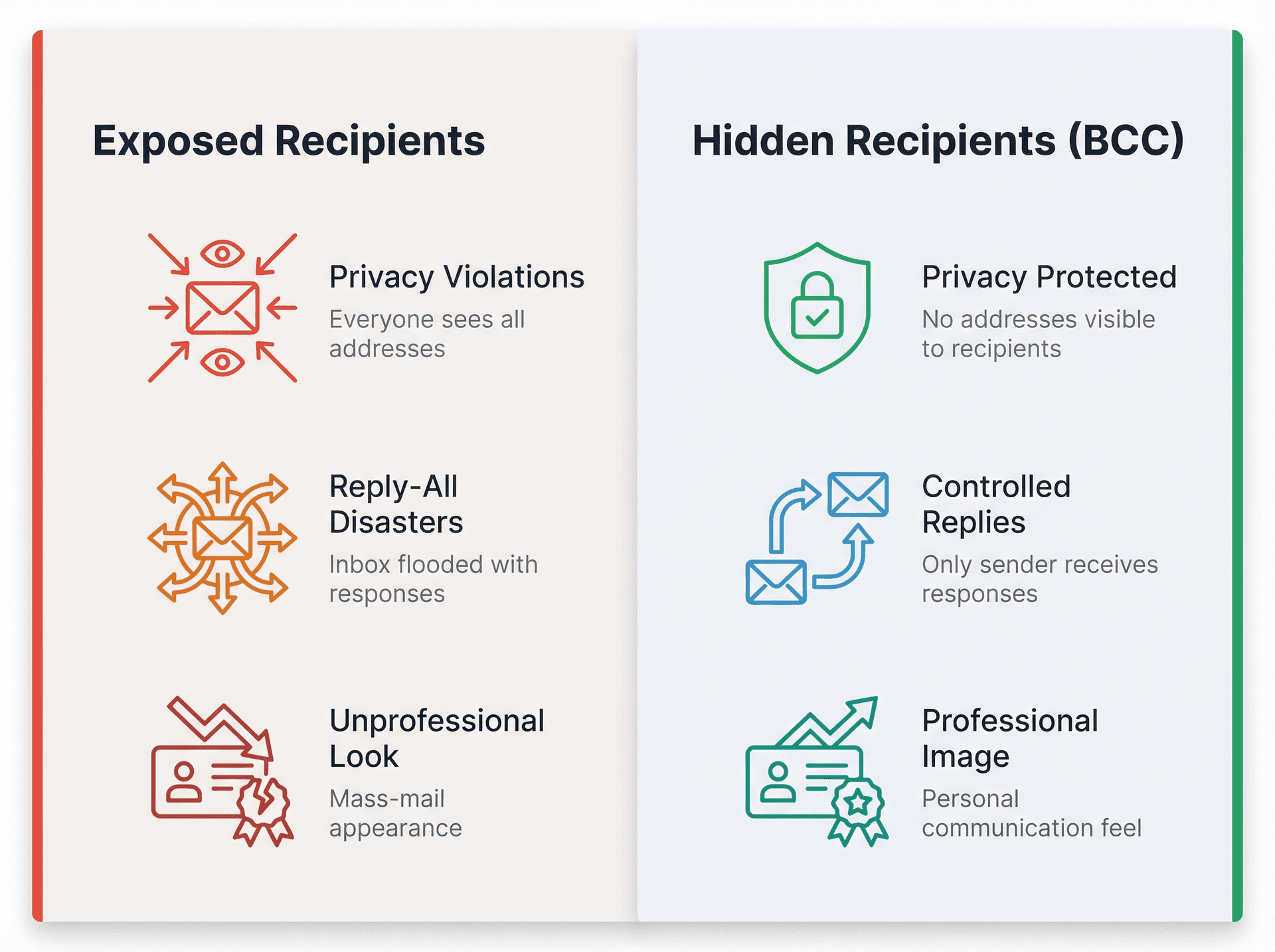
When you put everyone in the "To" or "Cc" line, every recipient can see everyone else's email address. That's a privacy violation waiting to happen.
Think about it: would your clients want their personal email addresses shared with dozens of strangers? Would your colleagues appreciate having their contact information distributed without consent?
Protecting email privacy isn't just good etiquette. In many cases, it's required by privacy policies or regulations.
How to Prevent Reply All Chaos in Group Emails
We've all been there. Someone sends a mass email, one person hits "Reply All" to ask a question meant only for the sender, and suddenly everyone's inbox is flooded with dozens of irrelevant messages.
When you hide recipients using the methods we'll describe below, replies typically go only to the original sender. No more accidental email storms because someone forgot they were replying to 50 people.
Why Professional Email Etiquette Matters for Group Sends
If you're emailing clients, customers, or any group of people who don't know each other, exposing everyone's addresses looks unprofessional. It also signals that the message was mass-mailed, which can reduce its impact.
When recipients are hidden, each person feels like they received a more personal communication. They won't see a long list of other emails, making your message appear more tailored to them specifically.
How Group Email Lists Trigger Spam Filters
Here's something most people don't realize: large recipient lists visible in the "To" or "Cc" field can trigger spam filters.
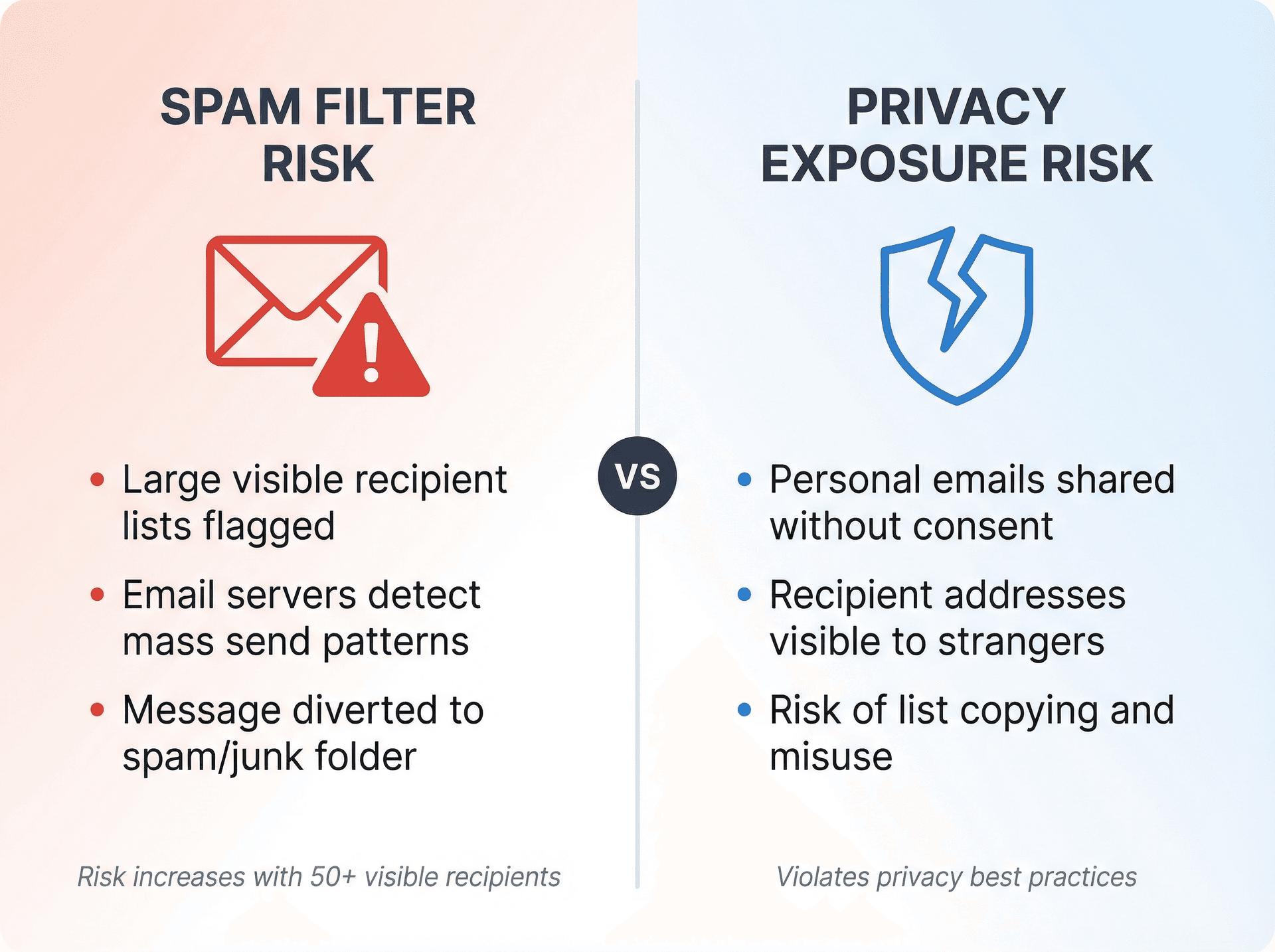
Email providers are more likely to flag a message as spam if it's sent to an unusually high number of people openly. Concealing recipients helps ensure your email lands in the primary inbox rather than the junk folder.
Email Privacy Best Practices Everyone Should Follow
Mass emails where everyone can see everyone else's address might inadvertently share someone's personal contact information without permission. It's courteous and more secure to hide addresses unless there's a specific need for recipients to know each other.
Plus, this reduces the chance that one recipient might copy the whole list and send their own message without everyone's consent.
Now let's look at exactly how to do this.
How to Use BCC to Hide Email Recipients
The simplest way to send an email to multiple people without revealing their addresses is the BCC field. BCC stands for "blind carbon copy," and it's built into every email client you've ever used.
What Is BCC and How Does It Work?
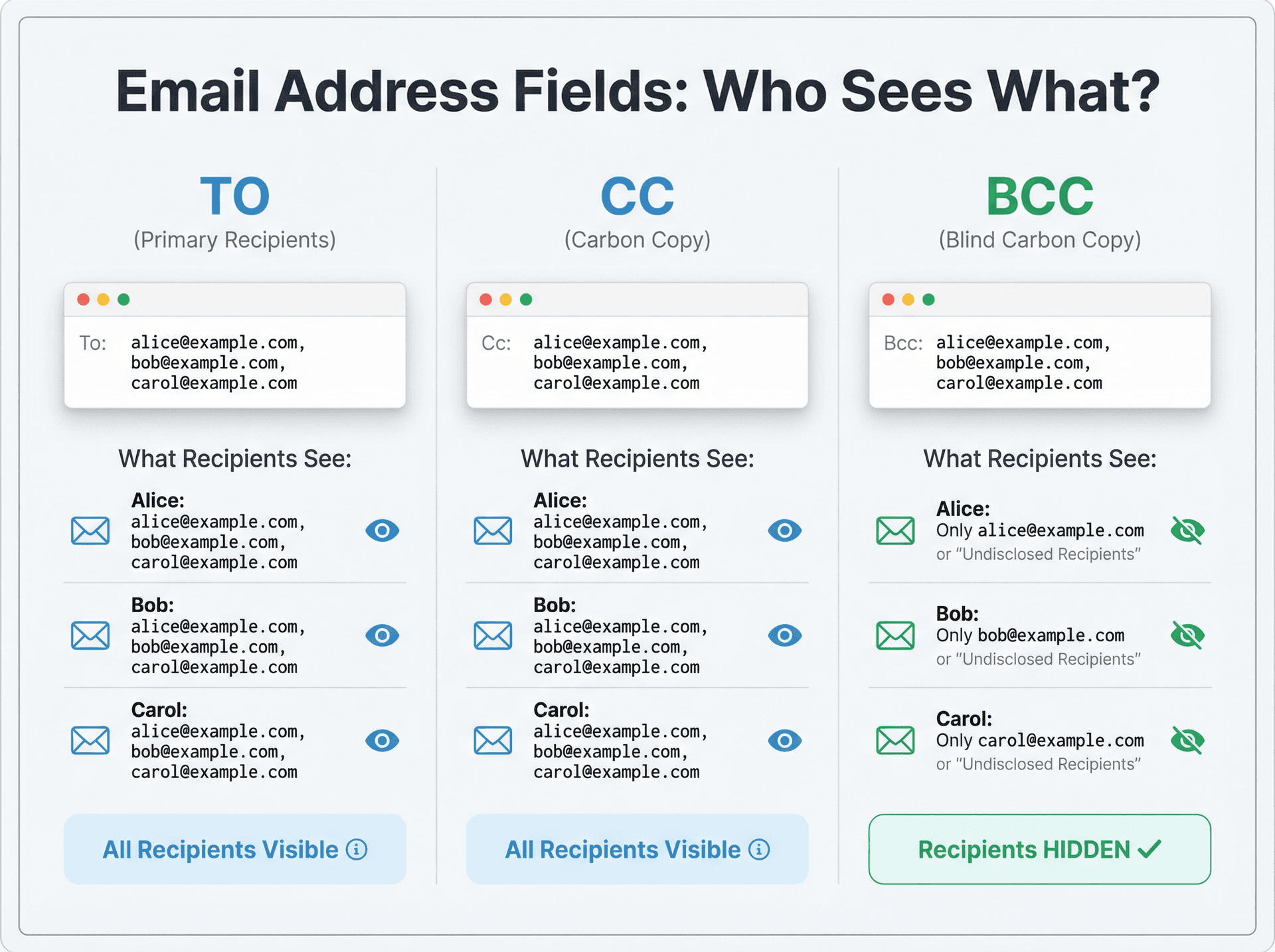
Most email programs have three fields for addressing emails: To, Cc, and Bcc. Here's the crucial difference:
Key difference: Addresses in BCC are completely hidden from all recipients.
Every person on the BCC line receives the email, but they can't see who else was BCC'd. Only you (the sender) know the full list.
In contrast, addresses in the "To" or "Cc" fields are openly visible to everyone. If you list five emails in "To," each of those five people sees all the addresses.
With BCC, a recipient sees only their own address (or sometimes a generic "undisclosed recipients" label) and your address as the sender.
By using BCC for all recipients, you ensure that no one can see anyone else's email address in the message. It's like sending a secret copy to each person.
That's the entire point of BCC: complete privacy for all recipients.
How to BCC in Gmail (Step-by-Step)
Gmail makes hiding recipients straightforward. Here's exactly how to do it:
On Gmail Web:
① Start a new email: Log in to Gmail and click the "Compose" button.
② Reveal the BCC field: In the new message window, you'll see fields for "To" and "Cc" at the top. Click "Bcc" on the right side of the To field to reveal the BCC line.
③ Add all recipients to BCC: Type or paste all the email addresses into the BCC field. Separate multiple addresses with commas. For example: alice@example.com, bob@example.com, carlos@example.com
Each person you list here will get a copy of the email, and none of them will see the others' addresses.
④ Fill the "To" field appropriately: Gmail allows you to send with an empty "To" field, but it's better practice to enter your own email address in the "To" field.
This way, the email is formally addressed to you, and all actual recipients are BCC'd. It also slightly improves deliverability (emails with completely empty "To" fields might look suspicious to spam filters).
⑤ Write and send: Compose your subject and message as normal. When you hit Send, Gmail delivers the message to every address in the BCC field. Each recipient sees only their own email address, not the whole mailing list.
On Gmail Mobile:
The process is nearly identical. Tap "Compose," expand the address fields by tapping the down-arrow, add all recipients to BCC, put your own address in "To," and send.
Important note about replies:
If a recipient tries to reply, their response comes only to you. Gmail doesn't let BCC recipients use "Reply All" because they aren't shown any other addresses to reply to. This is exactly what you want.
How to BCC in Outlook (Desktop and Web)
Microsoft Outlook also has BCC functionality, though you might need to enable it first on the desktop version.
On Outlook Desktop (Windows or Mac):
① Start a new email: Click "New Email" to compose a new message.
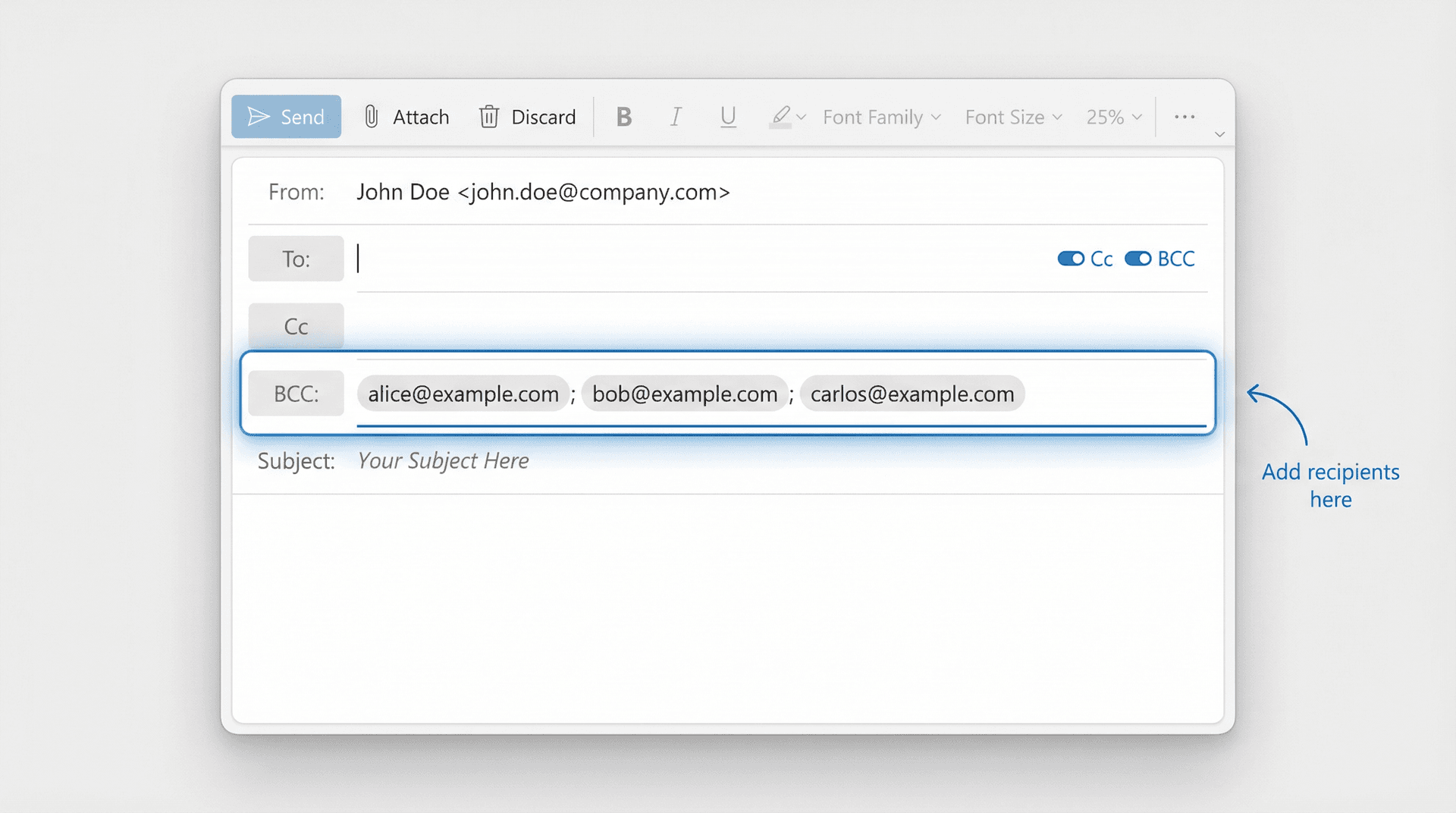
② Reveal the BCC field: If you don't see a BCC field, go to the Options tab in the message window and click "BCC" in the ribbon. This adds a BCC line to your email header. Once turned on, it should appear for all new messages.
③ Add recipients to BCC: Click into the BCC field and enter all the email addresses you want to send to, separated by semicolons or commas. For example: alice@example.com; bob@example.com; carlos@example.com
④ Address the "To" field: You can leave "To" blank or fill it with your own email address. Outlook will send the message even if "To" is empty (since you have BCC recipients), but some versions might automatically insert "Undisclosed Recipients" in the "To" line for you.
⑤ Send the email: Write your subject and body, then hit Send. Each recipient receives the email showing only their address in the "To" field (or a generic label). They won't know who else got the message.
On Outlook Web (Outlook.com or Office 365):
There's typically a "BCC" button or link to the right of the "To" field when composing. Click it, and a BCC field appears. Then follow the same process.
On Outlook Mobile:
Tap the Cc/Bcc toggle beneath the address field to reveal the BCC line, then add your recipients.
How to BCC in Yahoo Mail and Apple Mail
The process is fundamentally the same across all email services:
Yahoo Mail: Click "Compose" and then click the "BCC" button to the right of the "To" field. Enter all recipient addresses into BCC, leave "To" blank or use your own address, and send.
Apple Mail (Mac desktop): Open a new email and select View > BCC Address Field from the menu bar. This makes a BCC line appear in your compose window. Add all recipients there and send.
On iPhone/iPad Mail, tap the "Cc/Bcc, From" line to expand it, then use the BCC field.
Any other email program: Look for a BCC option when composing. It's usually near the To/Cc fields or under an arrow/menu that expands additional fields. The feature works the same way everywhere.
How to Set Up Undisclosed Recipients in Email
Some people like to make it explicit that an email was sent to multiple people by putting "Undisclosed Recipients" in the "To" field. This isn't a special feature, it's just a naming convention.
Here's how to set it up:
In Outlook:
Create a new contact called "Undisclosed Recipients" with your own email address as the contact email. When composing a mass email, add this contact to the "To" field and everyone else in BCC.
Recipients will see an email addressed to "Undisclosed Recipients [you@yourdomain.com]," which clearly signals that multiple people were included without showing who.
In Gmail:
You can type directly into the "To" field: Undisclosed Recipients <your-email@gmail.com>
Gmail will accept this format and display "Undisclosed Recipients" as the recipient name. Make sure to include the angle brackets around your actual address.
This approach is purely cosmetic for the recipients' benefit. Whether you use your name, "Undisclosed Recipients," or leave "To" blank, the privacy result is identical. The important part is always putting the multiple recipients on BCC.
What Do Recipients See When You BCC Them?
When someone receives a BCC'd email, it appears as if it was sent to them alone (or to an undisclosed list). They might see "To: me" when they open the email, or a blank/placeholder in the header.
Some email clients show "Undisclosed Recipients" as the To address when the real recipients were all BCC'd. This is a generic label that doesn't reveal any addresses.
Recipients won't see themselves listed as BCC, and they can't tell who else (if anyone) received the message. Tech-savvy folks might guess that BCC was used based on the header, but that's fine. It's understood as the proper way to send group emails privately.
Email BCC Limits by Provider (What You Need to Know)
While BCC works well for occasional group emails, keep these limitations in mind:
Email provider limits:
To prevent spam abuse, providers cap how many recipients you can send to at once or per day.
| Email Provider | Daily Limit | Per-Email Recommendation |
|---|---|---|
| Personal Gmail | 500 recipients/day | Under 100 per email |
| Google Workspace | 2,000 recipients/day | Under 100 per email |
| Outlook.com | ~300 recipients/day | Varies by account age |
| Yahoo Mail | ~100 per email | Split larger lists |
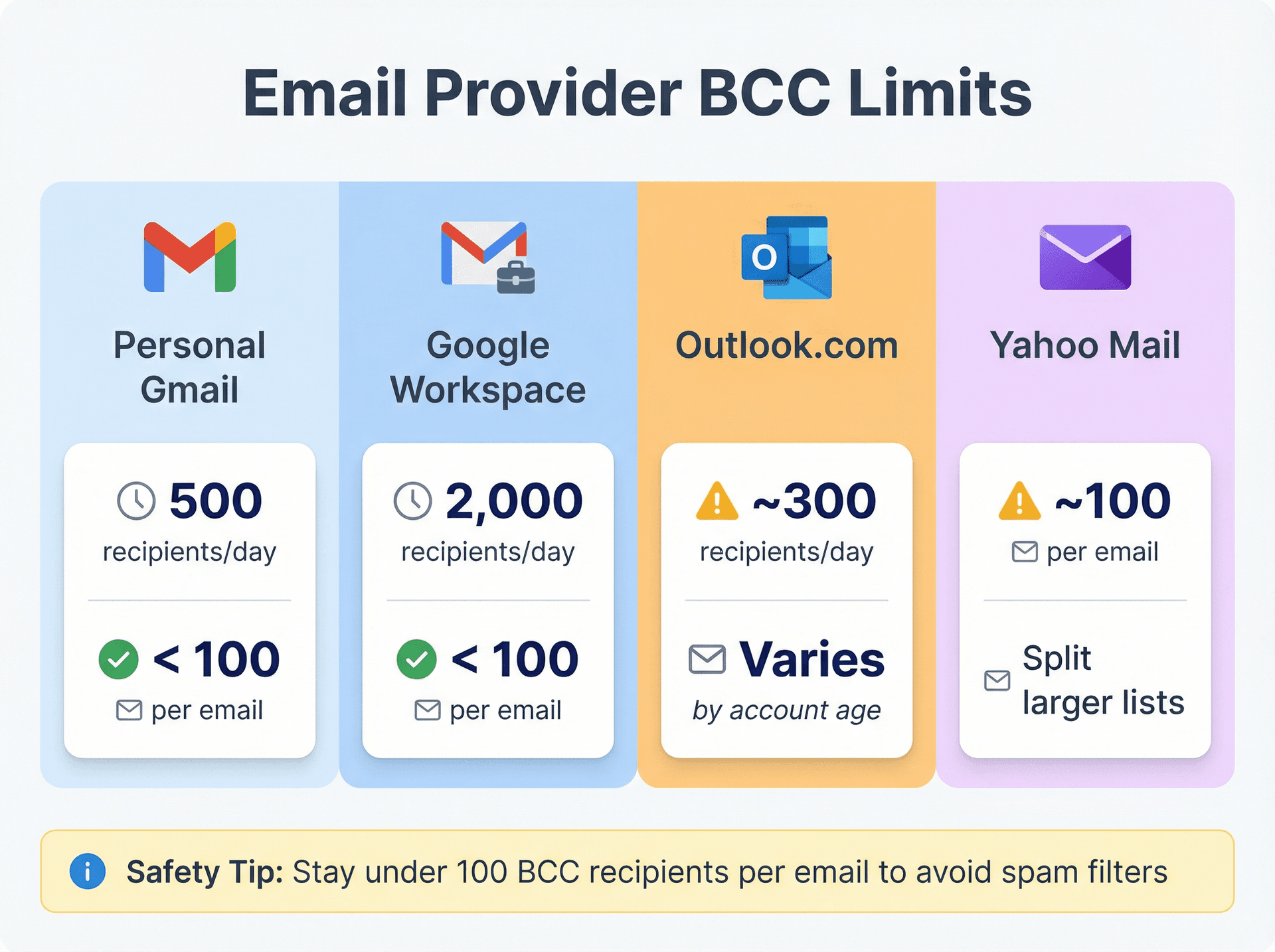
According to Gmail's current limits, staying under 100 BCC recipients per email is safest to avoid triggering spam filters.
If you exceed these limits, your email might not send, or your account could be temporarily blocked from sending.
Deliverability concerns:
Emails with all recipients hidden can sometimes look suspicious to email servers. While a few BCC'd addresses won't cause trouble, if you BCC 50+ people, there's a risk some email providers might flag it as spam (especially if those recipients haven't interacted with you before).
No personalization:
Everyone gets the exact same email content. You can't easily personalize a BCC email with each person's name. The email will feel like a form letter if you address it generically.
For truly personalized mass emails where engagement matters (like sales or marketing), you'll want to use the mail merge method we'll cover next.
One-way communication:
BCC works best for announcements or one-way messages. If your intention is to start a group discussion where recipients should see each other and reply all, then BCC is the wrong approach.
Use normal Cc for small teams that know each other and need to collaborate. Reserve BCC for situations where recipients are strangers to each other or where privacy is paramount.
Ready for a more powerful approach?
How to Send Individual Emails with Mail Merge
While BCC is great for simplicity, it has real limits in personalization and scale. If you regularly send mass emails where each recipient should feel like they got a personal message, mail merge or email marketing services are the way to go.
What Is Mail Merge and How Does It Work?
A mail merge takes a template email and a list of recipients, then sends out individual emails to each person on the list. You write your email template once, but each person receives a separate email as if you wrote to them personally.
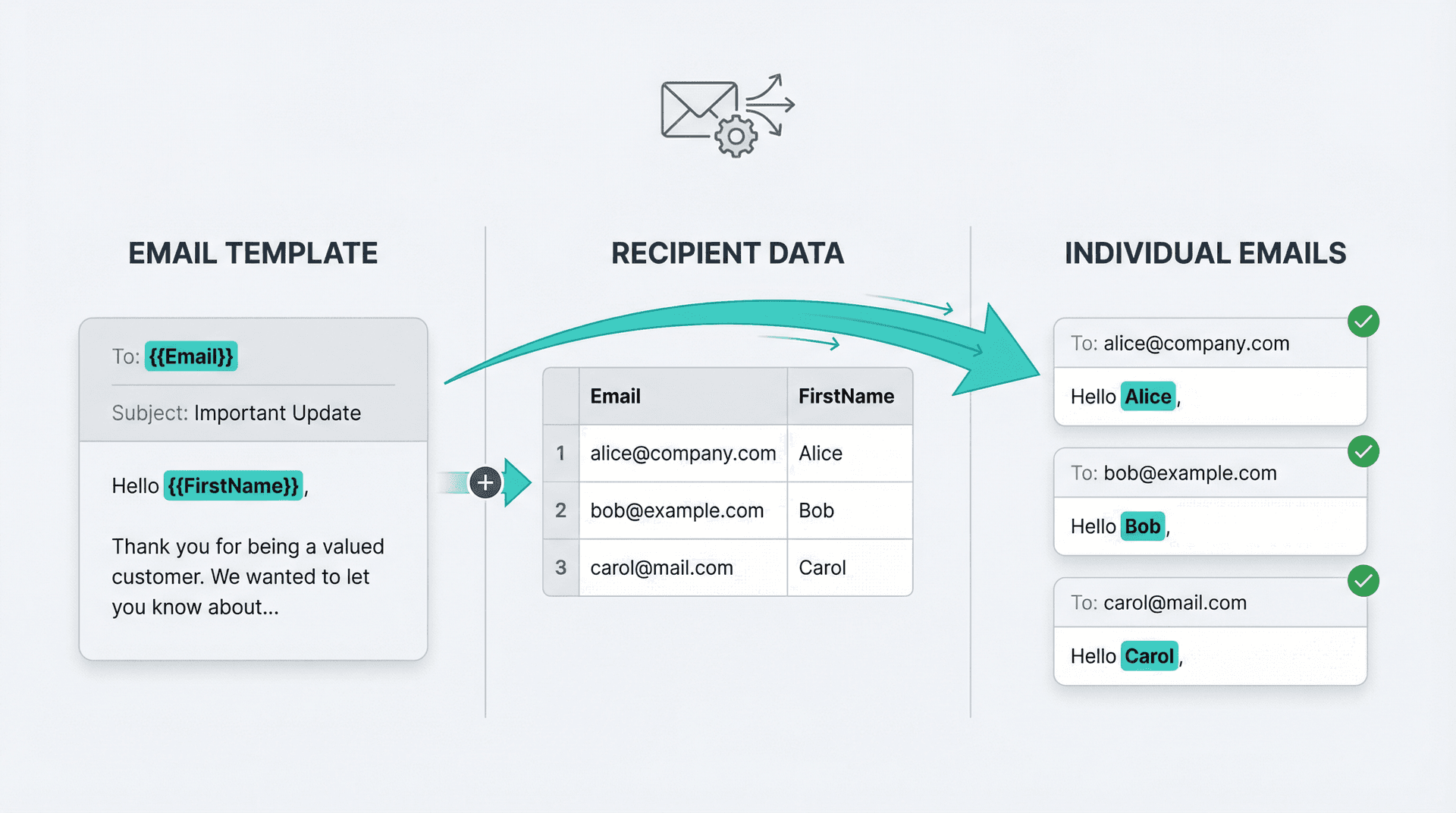
You can include placeholders for things like the person's name, company, or other details. For example, your template might say "Hello <<FirstName>>," and the mail merge automatically inserts "Hello Alice," in the email to Alice and "Hello Bob," in the email to Bob.
Even without personalization, the key benefit is that each email is a separate send. Recipients see their email in the "To" field with no one else's. They won't see "Undisclosed Recipients" or suspect a BCC. It looks like a direct one-to-one email.
This completely eliminates the need for BCC by quickly sending separate mails to everyone.
Mail Merge vs BCC: Which Method Should You Use?
Here's a simple decision tree:
| Use BCC When: | Use Mail Merge When: |
|---|---|
| Under 50 people | 50+ recipients |
| Same message for all | Personalization needed |
| One-time announcement | Regular sends |
| No personalization needed | Engagement matters |
| Recipients don't need to know each other | Marketing/sales outreach |
Mail merge ensures each recipient feels like the sole recipient of that email. You can greet them by name, reference specific info, and get a more personal touch.
It also eliminates the chance of someone clicking "Reply All" because there's literally no "all" to reply to. Each email is completely separate.
How to Perform a Mail Merge: Your Options
There are several ways to send individualized mass emails:
Option 1: Email Marketing Services
Platforms like Mailchimp, Brevo (formerly Sendinblue), AWeber, Constant Contact, and HubSpot are built for sending bulk emails.
You upload or manage a mailing list within the service, design your email (often with templates), and the service sends an individual email to each address. These platforms handle:
• Personalization (like "Hi John" vs "Hi Jane")
• Batch sending to avoid spam filters
• Managing unsubscribes automatically
• Analytics (open rates, clicks, etc.)
• Compliance with email marketing laws
Crucially, they automatically hide recipients from each other. Nobody receiving your newsletter will see anyone else's address.
This is the best approach for large mailing lists, both for professionalism and legal compliance (these services help with requirements like including unsubscribe links).
Option 2: Gmail Add-ons
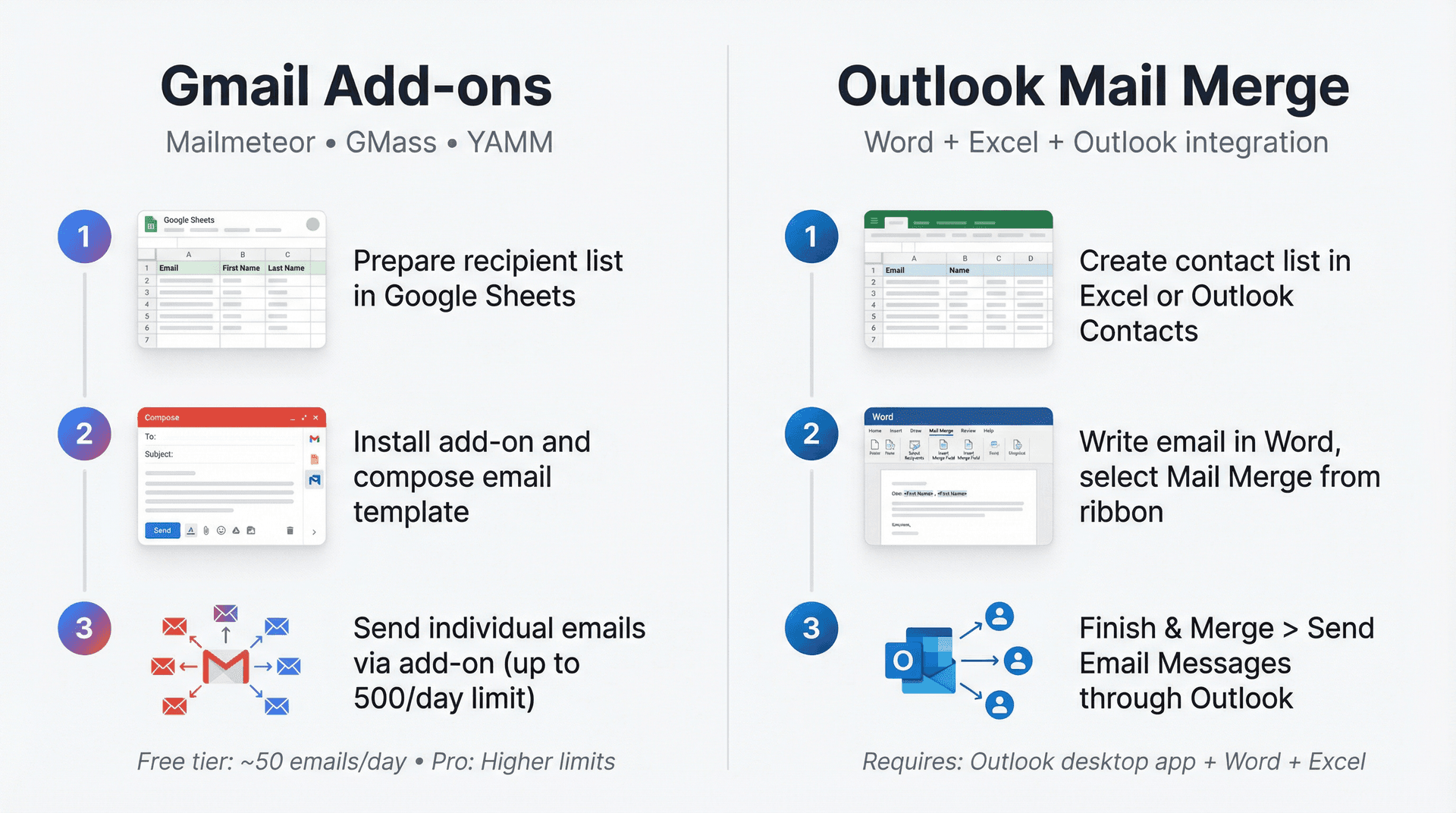
Gmail doesn't have native mail merge, but third-party add-ons integrate with Google Sheets to send personalized mass emails through Gmail.
Popular options include:
• Mailmeteor (free tier allows 50 recipients/day)
• GMass
• YAMM (Yet Another Mail Merge)
These tools let you maintain a list of emails (and names or other fields) in Google Sheets, then send out individual Gmail messages to each. The advantage is you can still send from your Gmail account directly, but you bypass the 100 recipients per email limitation by sending them one by one.
You still can't exceed Gmail's daily send limit (500 for free accounts). The add-ons will space out sends and stop if you hit the maximum.
Option 3: Outlook Mail Merge
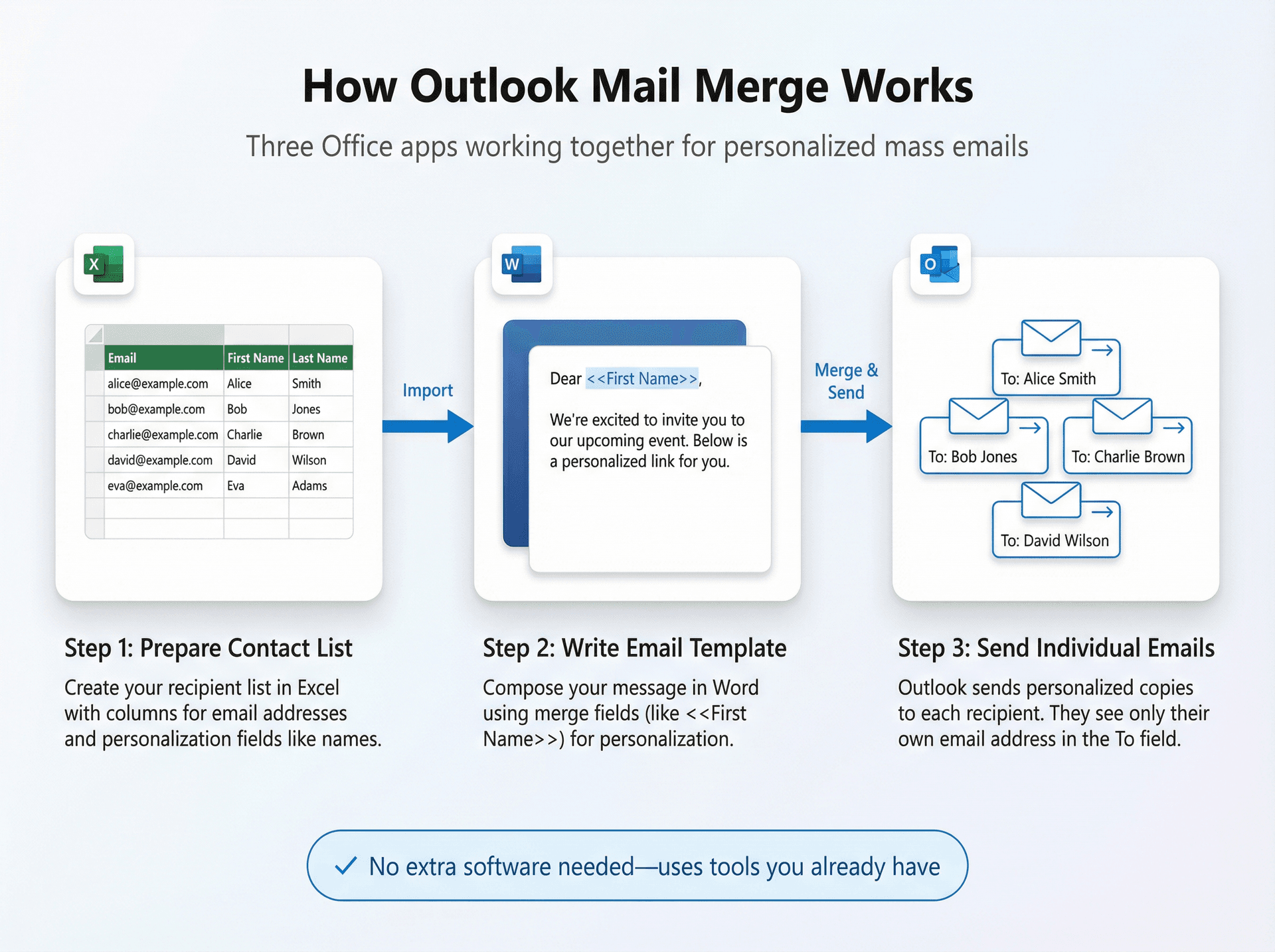
Microsoft Outlook has a mail merge feature in combination with Word and Excel. You prepare contacts in Excel, write a message in Word, and use the Mail Merge function to send it through Outlook.
In Outlook 365, you go to Contacts, select the ones you want, then choose "Mail Merge" from the Home ribbon. This opens Word with a mail merge wizard for email.
The upside is no extra software. The downside is it's not as user-friendly for non-technical folks, and you might need all recipients in your Outlook contacts first.
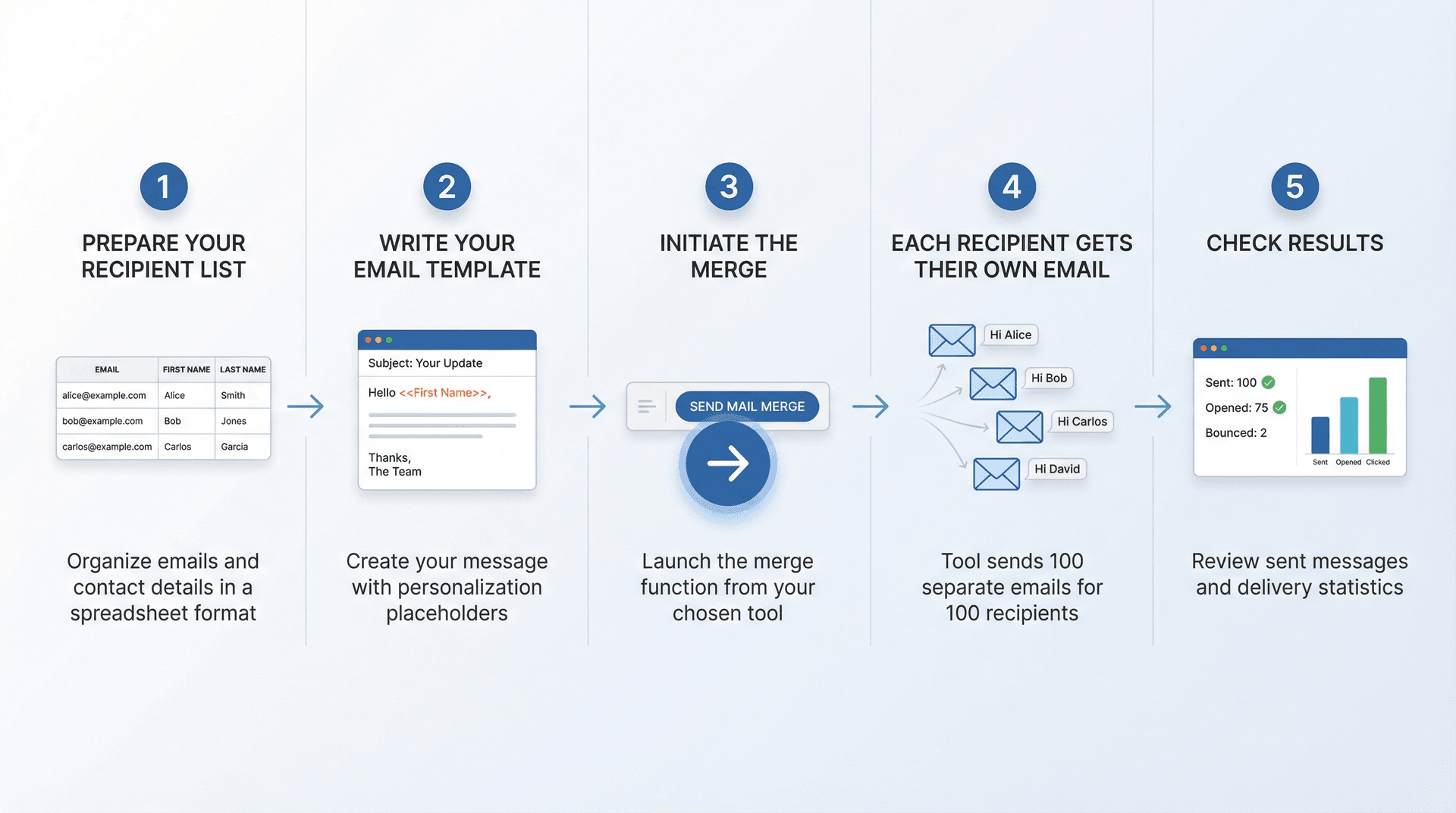
How to Set Up Mail Merge (Step-by-Step)
The exact steps vary by tool, but here's the general process:
① Prepare your recipient list:
Have your list of emails ready (usually in a spreadsheet). Include columns for Email, First Name, Last Name, and any other info you want to personalize.
② Write your email template:
Compose the email in the tool or a linked document. Insert placeholders for personalization like <<First Name>>. If you don't need personalization, just write normally.
③ Initiate the merge:
Use the tool's mail merge function. For Gmail add-ons, you might click "Send Mail Merge" from a Google Sheet menu. In Outlook's case, you'd hit "Finish & Merge > Send Email Messages" in Word's mail merge toolbar.
④ Each recipient gets their own email:
The tool rapidly sends individual emails. If you had 100 recipients, you'll actually send 100 emails (one per person). Recipients see an email addressed just to them, with their name if you included it.
Each person receives a separate copy, ensuring none of them know it was a group send.
⑤ Check results:
Look in your Sent folder to see all the individual sent messages. Email marketing platforms show you stats on deliveries, opens, bounces, etc.
Why Email Marketing Services Beat Manual Sending
Beyond just hiding recipients, these services provide additional advantages:
Higher deliverability:
They handle technical details to improve the chances your email isn't flagged as spam. They also distribute the send load so it doesn't hit all recipients at once.
Using a reputable service gives your email a lower chance of ending up in spam folders than just blasting from Gmail.
Analytics:
You get delivery reports and stats. You can see how many emails were sent, how many opened, how many bounced, who clicked a link, etc. This is invaluable for marketing or tracking communication success.
Compliance and unsubscribe management:
If you're sending commercial email (like marketing newsletters), laws like CAN-SPAM or GDPR require you to include an option for recipients to opt out.
Email marketing tools automatically include an "Unsubscribe" link and handle the process of removing those who opt out. They also help you comply with formatting requirements (like including your mailing address in the footer).
Scalability:
Need to send to 5,000 or 50,000 people? You definitely shouldn't try that with Gmail BCC. Services are built to handle large volumes with features like segmentation and scheduling.
Professional appearance:
These platforms allow you to use well-designed email templates with your brand logo and styling, which looks more polished than a plain BCC email.
Research shows every good email service offers mail merge to include names and send private personalized copies.
Best Practices for Sending Mass Emails Privately
Whether you use BCC or mail merge, follow these practices to ensure smooth group emailing:
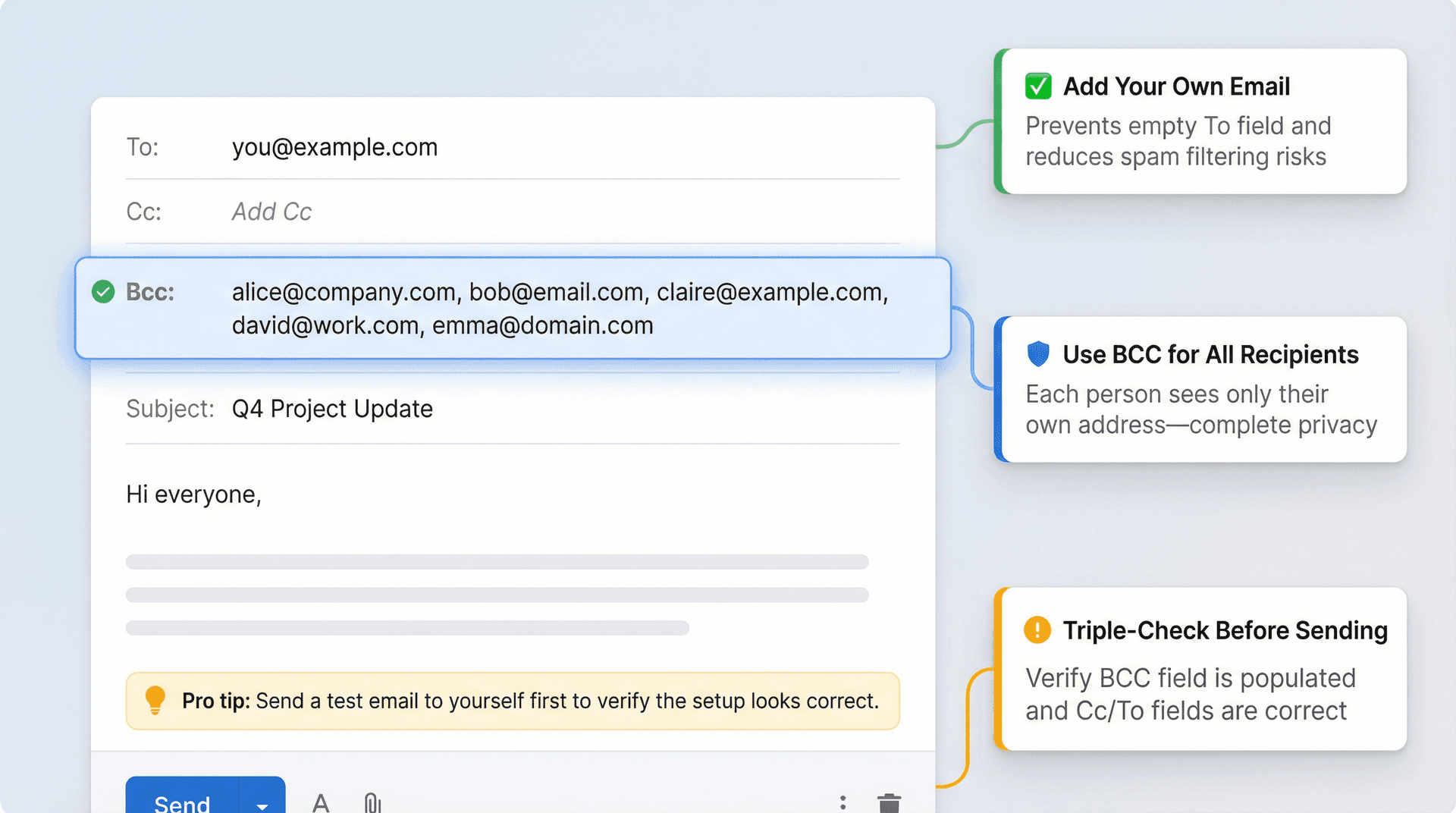
Always Triple-Check Before Sending
It's a terrible feeling to accidentally put people in Cc when you meant BCC.
Before you hit "Send," verify that all external recipients are indeed in the BCC field (or that your mail merge is configured correctly). Avoid putting anyone in Cc/To except yourself or a placeholder.
One tip: compose a test email first with just your own addresses to see how it looks.
Add Your Own Address in "To" (For BCC Method)
Adding your email to the To field helps prevent the email from looking blank and reduces spam filtering.
The email will appear in your Sent folder and possibly your Inbox (since you were a recipient). This is normal. You can filter it out if you don't want to see your own mass email.
The main goal is to avoid an empty "To" line, which some mail systems might mark with "Undisclosed Recipients" or treat as a red flag.
Inform Recipients When Appropriate
If the people you're emailing might not expect to receive an email alongside strangers, it's polite to include an introduction line like:
"I'm BCC'ing all recipients to protect your privacy."
This is especially useful if it's a group that might try to reply-all or wonder who else got the mail. It sets the expectation that replies will only go to you.
Mind the Recipient Limitations
Know the caps of your email provider.
For Gmail, that's ~500 recipients per day, with a recommendation of under 100 per single email. Outlook.com has limits around 300 per day for newer accounts.
If you exceed these, your emails might not send, or your account could be temporarily blocked. If you have a very large list, break it into smaller sends over multiple days or switch to a professional email-sending service.
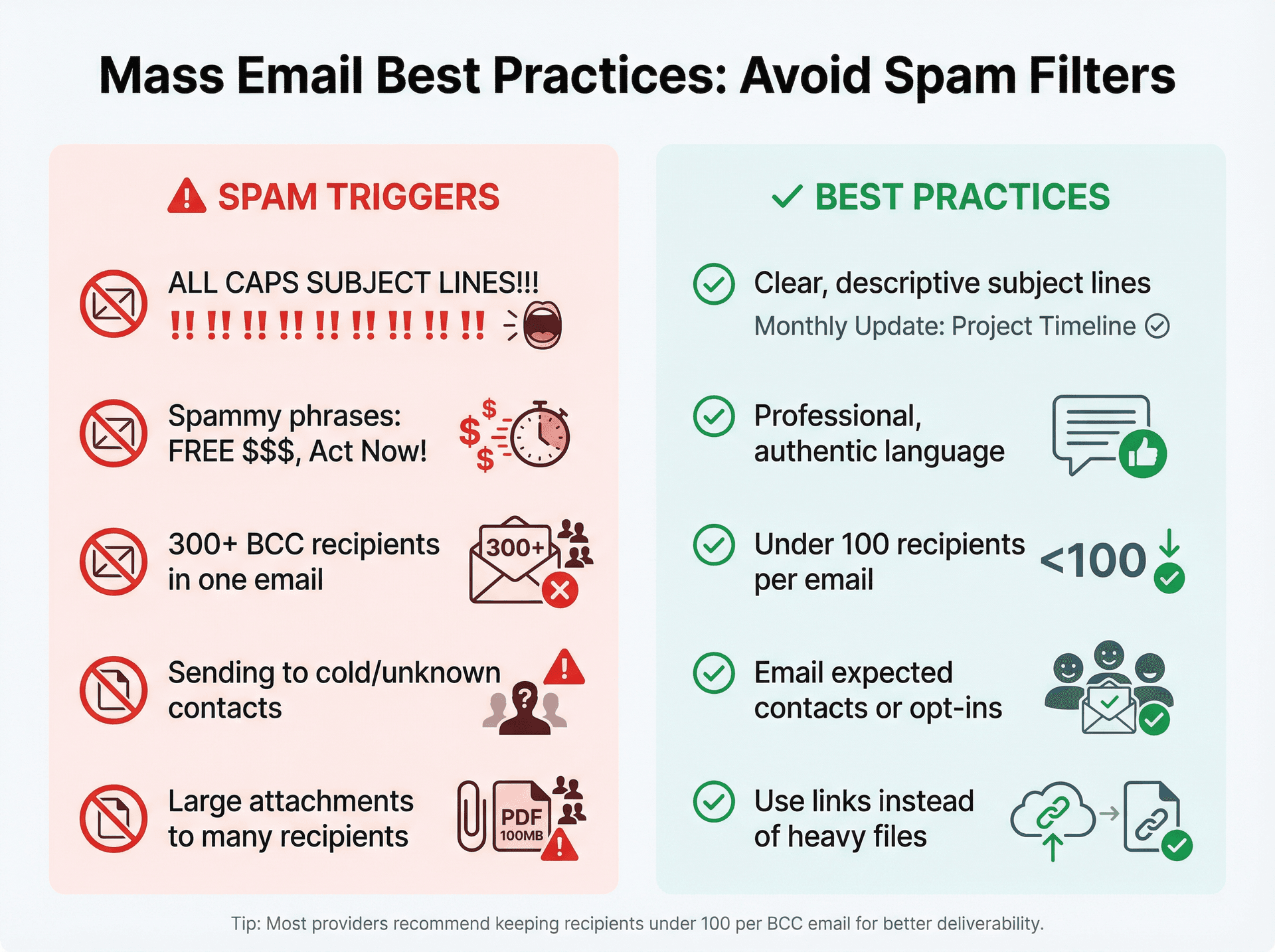
Avoid Looking Like Spam
Even if you're not a spammer, certain patterns trigger filters:
-
Don't use all caps or lots of exclamation marks in your subject
-
Avoid spammy phrases ("FREE $$$")
-
Maybe don't put 300 addresses in one email if using BCC
If you're emailing people who've never heard from you before, consider sending individually with personalized notes (mail merge). A sudden mass email can get flagged or ignored.
It helps if recipients are expecting your email or have opted in to receive it.
Use Descriptive Subjects
Just because recipients are hidden doesn't mean the email should look mysterious.
Use a clear subject line that reflects the content. This sets the context and can reassure people that it's a legitimate email they should read.
A vague or blank subject sent to many BCC'd people might look like phishing.
Be Careful with Attachments
Sending a large attachment to dozens of people could bloat everyone's inbox and trigger limits (some providers limit total email size × number of recipients).
If you have a file to share with many people, consider using a link (like a shared Google Drive link) rather than attaching a 25MB PDF to 100 BCC'd emails.
Monitor Responses and Bounces
After sending, keep an eye on bounce messages (emails telling you some addresses weren't delivered). This could happen if an address is invalid or if a server blocked the message.
If you see a bounce for "too many recipients" or "message looks like spam," you might need to adjust and resend in smaller batches or through a different channel.
Also, since BCC recipients can't reply-all, they might reply to you individually if they have questions. Be prepared to handle those responses.
How to Manage Email Responses After Mass Sends
Here's something most people don't think about: if you BCC 50 people and even a quarter of them reply, you'll get 12+ separate emails back.
This can quickly overwhelm your inbox, especially if you're doing mass sends regularly. You need a system to handle the influx.
How Inbox Zero Can Help
When you send mass emails, the replies can pile up fast. Tools like Inbox Zero become invaluable for managing the aftermath.
Inbox Zero's AI email assistant can:
-
Draft replies automatically based on rules you set, saving you from writing the same response 15 times
-
Label and organize incoming responses so you can see all replies to your mass email in one place
-
Block cold emails and unsubscribe from newsletters that flood in alongside legitimate responses
-
Track which emails need replies with the Reply Zero feature, ensuring you don't miss anyone
For example, if you send a BCC email to 100 clients and 30 reply with questions, Inbox Zero's AI automation can automatically draft responses for common questions, label all the replies with a specific tag, and flag the ones that need your personal attention.
This turns a potentially overwhelming inbox situation into something manageable. Instead of spending hours writing individual replies, you can focus on the responses that truly need your input.
Other Response Management Tips
Beyond using tools like Inbox Zero, consider these strategies:
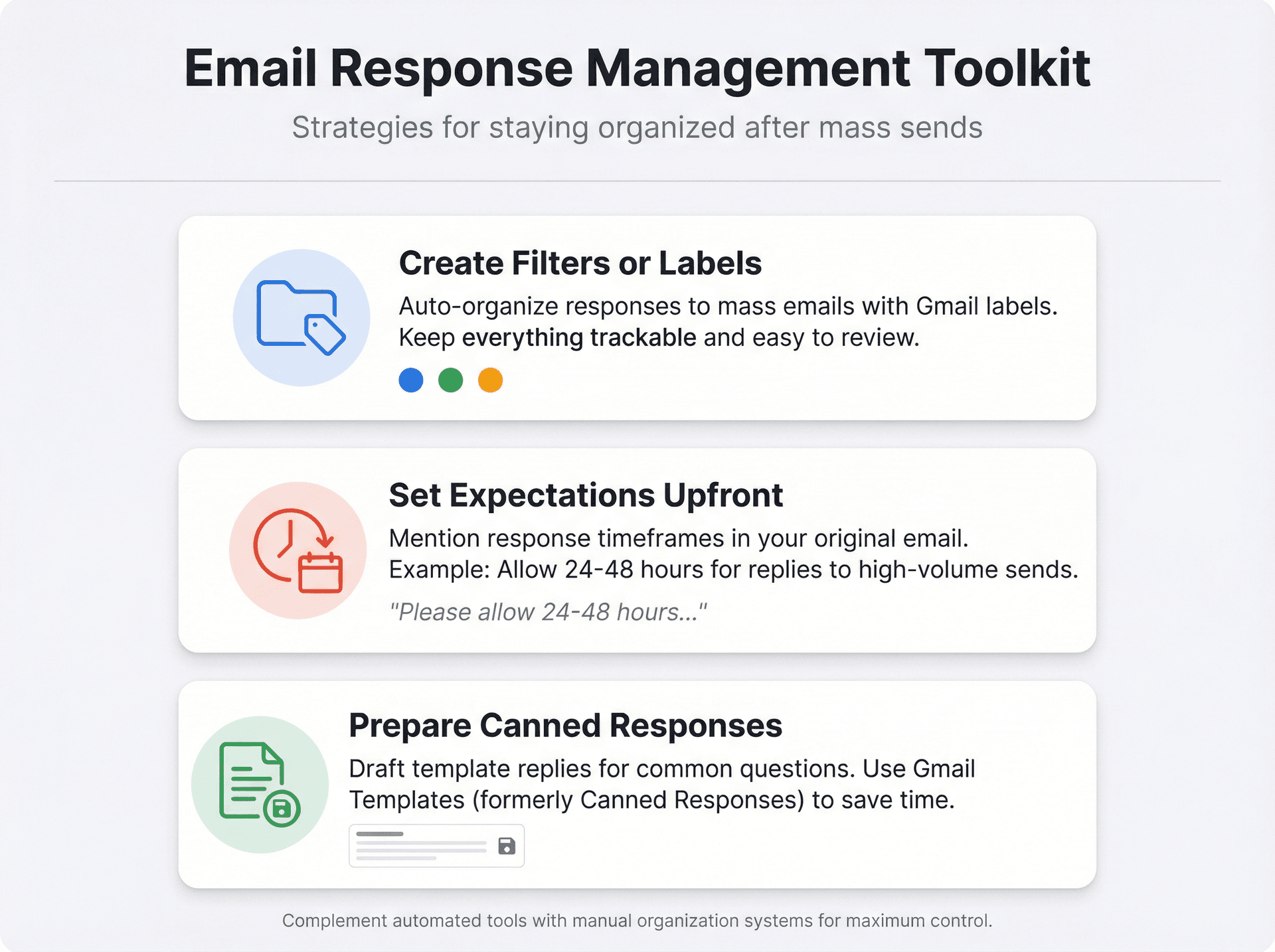
Create filters or labels:
In Gmail, you could apply a label to track responses to your mass email. This keeps them organized and easy to review.
Set expectations upfront:
If you anticipate many replies, mention in the original email: "Please allow 24-48 hours for a response" or "Due to high volume, I'll respond to individual questions by Friday."
Prepare canned responses:
If you expect similar questions, draft template replies in advance. Gmail has a "Canned Responses" feature (called "Templates" now) that lets you save and insert pre-written replies.
Quick Recap: How to Send Private Group Emails
Let's summarize the key methods:
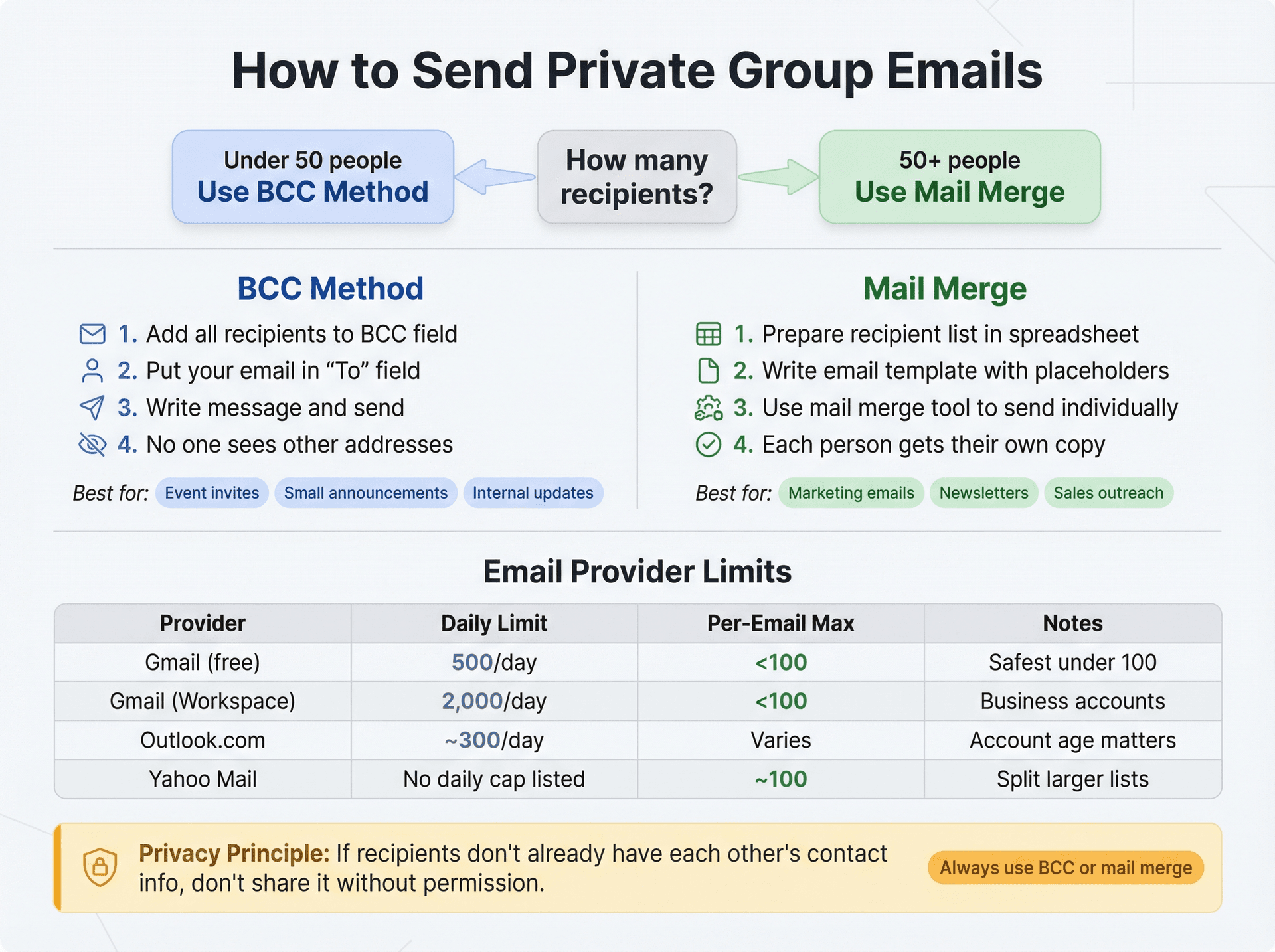
For Small Groups (Under 50 People):
Use BCC:
• Add all recipients to the BCC field
• Put your own email in the "To" field
• Write your message and send
• No one sees anyone else's address
Best for: One-time announcements, event invites to small groups, internal updates
For Large Groups or Regular Sends:
Use mail merge or email marketing services:
-
Prepare your recipient list in a spreadsheet
-
Write your email template with personalization placeholders
-
Use a tool (email marketing service, Gmail add-on, etc.) to send individual emails
-
Each person gets their own copy with no other addresses visible
Best for: Marketing emails, newsletters, sales outreach, customer announcements
Remember Email Provider Limits:
| Provider | Daily Limit | Per-Email Recommendation |
|---|---|---|
| Gmail (free) | 500 recipients/day | Under 100 per email |
| Gmail (Workspace) | 2,000 recipients/day | Under 100 per email |
| Outlook.com | ~300 recipients/day | Varies by account |
| Yahoo Mail | ~100 per email | Split larger lists |
The Privacy Principle
Critical insight: If people don't already have each other's contact info, don't share it without permission. Use BCC or mail merge to keep addresses private.
Only use normal Cc for small teams that know each other and need to collaborate openly.
Final Thoughts
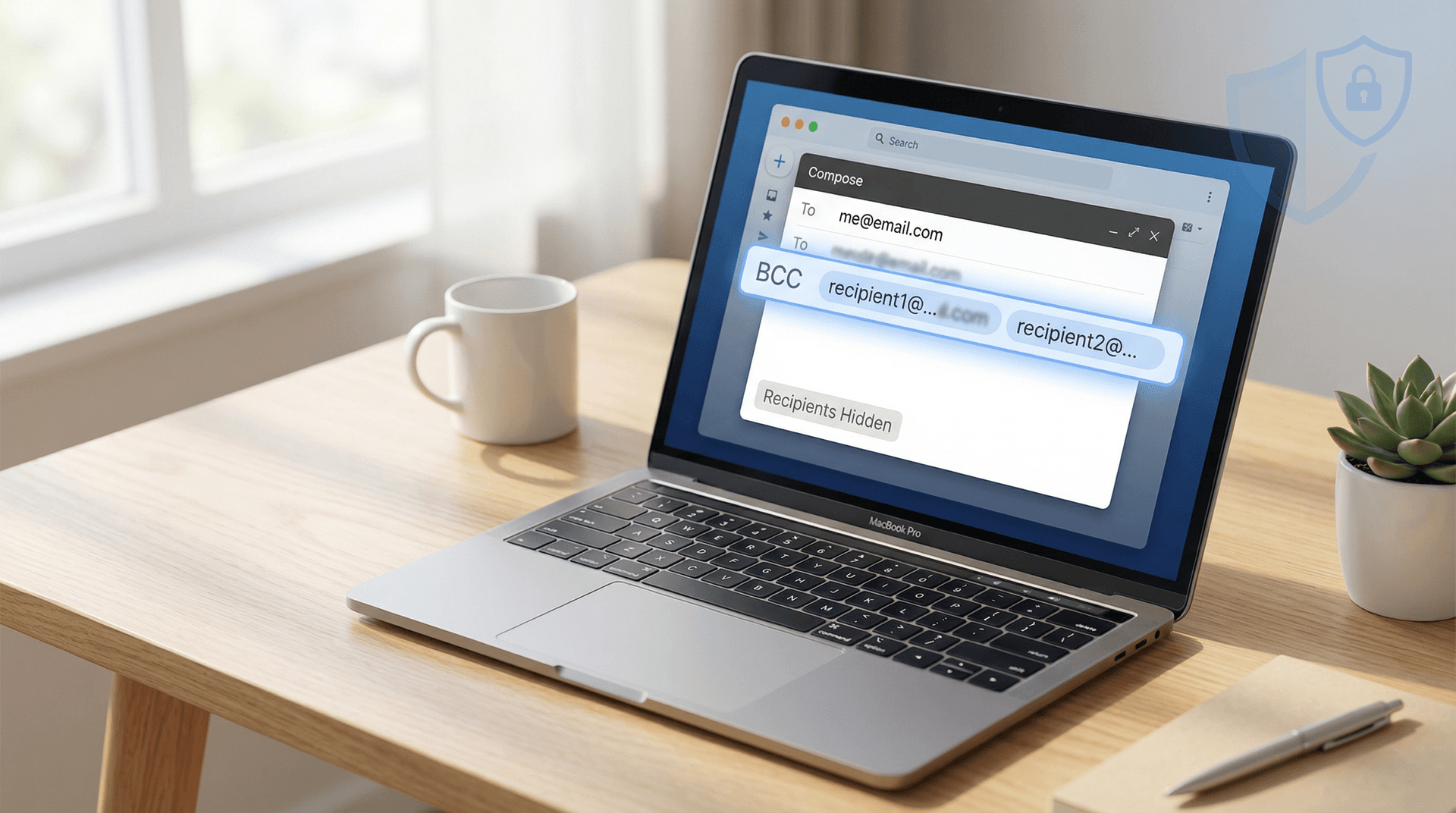
Sending group emails without exposing recipient addresses is about respect and professionalism. Whether you're emailing parents, clients, or friends, using BCC or mail merge shows that you value their privacy and understand email etiquette.
It prevents awkward situations like someone hitting Reply All and spamming everyone. It avoids potential privacy breaches. And it keeps your communication looking polished and intentional.
For occasional small sends, BCC is your best friend. It's built into every email client and takes seconds to use.
For larger lists or frequent sending, invest time in learning a mail merge tool or email marketing service. The personalization and deliverability benefits are worth it.
And if you find yourself drowning in responses after a mass send, remember that tools like Inbox Zero can help you manage the flood with AI-powered drafts, smart labeling, and reply tracking.
Now you have the knowledge to send group emails confidently, privately, and professionally. No more "Oops, I revealed everyone's emails!" scenarios.
Your contacts' privacy is in your hands. Use these methods to protect it.
What is the Inbox Zero Method & How do I Master It?
Discover the Inbox Zero method and learn simple steps to take control of your email inbox, stay organized, and boost productivity.

4 Email Productivity Hacks from Tim Ferriss, Andrew Huberman, and Sam Harris
Explore 4 powerful email productivity hacks from tech and wellness experts like Tim Ferriss and Andrew Huberman. Learn to create focus, optimize processing, manage time wisely, and delegate effectively to conquer your inbox.
Best Time to Send Emails for Response (2026)
Stop guessing when to send emails. Get data-backed timing strategies from 2026 research that improve response rates across all scenarios.
How To Organize Outlook Inbox? (2026 Guide)
Learn how to organize Outlook inbox with rules, folders, categories, and AI automation. Step-by-step guide for 2026 that actually works.