How to Recover Deleted Gmail Emails After 30 Days?
Learn how to recover permanently deleted Gmail emails after 30 days using Google's hidden tools, plus proven prevention strategies to protect your messages.

Deleted an important email by mistake and it's been more than 30 days? That sinking feeling is all too common. You need that contract, that client's contact information, or that receipt, but Gmail's Trash is empty and the email is nowhere to be found.
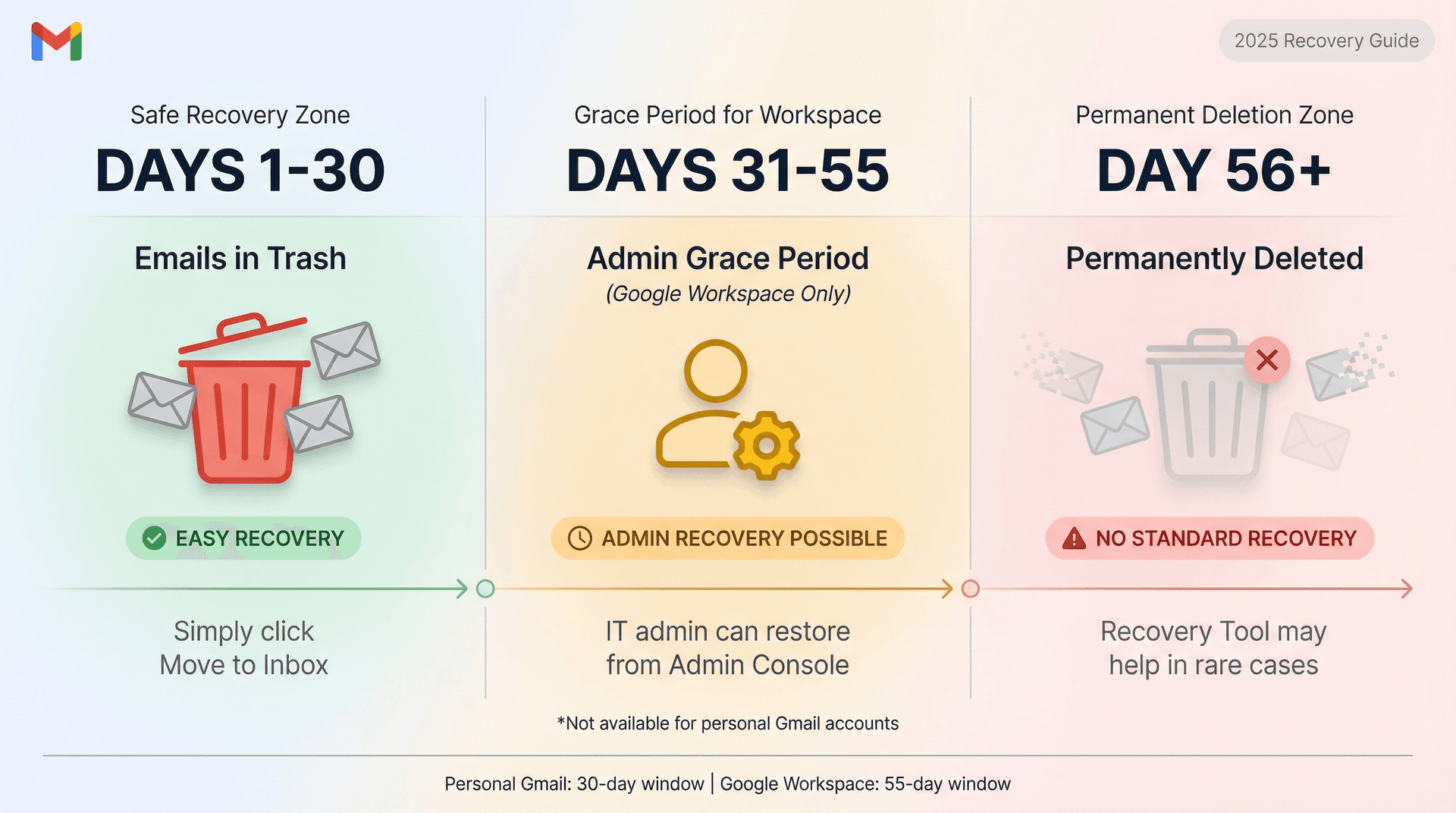
Recovering permanently deleted Gmail emails after 30 days is extremely difficult. In many cases, it's impossible. But before you panic completely, there are a few methods worth trying. We'll walk through every possible recovery option, explain exactly why Gmail's 30-day window exists, and most importantly, show you how to make sure this never happens again.
Thousands of people search for this exact problem every day, so you're definitely not alone. Let's tackle this systematically.
Why Gmail Permanently Deletes Emails After 30 Days
Before diving into recovery methods, you need to understand how Gmail handles deleted emails. This knowledge will help you set realistic expectations and act quickly where it matters.
How Gmail's Trash works:
When you delete a message, it doesn't disappear immediately. Instead, Gmail moves it to your Trash folder (also called Bin in some regions) and keeps it there for exactly 30 days. During this window, recovery is simple: just open Trash and click "Move to Inbox." Easy.
But here's where it gets serious. After 30 days, Gmail permanently deletes that email from its servers. According to Gmail's official help documentation, once this happens, the email is gone from all normal Gmail interfaces and cannot be recovered through any standard method. You can also learn more about how archived emails work in Gmail to avoid confusion between archiving and deletion.
Why the 30-day limit exists:
This isn't Gmail being difficult. The retention policy exists for two important reasons:
• Privacy protection. When you delete something, you expect it to actually be deleted eventually. Gmail honors that by not keeping your deleted emails indefinitely.
• Storage efficiency. Keeping billions of deleted emails forever would require massive server resources. After 30 days, those emails are purged to free up space.
The Google Workspace exception:
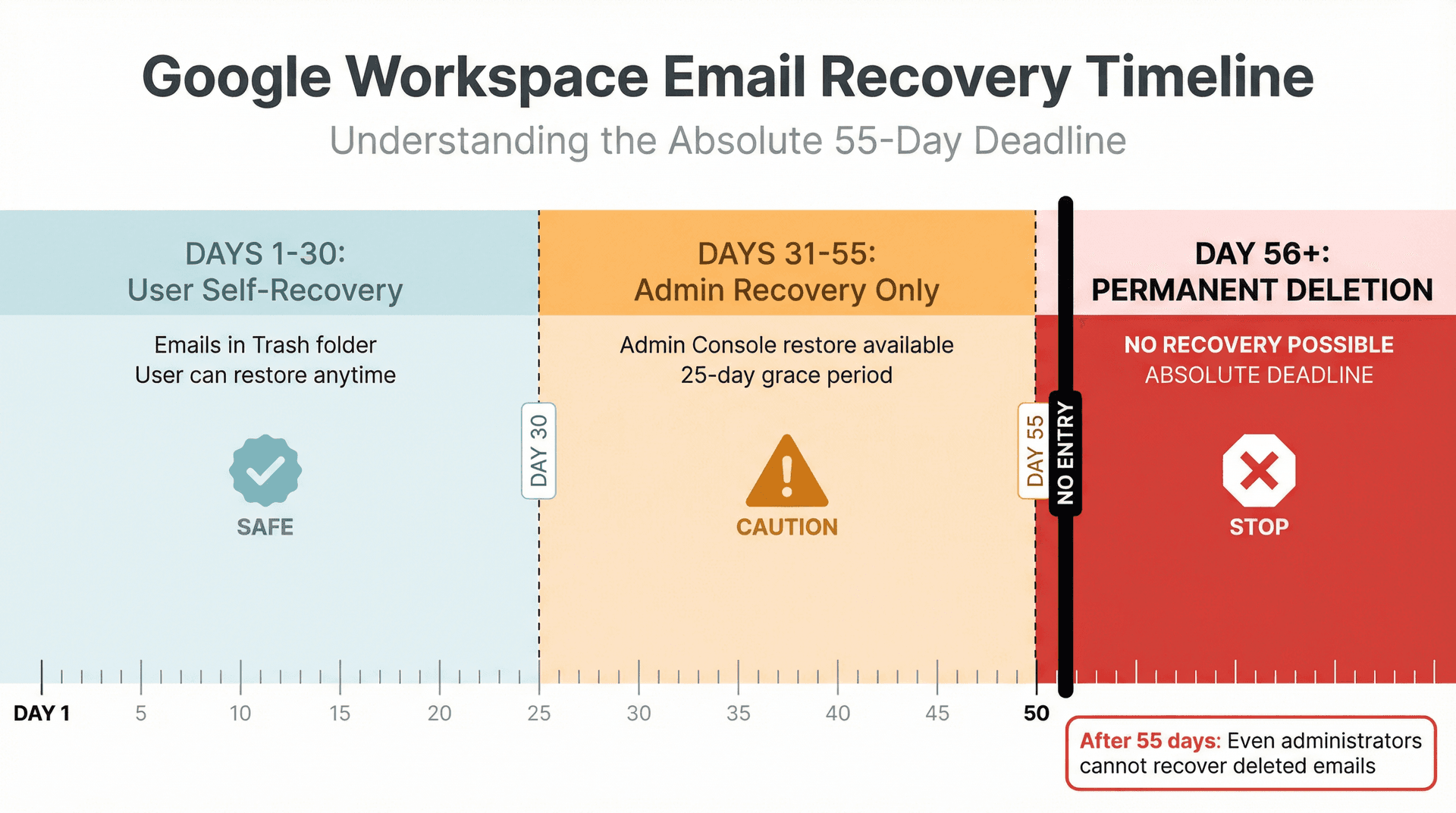
If you use Gmail through a work or school account (Google Workspace, formerly G Suite), there's a small grace period. According to Google Workspace Help, administrators can recover deleted emails for up to 25 additional days after they disappear from your Trash.
This means Workspace accounts get roughly a 55-day total recovery window (30 days in Trash plus 25 admin days). But even for Workspace, after that 55-day period, the emails are permanently gone with no exceptions.
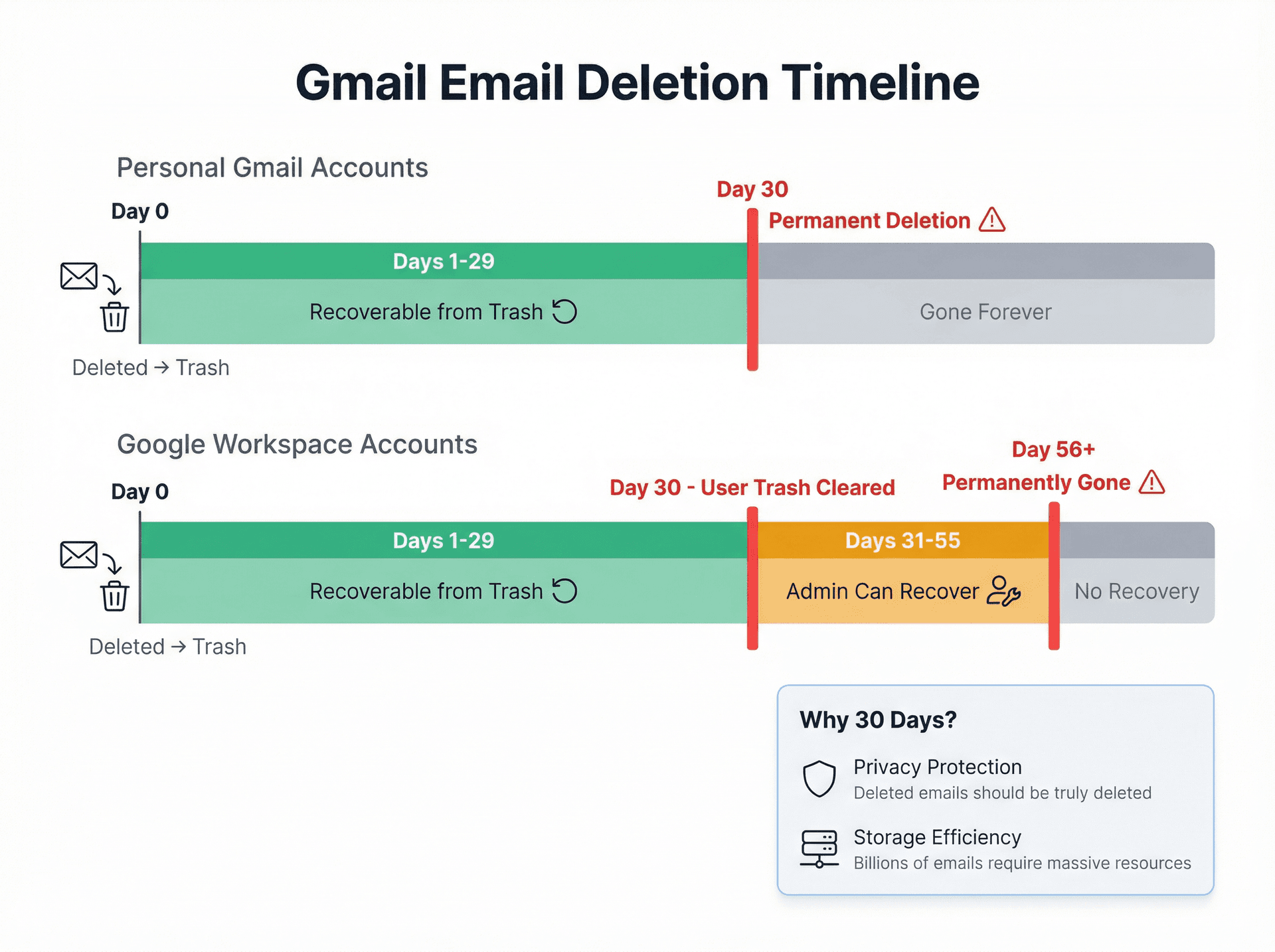
Critical insight: If it's been more than 30 days since deletion on a personal Gmail account (or 55 days on Workspace), standard recovery is not possible. The methods below are your only remaining options.
Your remaining recovery options:
Where to Check Before Assuming Your Email Is Gone
Before assuming the worst, spend five minutes checking these locations. Many people think an email is permanently deleted when it's actually just hiding somewhere else in their account.
Search Gmail All Mail for Archived Emails
Gmail's archive feature is often confused with deletion. When you archive an email, it disappears from your Inbox but stays in your All Mail folder indefinitely.
Search your All Mail folder by clicking it in the sidebar, or use the search operator in:all plus relevant keywords. Archived emails never get auto-deleted. They sit in All Mail forever until you manually delete them. If you find your email here, just move it back to Inbox.
Understanding the difference between Gmail's All Mail and Archive is crucial for effective email management.
Check Gmail Spam Folder for Misclassified Messages
Sometimes emails get misclassified as spam. According to Gmail's spam folder documentation, check your Spam folder (or search with in:spam plus keywords). Spam does auto-delete after 30 days, but if your email got mislabeled as spam recently, you might catch it before then. Click "Not Spam" to restore it.
Double-Check Gmail Trash Folder Timing
It's rare, but confirm that 30 days have truly passed. If it's been 28 or 29 days, the email could still be sitting in Trash. Search inside Trash using in:trash [keyword].
If it's there, select it and hit "Move to Inbox." Problem solved.
Look for Local Email Copies on Other Devices
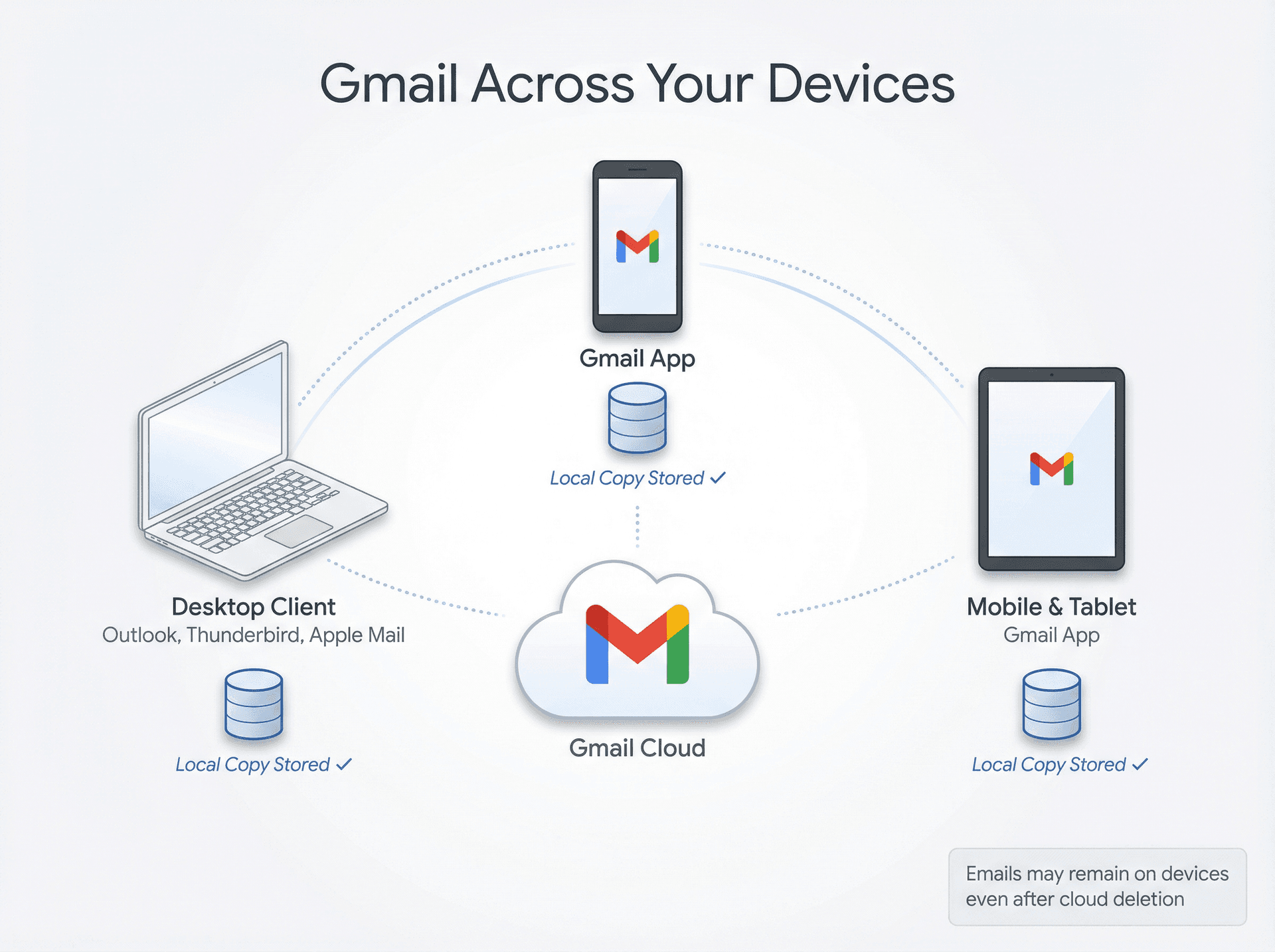
Think about where else you access Gmail. Do you use the Gmail app on your phone? Do you have Gmail set up in Outlook, Thunderbird, or Apple Mail on your computer?
Desktop email clients (especially POP3 configurations) sometimes download and store local copies of emails. Even if the email is deleted from Gmail's servers, your mail client might still have it cached in a local folder.
Check any mail apps on your devices. Look in their Trash folders, local archives, or search their databases. POP3 clients are particularly likely to retain emails locally even after server deletion.
Bottom line: If none of these places have your email, it's genuinely gone from your account. Time to try actual recovery methods.
How to Use Gmail Message Recovery Tool
Google provides an official (but little-known) service specifically for recovering deleted emails that have vanished under unusual circumstances. This is the Gmail Message Recovery Tool, and it's your primary option for post-30-day recovery.
What This Tool Is
The Gmail Message Recovery Tool is essentially a form you submit to request Google's help. According to Google's missing emails support page, it's designed for scenarios like:
→ Someone hacked your account and deleted emails
→ A technical glitch caused unexpected mass deletions
→ Important emails disappeared and you're not sure why
How to Use It
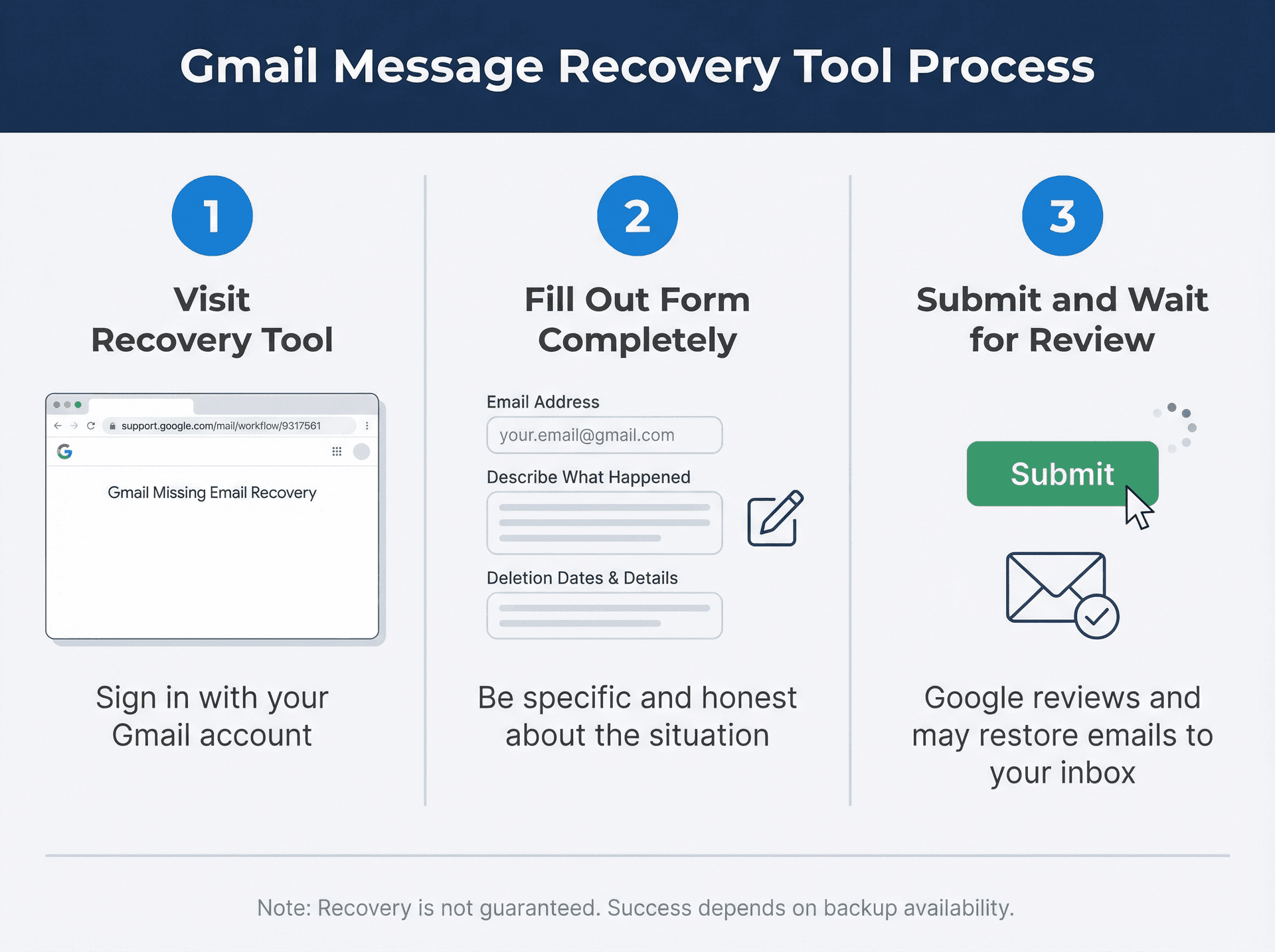
① Visit the recovery tool:
Sign in at the Gmail Missing Email Recovery Tool using your Gmail account.
② Fill out the form completely:
Include your account email address, a clear description of what happened, approximate deletion dates if you know them, and any specific details about the missing emails.
Be honest and specific. Explain that you're trying to recover permanently deleted emails and provide context.
③ Submit and wait:
Google will review your request and attempt to restore any emails their system can still access. If they find the deleted messages on backup systems or redundant servers, they'll restore them to your account (usually back in your Inbox or under a special label).
Important Limitations
Important limitations to understand:
No guarantees. Google explicitly states that recovery is not guaranteed. If the emails have been completely wiped from all storage, there's nothing to recover. The data is simply gone.
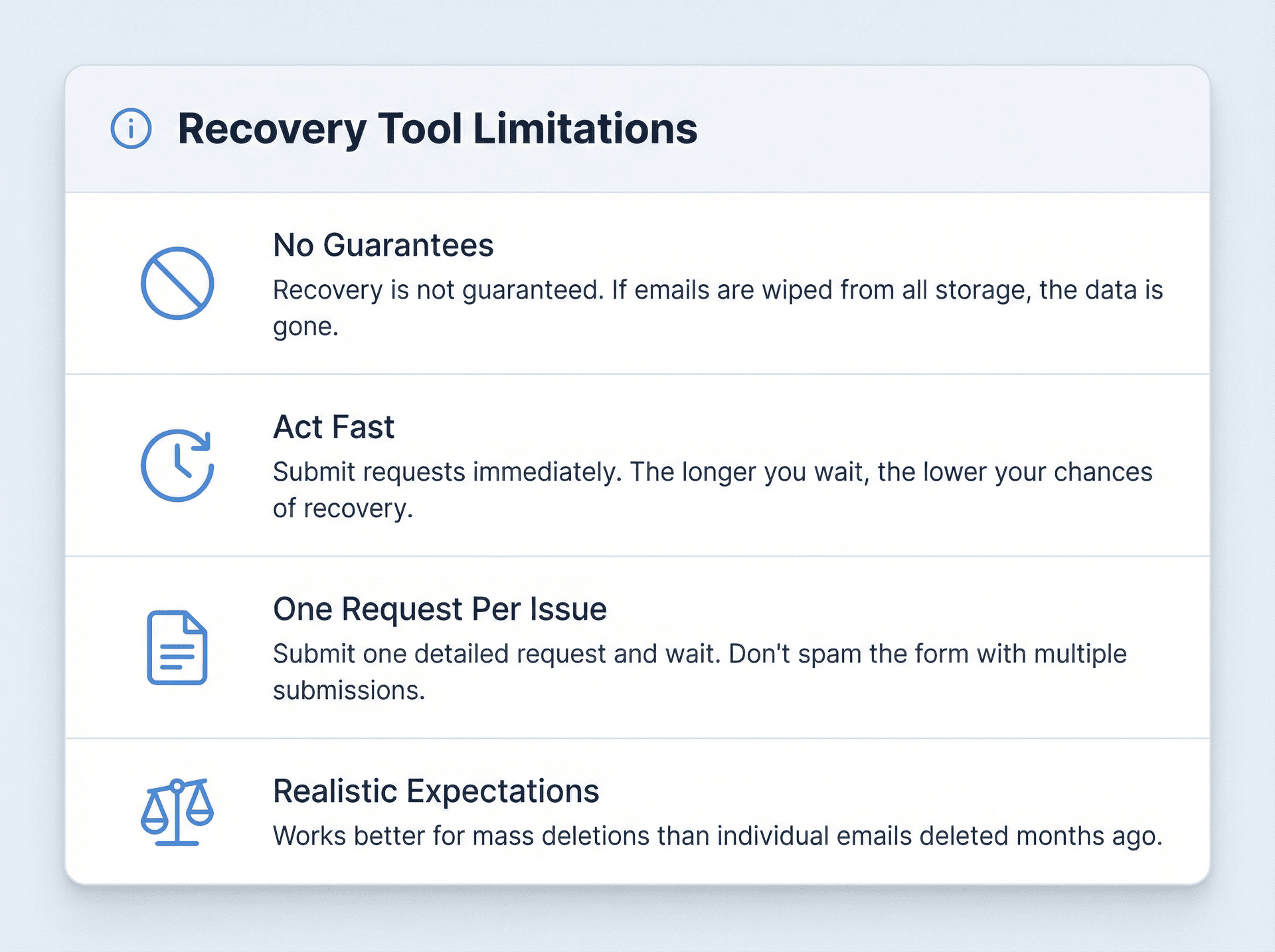
Act fast. If your deletion was recent (just over the 30-day mark), submit your request immediately. The longer it's been, the lower your chances. Google's backup systems may overwrite old data after a certain period.
One request per issue. Don't spam the form. Submit one detailed request and wait for a response. There's usually no direct human you can follow up with for personal Gmail accounts.
Realistic expectations: This tool works better for mass deletions (like an entire inbox wiped during a hack) than for one or two individual emails deleted months ago. But it costs nothing to try, so submit your request and hope for the best.
Can Google Support Recover Deleted Gmail Emails?
For free personal Gmail users, there isn't a phone number you can call to recover old emails. Google doesn't provide one-on-one support for this type of issue on free accounts.
But there are two situations where contacting support might be possible:
Google One Subscribers
If you pay for Google One (Google's expanded storage subscription), you get access to Google's support team via chat or email.
Can they help with deleted emails? They'll likely direct you to the Message Recovery Tool mentioned above, but it's worth asking if there's any escalation path for your specific situation. Be polite, explain what happened, and see if they have any additional options.
Google Workspace Users
If your email is through an organization using Google Workspace (business or school account), your IT administrator can contact Google Support for Workspace. They have access to enterprise support that might be able to help.
Reality check: Even with support access, the fundamental limitation remains the same. After the retention period (30 days for regular users, 55 days for Workspace), recovery is not possible according to Google's official deletion policies. Support can't magically retrieve data that's been purged from all servers.
For most individuals, the Gmail Message Recovery Tool is the extent of "Google support" for this problem.
Google Workspace Admin Email Recovery (Business Accounts)
If the Gmail account in question belongs to a company, school, or organization using Google Workspace, and you have admin support, there's a built-in recovery process that admins can use.
The 25-Day Admin Grace Period
According to Google Workspace Admin Help, Google Workspace administrators can restore deleted emails for up to 25 days after they were purged from a user's Trash. This gives Workspace users a total recovery window of about 55 days:
| Timeframe | Who Can Recover | How |
|---|---|---|
| Days 1-30 | User themselves | Check Trash, click "Move to Inbox" |
| Days 31-55 | Admin only | Use Admin Console "Restore Data" tool |
| Day 56+ | Nobody | Email is permanently gone |
How Admins Restore Emails
If you're an admin (or need to ask your IT team to do this), here's the process as documented in Google's admin documentation:
① Log in to Admin Console at admin.google.com
② Navigate to Users and select the user account that lost emails
③ Click "Restore Data" in the user details page
④ Choose Gmail and set the date range covering when the emails were deleted (the last 25 days from deleted date)
⑤ Click Restore and wait for the process to complete
The restored emails should reappear in the user's mailbox after some time, usually in Inbox or their original label.
Google Vault Alternative
Some organizations use Google Vault for compliance and legal retention. Vault can keep copies of emails beyond normal deletion timelines if retention rules were configured beforehand.
But Vault is not a user-friendly restore tool. An admin could potentially export email content from Vault if it was retained, but they can't easily restore it directly to a user's mailbox. If your organization uses Vault, ask your IT team to check if the email was captured under any retention policy.
Important: After the 25-day admin grace period expires, even administrators cannot recover deleted emails. The 55-day total window is absolute.
Check Third-Party Email Backups and Local Copies
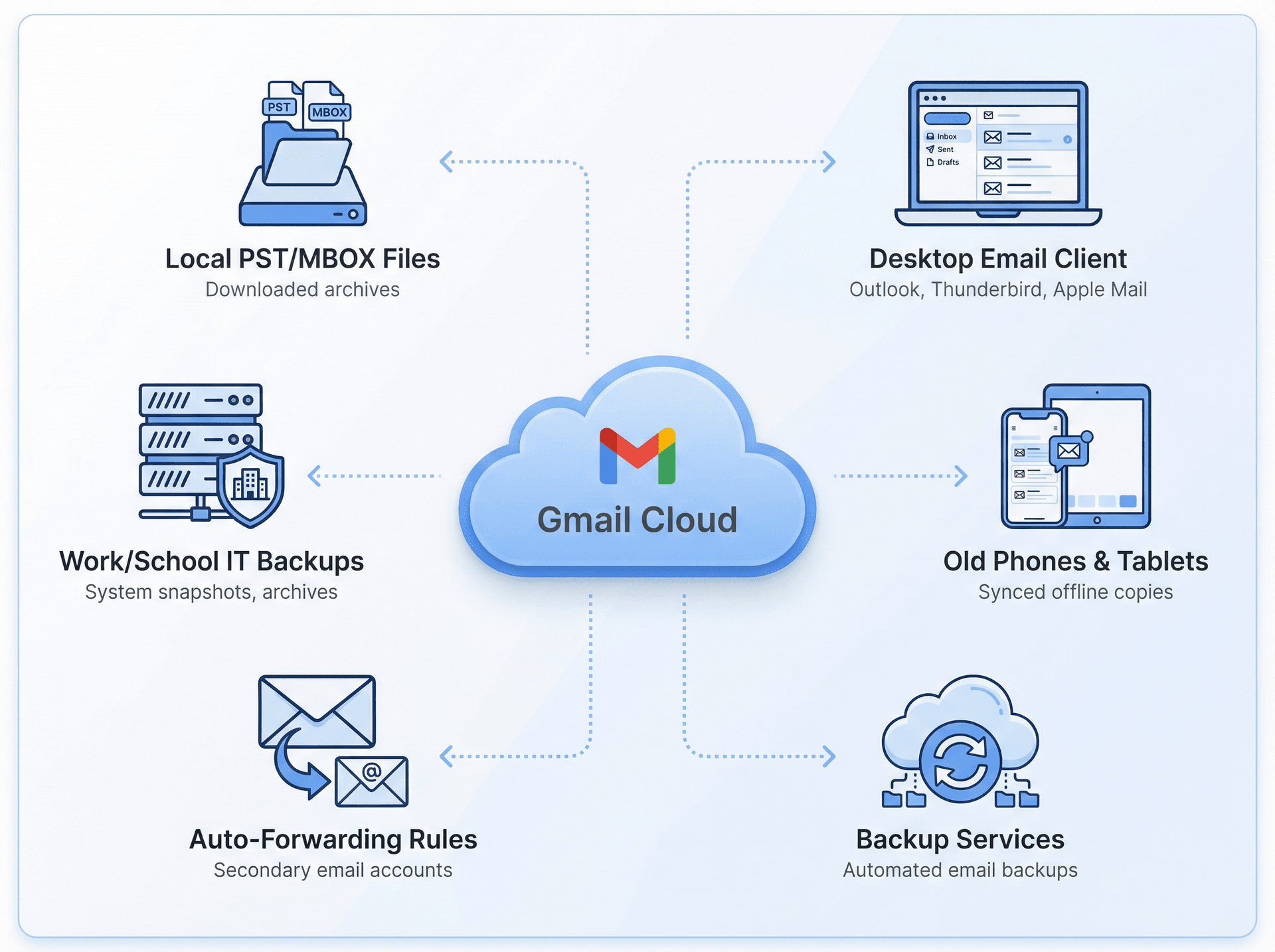
If Google's official recovery methods don't work, the email might still exist outside of Gmail's servers. Here are some alternative places to look:
Desktop Email Clients
Did you ever configure Gmail in Outlook, Thunderbird, Apple Mail, or another desktop email program?
If so, open those applications and search thoroughly. IMAP clients might have cached the message. If you used POP3 to fetch Gmail (with "leave a copy on server" disabled), the only remaining copy might be in that client's local files.
| Email Client Type | Recovery Potential | Where to Look |
|---|---|---|
| POP3 | High | Local PST/MBOX files, client's own folders |
| IMAP | Medium | Cached messages, local folders if created |
| Web-only | None | No local storage to check |
For example, Outlook stores emails in PST files on your computer. Even though the email is gone from Gmail, Outlook might still have it locally. Search any mail archives, local folders, or even the client's own trash.
Automatic Forwarding or Backup Services
Think back: did you set up any email forwarding rules? If you configured Gmail to automatically forward all messages to another email address, that address might still have the email.
Similarly, some people use third-party backup services to regularly back up their Gmail. If you had something like that in place, check those backups now.
Old devices can also be gold mines. If you have an old phone or computer where Gmail was synced offline, the email might still be sitting in that device's email app.
Work or School IT Backups
If this was a work or school email, your organization might perform periodic email exports or use backup systems beyond Google's tools.
It's worth asking your IT or support team if they can recover the message from system snapshots, archives, or any backup infrastructure they maintain. Some organizations back up email data independently.
Realistic assessment: In most cases, if you didn't explicitly set up backups or use an email client that stored messages offline, a truly deleted Gmail message won't have another copy anywhere. Gmail is cloud-based, so when it's gone from the server, it's gone from everywhere that syncs with it.
But these backup checks occasionally save the day, so they're worth trying.
What to Do When Gmail Email Recovery Is Impossible
What if none of the recovery methods work?
Unfortunately, this is the most common outcome. Permanently deleted really does mean permanently deleted in Gmail's architecture. Once Google's servers purge the email after the retention period, no tool, service, or trick can bring it back.
Professional data recovery services might claim they can retrieve cloud-based emails, but they can't. Data recovery works for local hard drives and physical storage devices, not for emails that have been erased from a cloud provider's data centers.
After the retention window closes, recovery simply isn't possible. No third-party software can magically access Google's servers and undelete what Google has purged. It's gone.
What to Do When Recovery Fails
If you've hit this wall, your best move is to accept the loss and focus on reconstruction and prevention.
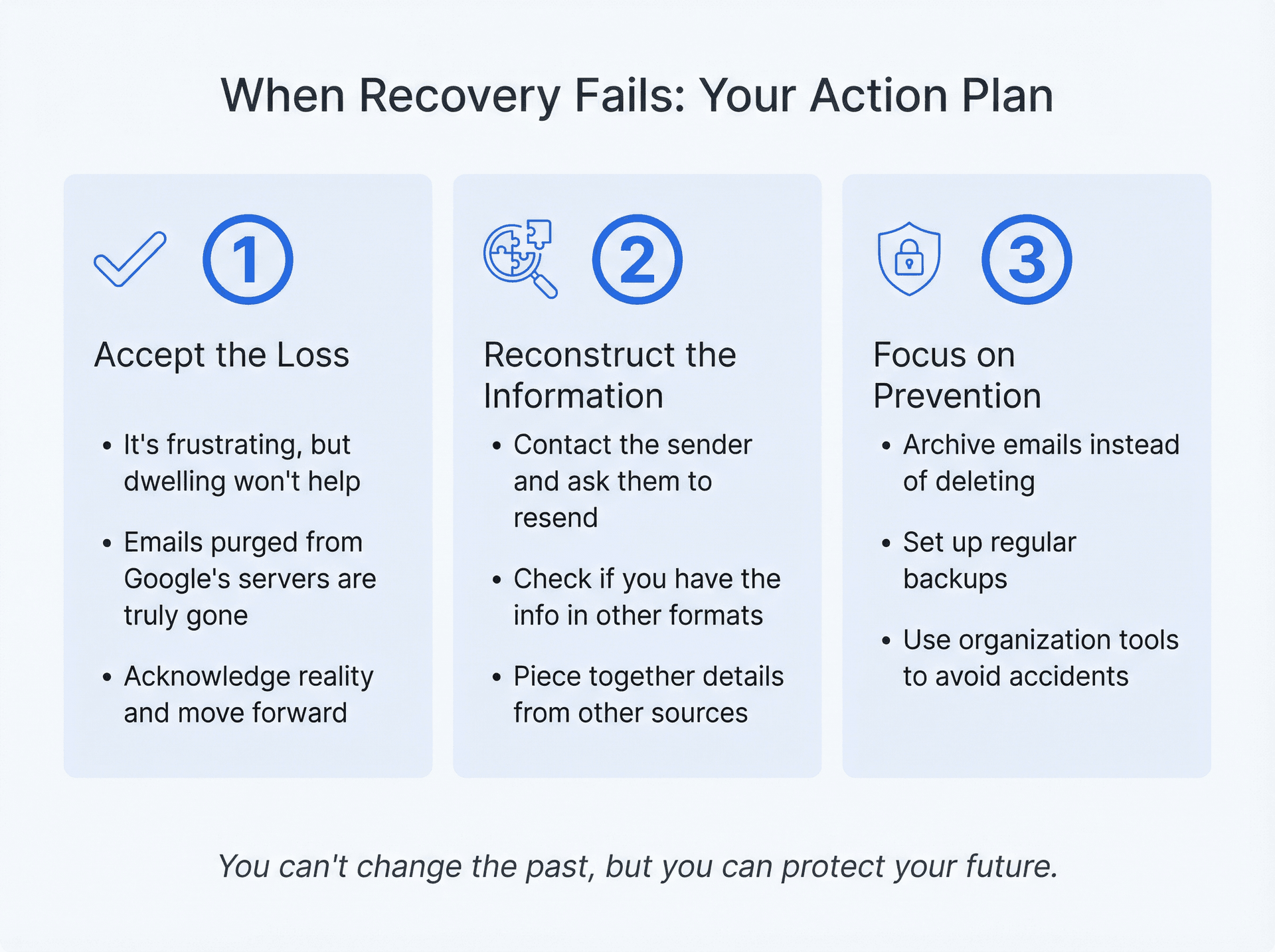
① Accept the loss. It's frustrating, but dwelling won't bring the email back.
② Try to reconstruct the information. Can you contact the sender and ask them to resend? Can you piece together the information from other sources? Sometimes the content can be recovered even if the exact email can't.
③ Focus on prevention. Make sure this never happens again by implementing the strategies below.
How to Prevent Losing Gmail Emails Forever
Since recovering deleted emails after 30 days is so difficult, your time is better spent making sure you never face this problem again. Here are practical strategies to protect your important emails.
Archive Gmail Emails Instead of Deleting
This is the single most important habit change you can make. If an email might be useful later, don't delete it. Archive it.
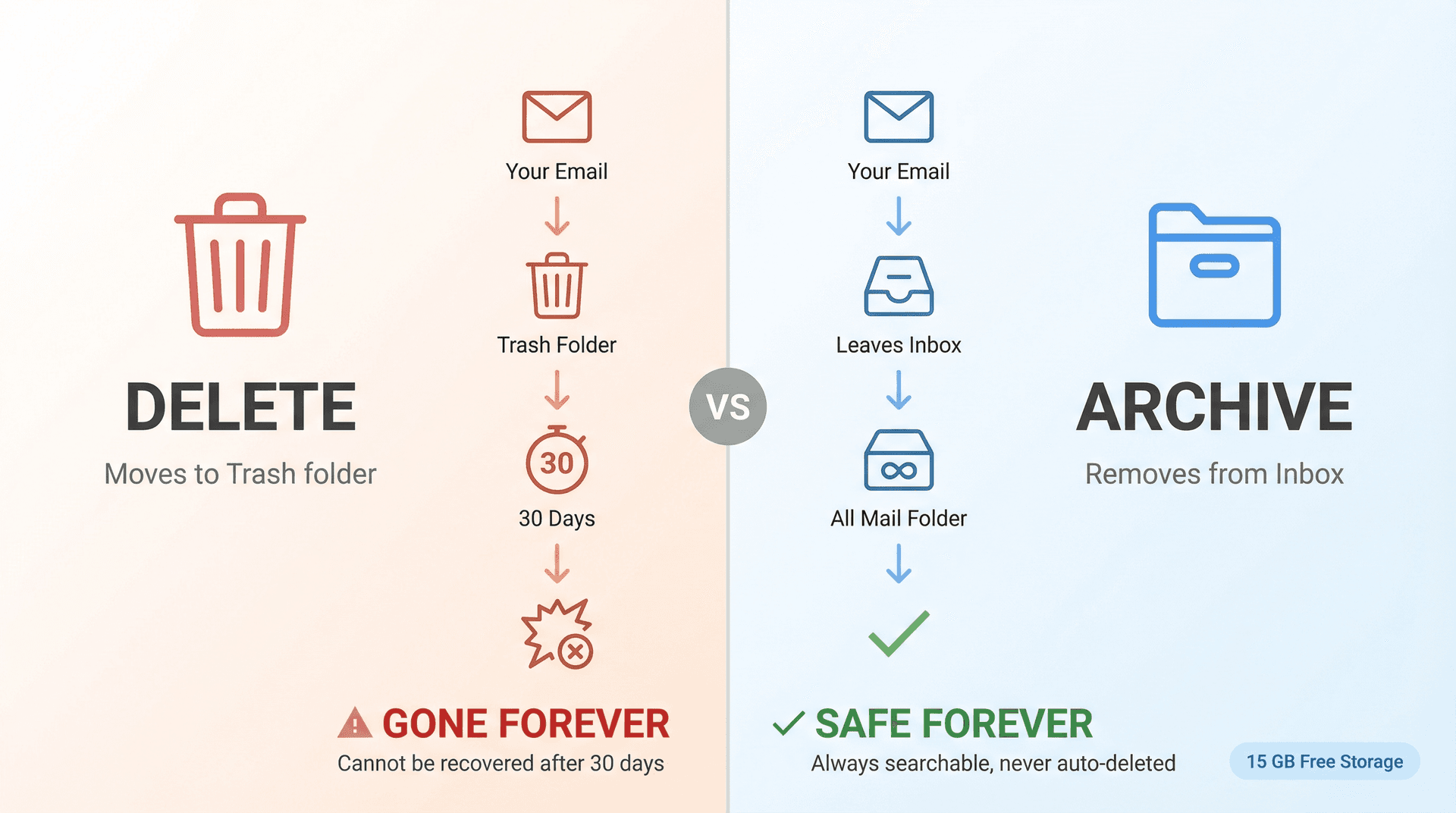
Archiving in Gmail removes the message from your Inbox view but keeps it in All Mail forever (or until you manually delete it). Archived emails never expire or get auto-deleted. They stay indefinitely and remain fully searchable.
With Gmail providing 15 GB of free storage (and affordable Google One upgrades for more), there's rarely a reason to permanently delete emails unless you're absolutely certain you won't need them.
Our philosophy at Inbox Zero: Delete spam and obvious junk. Archive everything else. This simple rule protects you from accidental deletion while keeping your inbox clean.
How to Back Up Gmail Regularly
For critical emails, redundancy is essential. Set up periodic backups so that even if something gets deleted from Gmail, you have an offline copy.
The easiest method: Google Takeout
Google Takeout is Google's official data export tool. It lets you download your entire Gmail mailbox (or any subset) to a file on your computer.
| Backup Method | Frequency | Best For |
|---|---|---|
| Google Takeout | Every 1-3 months | Complete archives, major cleanups |
| Third-party backup tools | Automated weekly | Set-and-forget protection |
| Email client local storage | Continuous (if using POP3) | Real-time local copies |
How to use Google Takeout:
① Visit Google Takeout
② Select Gmail (deselect other services if you only want email)
③ Choose export format (MBOX is standard for email)
④ Download the archive to your computer
⑤ Store it somewhere safe
Do this every few months, or at minimum before any major email cleanup. Some people automate this using third-party backup tools that can schedule regular Gmail exports.
Bonus tip: If storage is an issue, you can learn how to export all Gmail emails before deleting to create a safe archive, then delete them from Gmail to free space, confident that you have a local backup saved.
Use Gmail Labels to Avoid Accidental Deletions
A common way people lose emails is by bulk-deleting clutter and accidentally including something important.
Reduce this risk with labels:
Use Gmail labels or categories for important items. For example, create labels for "Important Projects," "Tax Documents," "Client Communications," or "Personal Archives."
When you organize emails this way, important messages stand out. When you're purging newsletters or promotional emails, your critical emails are separated and safe. Understanding the difference between Gmail labels vs folders can help you implement an effective organization system.
An organized inbox means you're far less likely to delete something valuable during a cleanup session. For more comprehensive strategies, check out our guide on how to manage your inbox.
Reduce Gmail Clutter Without Risky Bulk Deletions
Another angle: reduce the noise in your inbox so you don't feel compelled to mass-delete in the first place.
Unsubscribe aggressively. Every newsletter you don't actually read is clutter. Every promotional email from a store you visited once is noise. If you're not getting value from it, unsubscribe.
Our Bulk Email Unsubscriber tool at Inbox Zero can scan all your subscription senders and let you opt out with one click. Fewer unwanted emails means fewer bulk deletions, which means lower risk of accidents. Learn more about how to manage email subscriptions effectively.
Use automation wisely. Instead of manually deleting old emails, consider using automated rules to archive them.
For example, with Inbox Zero's AI Email Assistant, you could set a rule to auto-archive newsletters after 30 days, or auto-archive read messages from certain senders. This keeps your inbox tidy without permanently deleting anything. The emails remain accessible in All Mail if you ever need them.
Our AI automation features can help you implement smart email management rules that protect important messages while keeping your inbox clean. For more detailed strategies, explore our email management strategies guide.
Double-Check Before Emptying Gmail Trash or Spam
Before you click "Empty Trash Now" or "Delete all spam messages," take 30 seconds to scroll through.
Make sure nothing important accidentally ended up there. This little habit can save you from the regret of "Oops, I didn't realize that email was in Trash before I emptied it."
Keep Your Gmail Account Secure
Many email deletion nightmares start with hacked accounts. Someone breaks in and deletes everything.
Protect yourself:
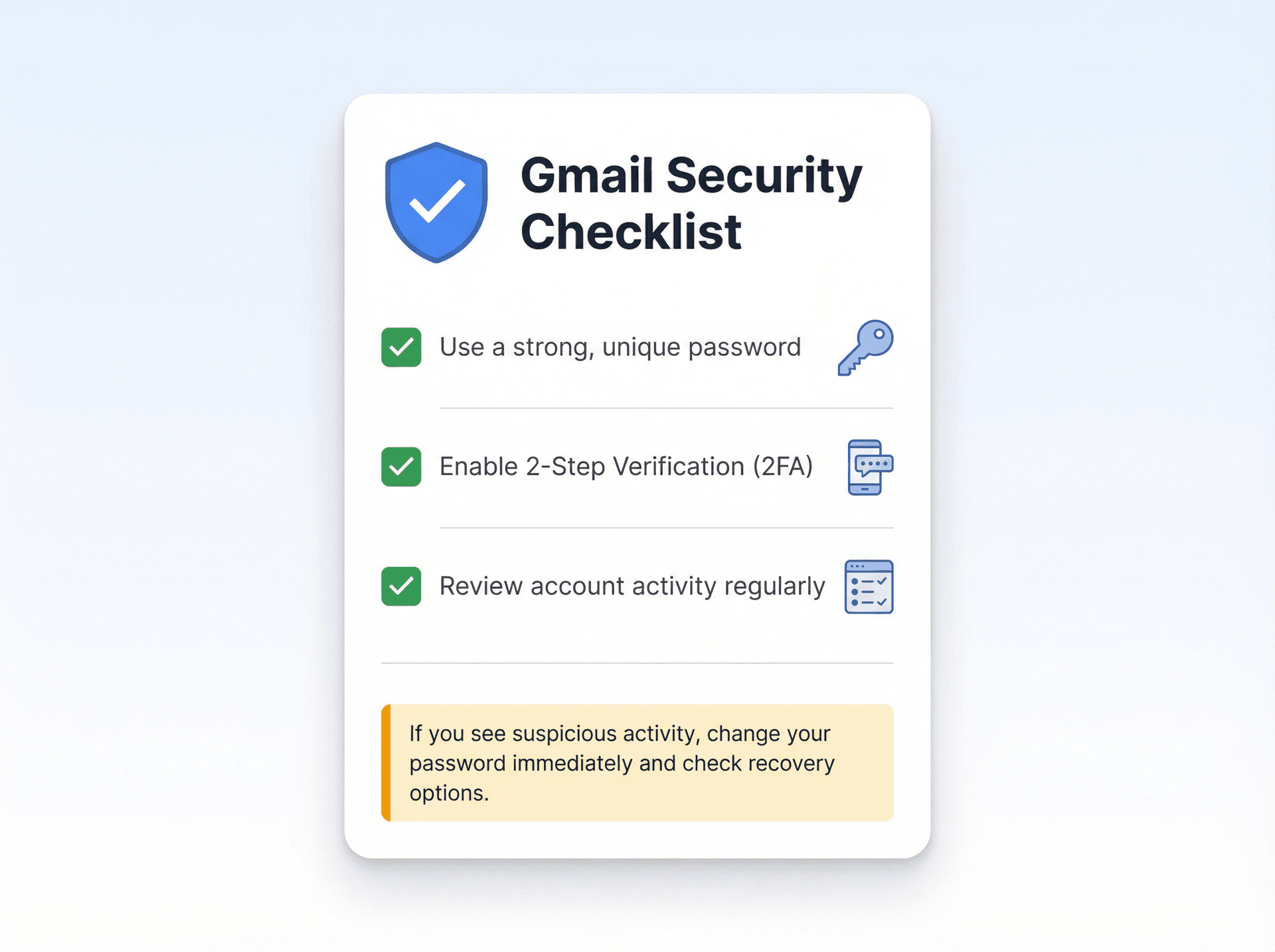
• Use a strong, unique password for Gmail
• Enable 2-Step Verification (two-factor authentication) via Google's 2FA setup
• Regularly review account activity for suspicious logins
If you ever see mass deletions you didn't do, act immediately: change your password, check for recovery options, and secure your account. Learn more about whether it's safe to connect third-party apps to Gmail.
Use Gmail Organization Tools to Stay on Top of Your Inbox
When your inbox is chaotic, important emails get lost in the shuffle. You might delete things accidentally because you can't even see what's important.
Tools that help you organize can reduce deletion risk significantly. For example, our Inbox Zero Tabs for Gmail Chrome extension lets you add custom tabs to Gmail for different email categories (like "To Reply," "Receipts," "Newsletters," "Important Projects," etc.).
This kind of organization means you're always aware of what's where. Important emails don't hide among junk. When you clean up one category, you're not accidentally touching another. It's not a direct recovery tool, but better organization prevents the problem in the first place.
For additional productivity tips, explore our collection of email productivity hacks and email management tips.
Key Takeaways
Let's recap the essential points:
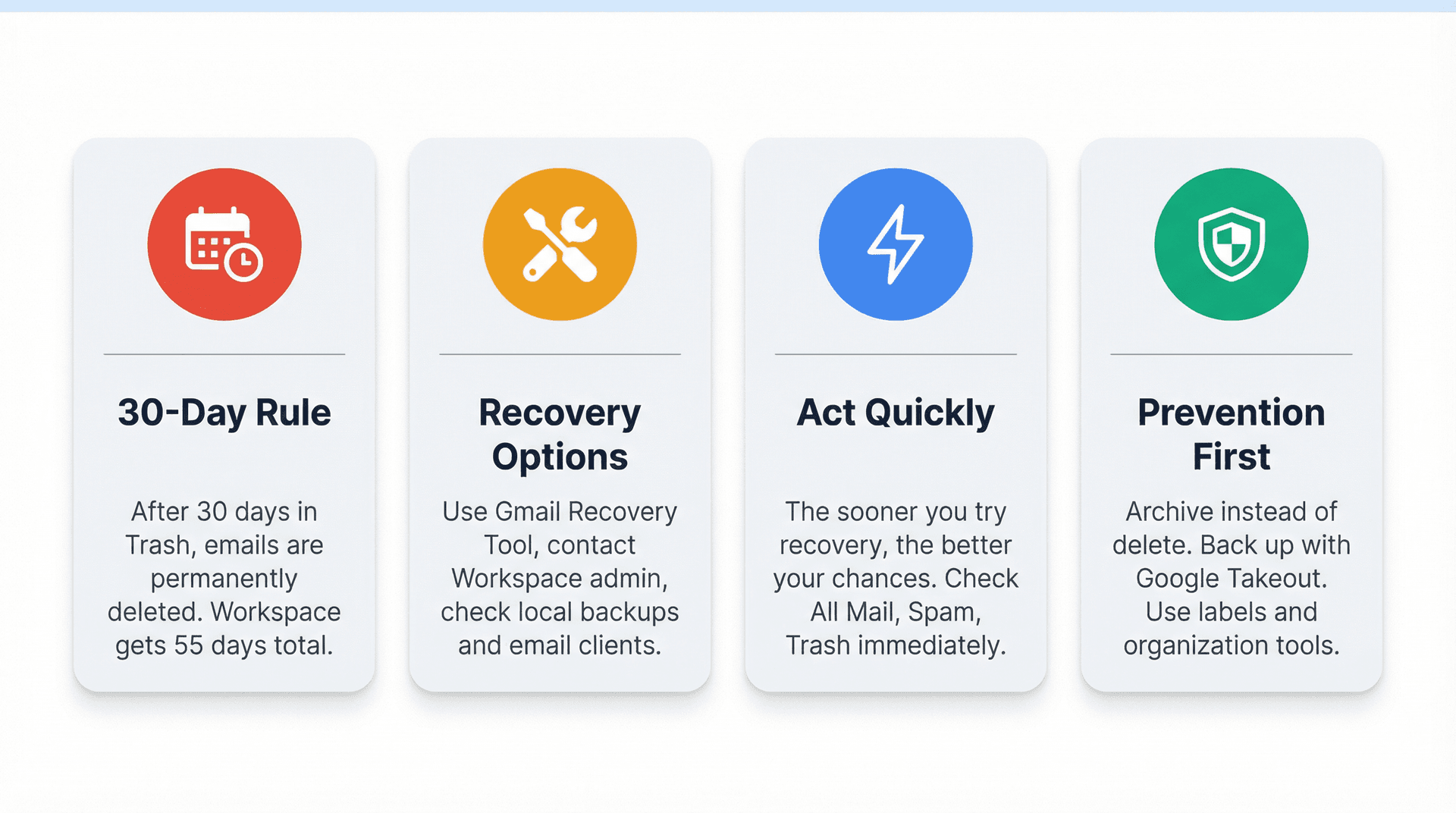
Gmail's 30-day rule is absolute for regular accounts. According to Google's official policies, after 30 days in Trash, emails are permanently deleted. Google Workspace admins get an extra 25-day window (55 days total), but after that, the email is gone forever.
Recovery options exist but have limitations. Use the Gmail Message Recovery Tool immediately when you realize an email is missing. If you're on a Workspace account, contact your admin within the 25-day grace period. Check local backups, email clients, and synced devices for offline copies.
Act quickly and check thoroughly. The sooner you try recovery, the better your chances. Search All Mail, Spam, and Trash. Look on other devices. Submit recovery requests right away.
Prevention is everything. Change your deletion habits now. Archive emails you might need later (Gmail storage is generous). Back up your mailbox periodically using Google Takeout. Use labels and organization to avoid accidental deletions. Unsubscribe from clutter instead of mass-deleting blindly. Keep your account secure.
Conclusion
Recovering permanently deleted Gmail emails after 30 days is challenging. In many cases, it's not possible at all. According to Google's help documentation, Gmail's system is designed to truly delete emails after the retention period for privacy and storage efficiency.
But by using Google's recovery tool quickly, exploring admin options (if applicable), and checking for any backup copies, you give yourself the best chance possible.
The real solution, though, is prevention.
Treat deletion as truly permanent unless you're absolutely certain. Use Gmail's archive feature for messages you're unsure about. Implement a backup routine using Google Takeout. Organize your inbox so important emails never get lost in the clutter.
And consider tools like Inbox Zero that help you manage email smarter. Our AI assistant can automatically archive low-priority messages, our bulk unsubscriber reduces inbox noise, and our organizational tools keep everything sorted so you're never accidentally deleting something important.
Whether you're a small business owner, founder, or just someone drowning in email, our suite of email management tools can help you achieve the inbox zero method without the risk of losing important messages.
Your emails are your data. Taking a few simple steps to protect and organize them now can save you from major headaches down the road.
Good luck with your recovery efforts, and here's to never losing another important email again.

What is the Inbox Zero Method & How do I Master It?
Discover the Inbox Zero method and learn simple steps to take control of your email inbox, stay organized, and boost productivity.

4 Email Productivity Hacks from Tim Ferriss, Andrew Huberman, and Sam Harris
Explore 4 powerful email productivity hacks from tech and wellness experts like Tim Ferriss and Andrew Huberman. Learn to create focus, optimize processing, manage time wisely, and delegate effectively to conquer your inbox.

Best Time to Send Emails for Response (2026)
Stop guessing when to send emails. Get data-backed timing strategies from 2026 research that improve response rates across all scenarios.

How To Organize Outlook Inbox? (2026 Guide)
Learn how to organize Outlook inbox with rules, folders, categories, and AI automation. Step-by-step guide for 2026 that actually works.